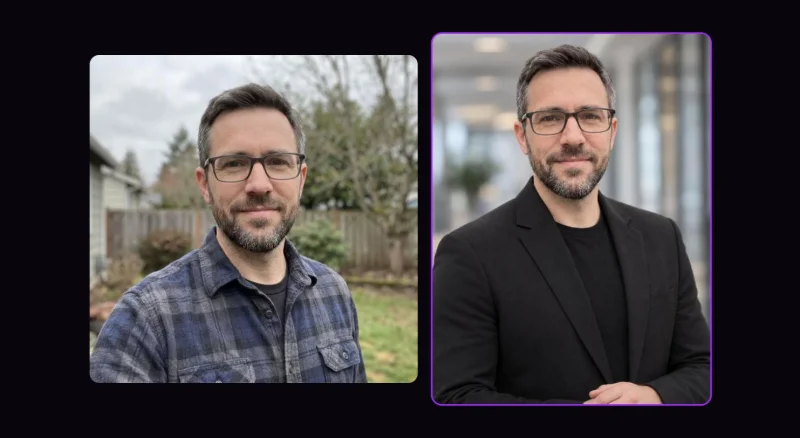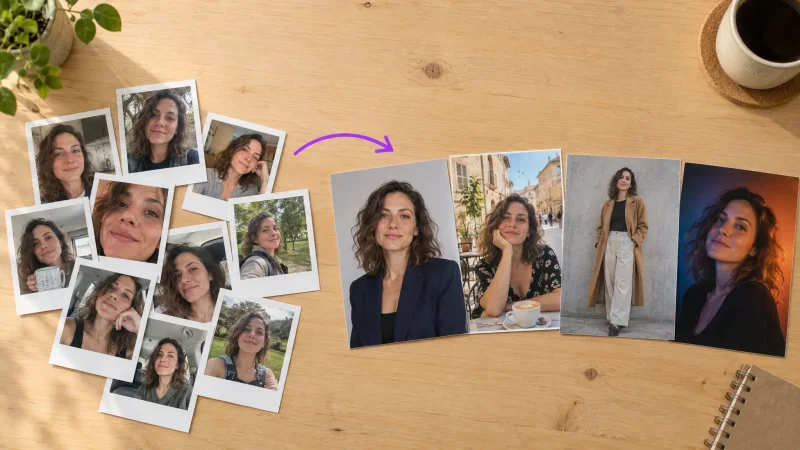
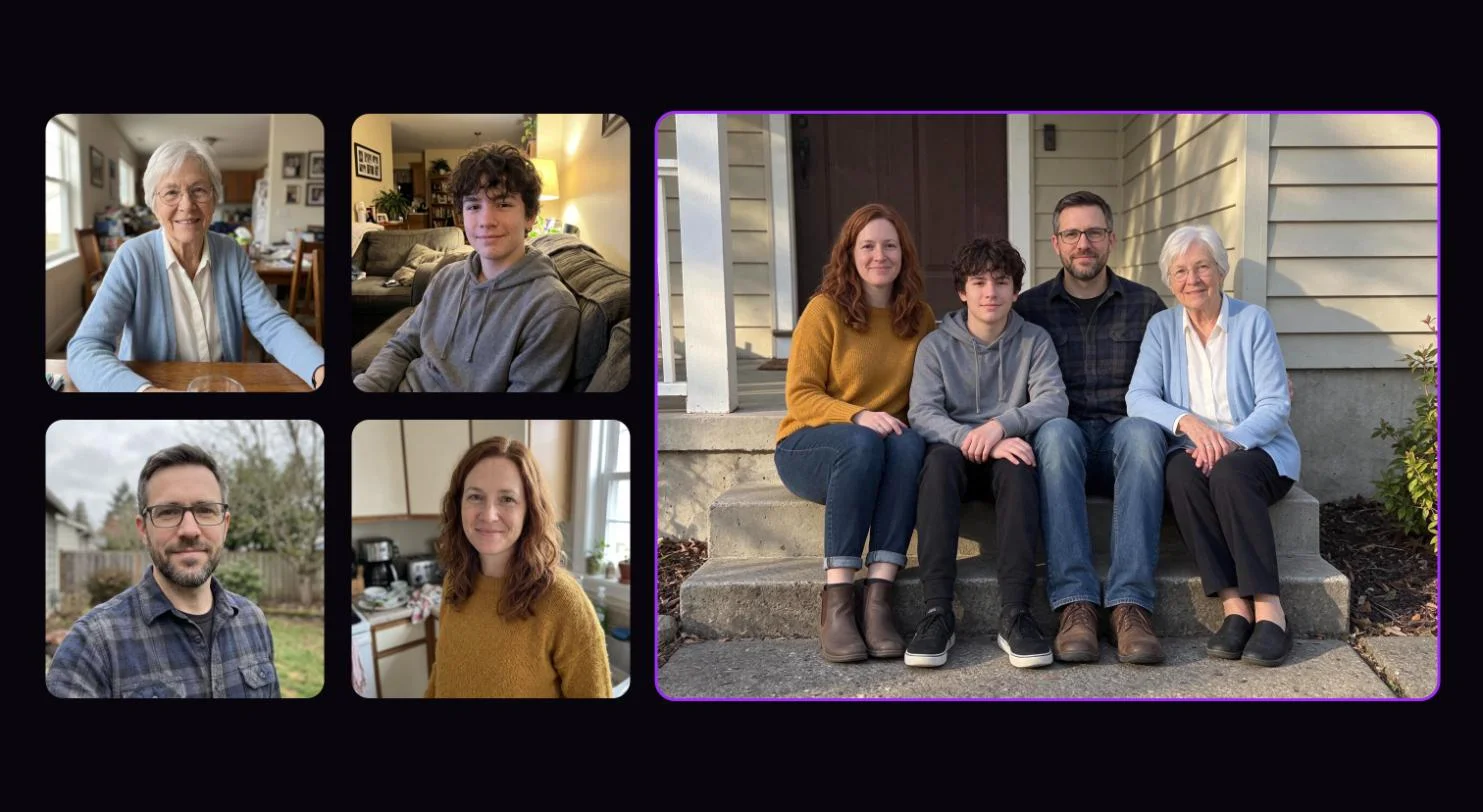
You can make one AI family photo from separate pictures by uploading a photo of each person to an AI image editor and describing the scene that puts them together. In MagicShot, the tool for this is AI Image Editing. The first photo you add is the one being edited, and the rest act as references. The photo limit keeps this to small groups, and the part that needs your attention is checking every face.
What you need before you start
One clear photo per person. The face should be fully visible and well lit, with no sunglasses. You can try a pet photo as one of the references.
Agreement from everyone in the picture. You are generating a new image of them.
A scene in mind. Think front porch, couch by the tree, or matching pajamas. Pick one setting and one time of day.
A MagicShot account with credits. The Generate button shows the cost of each run, and every extra pass costs credits again.
How to combine photos into one AI family photo in MagicShot
Open AI Image Editing.
Pick your model before you count heads. The number of photos you can add changes with the model. When we checked on November 25, 2026, the upload box read "Add up to 4" with Seedream 5.5 selected and "Add up to 9" with GPT Image 2.6 Sunburst. That count includes the first photo. For five or more people, start with a model that allows more photos.
Select "Add your photo" and add the photos in a set order. The picker lets you upload new files or choose from your Library, Gallery, or Favorites. Lead with the clearest, best-lit photo, since the first photo is the one being edited. Describe the scene in your prompt. In our test, the first photo's kitchen background did not carry into the result. Photo 1 is the first one you uploaded, photo 2 the second, and so on. The prompt refers to people by that number.
Leave "Maintain face consistency" on. The toggle sits beside the Generate button.
Write the prompt. A starting version is below.
Choose an aspect ratio. Use 4:3 for a landscape print, 3:4 for a portrait print, and 9:16 for a phone story. Seedream 5.5 and GPT Image 2.6 Sunburst both listed these when we checked, and Sunburst added 3:2 and 2:3.
Select Generate.
The Presets button under the prompt box also opens a browser that includes Add a person and Couple photo. A preset adds its instruction to your prompt, where you can edit it.
A prompt to start from
We ran this prompt once on November 25, 2026, with Seedream 5.5, four AI-generated portraits as the source photos, and a 4:3 ratio. The first result showed all four people on the steps, each recognizable from their source photo, with no extra guests. Everyone kept the outfit from their own photo, so add a line about clothing if you want coordinated looks. One run is not a guarantee, so swap in your own people and scene and check every face.
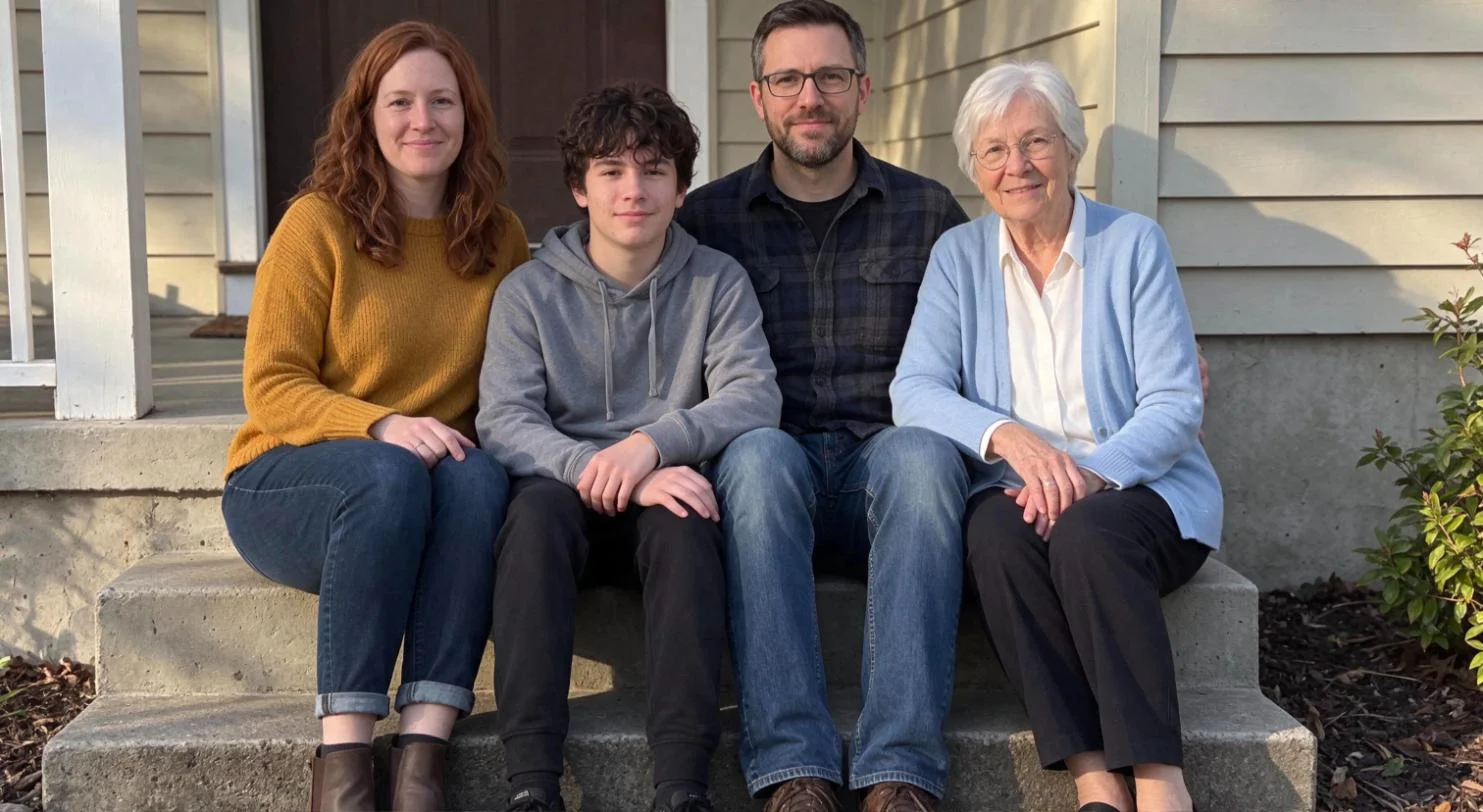
Combine the people from these photos into one family portrait. There are four people in the final photo, no more: the woman from photo 1, the man from photo 2, the teenage boy from photo 3, and the grandmother from photo 4. Keep each person's face, hair, and skin tone the way it is in their own photo. Do not mix one person's features into another person's face. They sit close together on the front steps of a house. Warm late-afternoon sun from the left. Everyone looks at the camera.
The head count is meant to keep extra guests out. Naming people by photo number helps the model place each face. The line about mixing features is there for relatives, who already look alike. One named light source helps everyone look like they were in the same place.
Common problems and what to try
Problem | What to try |
|---|---|
An extra person shows up | State the exact number of people and add "no other people in the scene" |
Two siblings come out with the same face | Describe each by photo number plus one detail, such as "the boy with curly hair from photo 3" |
One person looks pasted in | Name a single light source, or open Presets and add a lighting preset such as Window light |
A child comes out as tall as the adults | Give ages or relative heights in the prompt |
One face drifts while the rest hold | Try rerunning with that person's photo first, and renumber the people in your prompt to match the new order |
If your family is bigger than the photo limit
One approach to try is building the picture in passes. Generate the core group first. Then start a new edit with that result as the first photo, add the remaining relatives as references, and ask the model to place them beside the group without changing anyone already there. Every pass can shift faces slightly, so check each person again before you move on. For a very large family, a collage of separate portraits may look more natural than one crowded scene.
Turning it into a card
Once the group photo is right, the greeting and print size are a separate job. Our guide to making an AI Christmas card from your photo covers getting the text spelled correctly and choosing a card size. If the downloaded file is too small for print, run it through the Image Upscaler. For scene ideas, see AI Christmas Photo Prompts: 7 We Tested on Solo, Couple, Family, and Pet Photos.
Before you share or print
This is a generated picture of a gathering that didn't happen. Say so when you share it.
Faces can still change. Compare every person against their source photo before you print fifty copies.
Jewelry, tattoos, and text on clothing are common trouble spots.
For photos of children, the decision belongs to their parents or legal guardians.
More on the tool itself is on the AI Image Editing page.