To make an AI Christmas card, add one photo to an AI image editor, describe the scene and the exact greeting you want, and choose a portrait size that fits your print. We made three cards this way in MagicShot's AI Image Editing on November 23, 2026. All three came back with the greeting spelled correctly on the first run. The prompts we used are below, along with the checks worth doing before you print.
MagicShot does not have a separate Christmas card tool. The cards in this post were made in AI Image Editing with a prompt.
What you need
One clear photo where every face is visible
A short greeting, such as "Merry Christmas"
A name line, such as your family name and the year
A size in mind: a 4x6 print, a 5x7 print, or a phone screen
How to make the card in MagicShot
Open AI Image Editing and add your photo.
Pick a model. We used GPT Image 2.6 Sunburst. The credit cost for your model shows on the Generate button.
Set the aspect ratio. We used 2:3 for all three cards.
Paste a card prompt from below and replace the greeting and names with yours, inside quotation marks.
Select Generate, then read every letter on the result.
Download the card. To change the wording, select "Edit another", edit the prompt, and run it again.
Three AI Christmas cards we made
Every person and pet shown is an AI-generated test subject.
Card 1: Classic family card
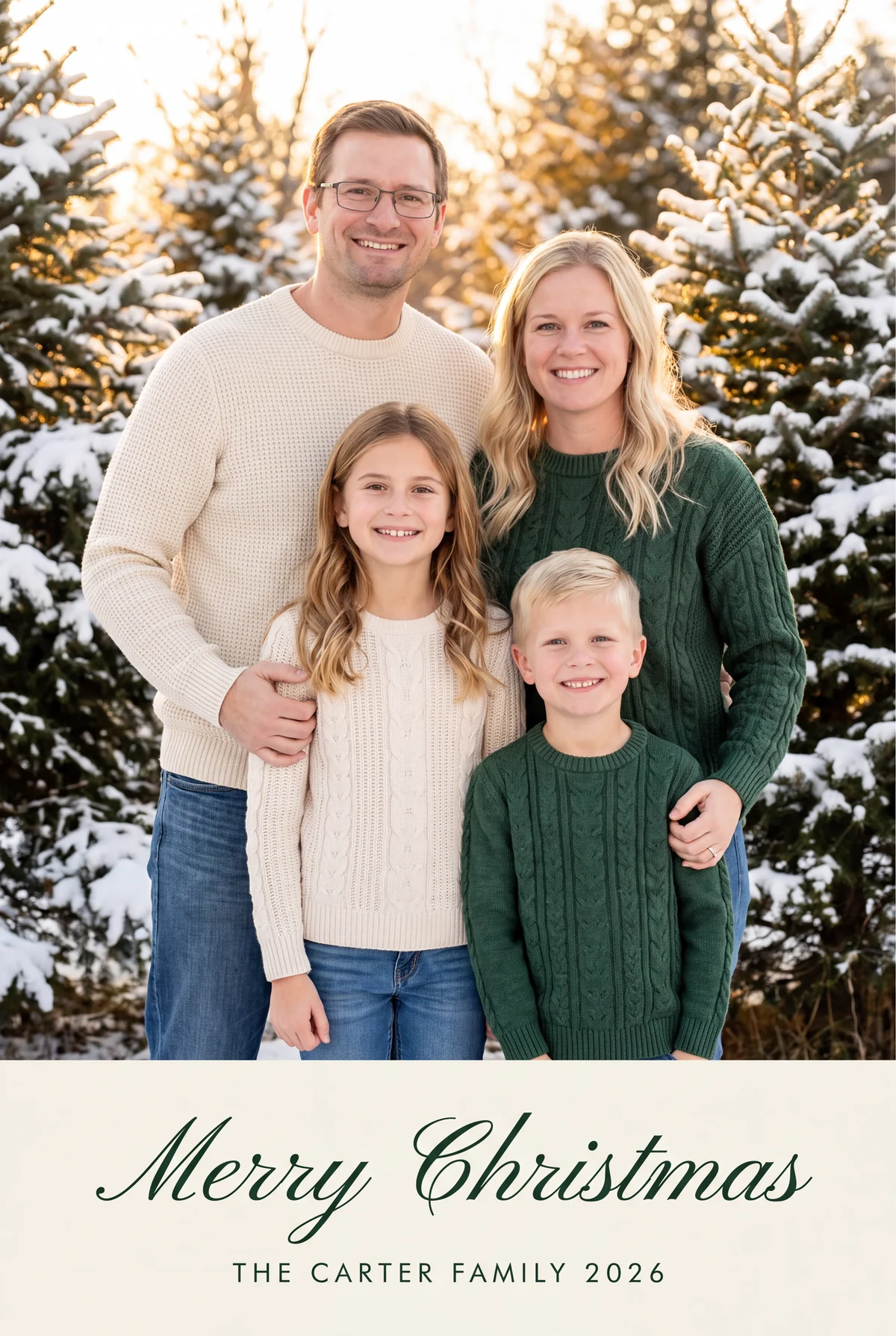
Design a printable Christmas photo card from this family photo. Keep all four faces and the father's glasses exactly as they are. Dress the family in cream and forest-green sweaters, standing in front of snowy evergreen trees at golden hour. Place the photo in the top two thirds of the card. In the bottom third, on a solid cream band, add the greeting "Merry Christmas" in elegant dark green script, and below it "THE CARTER FAMILY 2026" in small dark green capital letters. Each line of text appears once. No other text, no logos, no watermark.
Generated with MagicShot. The people and pets shown are AI-generated.
The layout came back as described, with four recognizable faces and both text lines spelled correctly.
Card 2: Modern couple card
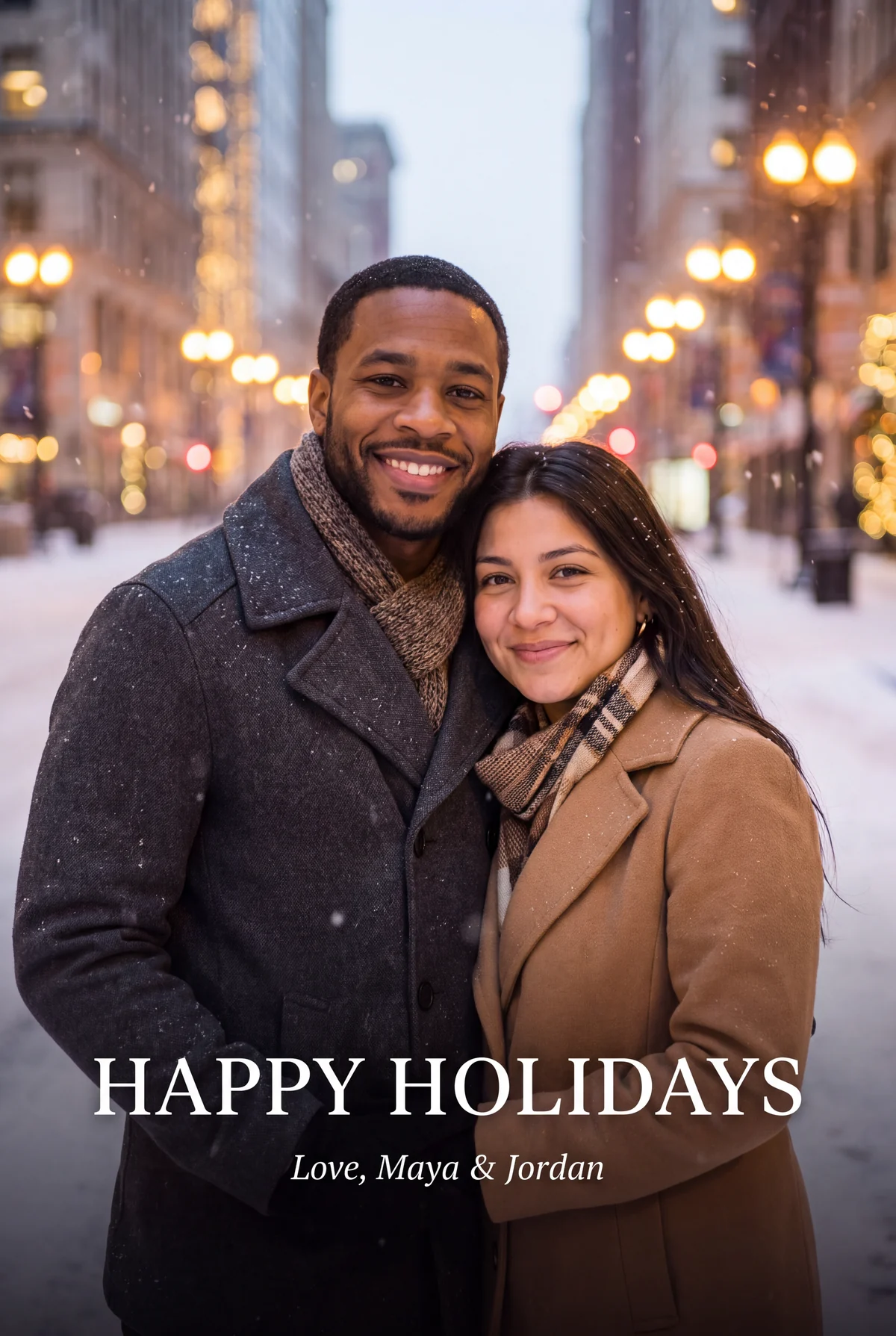
Design a modern Christmas photo card from this couple photo. Keep both faces, skin tones, and hair exactly as they are. Dress them in wool winter coats and scarves, standing close together on a snowy city street at dusk with warm out-of-focus lights behind them. Use the photo full-bleed. In the lower third, over a soft dark gradient, add "HAPPY HOLIDAYS" in large white serif capital letters, and below it "Love, Maya & Jordan" in small white italic letters. Each line of text appears once. No other text, no logos, no watermark.
Generated with MagicShot. The people and pets shown are AI-generated.
We got a full-bleed photo card with both lines correct, including the comma and the ampersand.
Card 3: Pet card
Design a Christmas card from this dog photo. Keep the dog's face and fur exactly as they are. Put a red bow tie on the dog and seat it in gently falling snow against a deep red background. Across the top add "Happy Howlidays" in bold white hand-lettered script. At the bottom add "LOVE, COOPER" in small white capital letters. Each line of text appears once. No other text, no logos, no watermark.
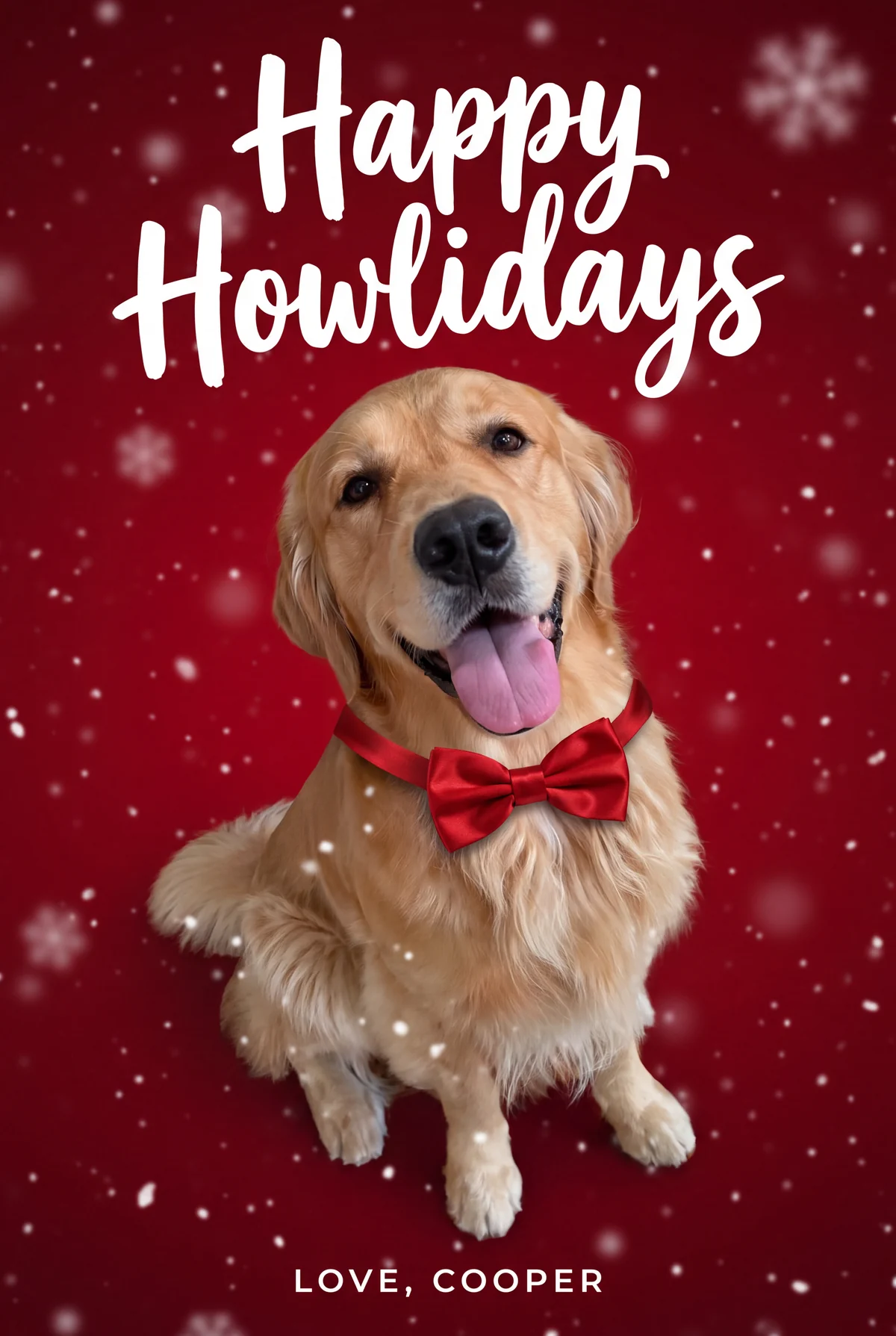
Generated with MagicShot. The people and pets shown are AI-generated.
It was the same dog, now in a bow tie, and the made-up word "Howlidays" was spelled as written. One thing to watch: a snowflake landed next to the small text and looked like an accent mark at thumbnail size. It was clean when we zoomed in.
How to get the greeting spelled right
Put the exact words in quotation marks.
Say where each line goes, such as "in the bottom third" or "across the top".
Describe the lettering by look, such as "dark green script" or "white serif capital letters". Skip font names.
Add "Each line of text appears once" and "No other text".
Keep it short. Our cards had two lines each, and longer messages are untested.
Read the result letter by letter before you print. Three correct cards is a small sample, and AI text can still come back wrong.
What size should an AI Christmas card be?
You want | Aspect ratio to pick | Notes |
|---|---|---|
4x6 print | 2:3 | Exact fit. This is the size we tested. |
5x7 print | 3:4 | Closest option. Expect about a quarter inch trimmed from the width. |
Instagram or WhatsApp Story | 9:16 | Fills a phone screen. |
Square post | 1:1 | For a feed post. |
AI Image Editing has no 5:7 option, so keep text away from the edges if you plan a 5x7 print. Our 2:3 cards downloaded at 3392 x 5056 pixels with GPT Image 2.6 Sunburst, which is more than enough for a 4x6 or 5x7 print. Other models may give smaller files, so check the pixel size before you order. If a file is small for your print size, Image Upscaler can increase it. We did not print these cards.
Limits to know
The card shows a scene that was generated, such as a snowy tree farm. It is a picture of your family, and it is not a record of a real shoot.
You cannot edit the text as a layer. To change a word, run the prompt again.
Only use photos of people who are happy to be on your card.
Need more looks for the photo itself? See AI Christmas Photo Prompts.
Open AI Image Editing and make your card.