You wrote the script. Now you need it read out loud, and you would rather not record it yourself. Here is how to use text to speech with the MagicShot AI text to speech tool: paste your script, pick a voice, set the speed and generate. The app estimates two to ten seconds, and you get three free voiceovers a day on the free engine.
What you need before you start
A MagicShot account, signed in.
A script of up to 2,000 characters. That is roughly 300 to 350 words, enough for a short video voiceover.
A rough idea of the voice you want: age, accent, energy.
Step 1: Open Text to Speech
Open AI Text to Speech from the Audio menu in the app. The left panel has a script box, an engine picker, a voice picker and a speed slider.
Step 2: Write or paste your script
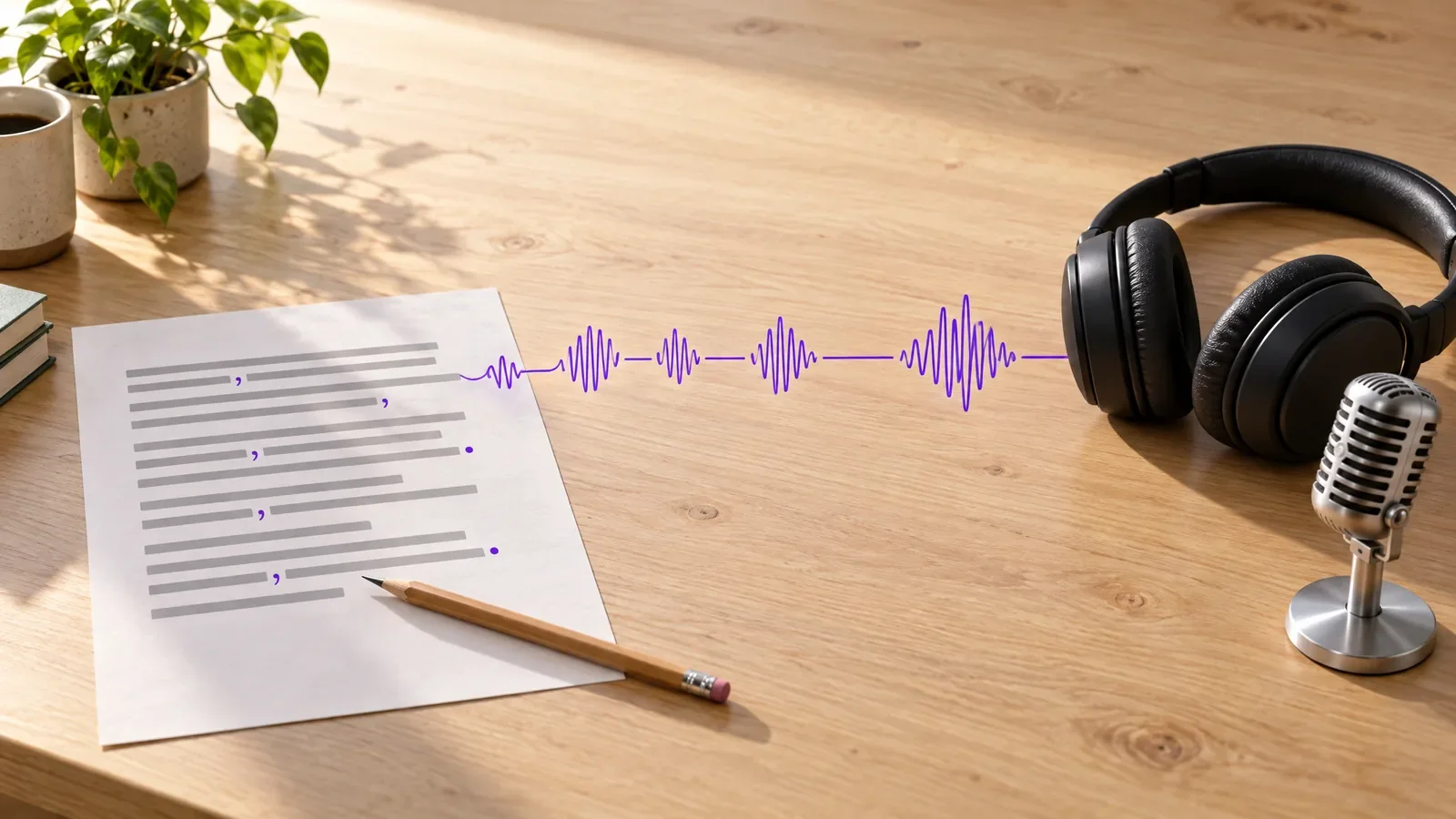
Type or paste what you want spoken. The box tells you that punctuation shapes the delivery: commas make the voice breathe and full stops let a sentence land. That is the biggest lever you have. A few tips:
Write the way you talk. Read it aloud once. If you trip, the voice will too.
Use short sentences. Long ones come out flat.
Spell out numbers and acronyms the way you want them said.
Step 3: Choose the engine
The default engine is Magic Speech, marked free in the app. It is a good place to start.
Step 4: Pick a voice and set the speed
Open the voice picker and filter by language, then choose the voice that fits. Each voice shows a short label, for example American, young male. You can preview a voice before you commit. The speed slider starts at 1x. Move it slower for a calm explainer, and faster for a snappy ad.
Step 5: Generate and listen
Press Generate. With the free engine the button reads Free. Listen to the whole thing. If one word sounds wrong, respell it or add a comma, and run it again. Small edits to the script change the delivery more than you would think.
Step 6: Download or send it to Podcast Creator
Download the audio and drop it into your editor. You can also send it straight to the Podcast Creator tool to put the voice behind a face.
Script examples that work well
Product video: Meet the lightest travel bag we have ever made. It folds flat, holds a week of clothes, and fits under any seat.
Explainer: Here is the problem. Most people save photos, and never look at them again. Let us fix that in three steps.
Social clip: Three tips. Number one: shoot near a window. Number two: keep it simple. Number three: post daily.
Notice the short sentences and the full stops. Each one gives the voice a place to pause.
Matching the voice to the job
Warm, slower voices suit tutorials and storytelling.
Brighter, faster voices suit ads and short social videos.
Pick the language first, then listen to two or three voices before you decide.
Pairing it with video
Generate the voiceover first, then build the visuals to fit it. If you need clips, you can create them with Text to Video and lay the audio over them in your editor.
Troubleshooting
It sounds robotic
Shorten your sentences, add commas where a person would pause, and try another voice. Delivery depends heavily on punctuation.
A word is pronounced wrong
Respell it phonetically in the script, for example write a brand name the way it sounds.
I used my three free voiceovers
The free allowance is three a day. Come back the next day, or use credits for more.
For a comparison of the options on the market, read our roundup of the best text to speech generators. If you create videos for YouTube, AI text to speech for YouTube covers that workflow. When you are ready, open text to speech and try a short script first.