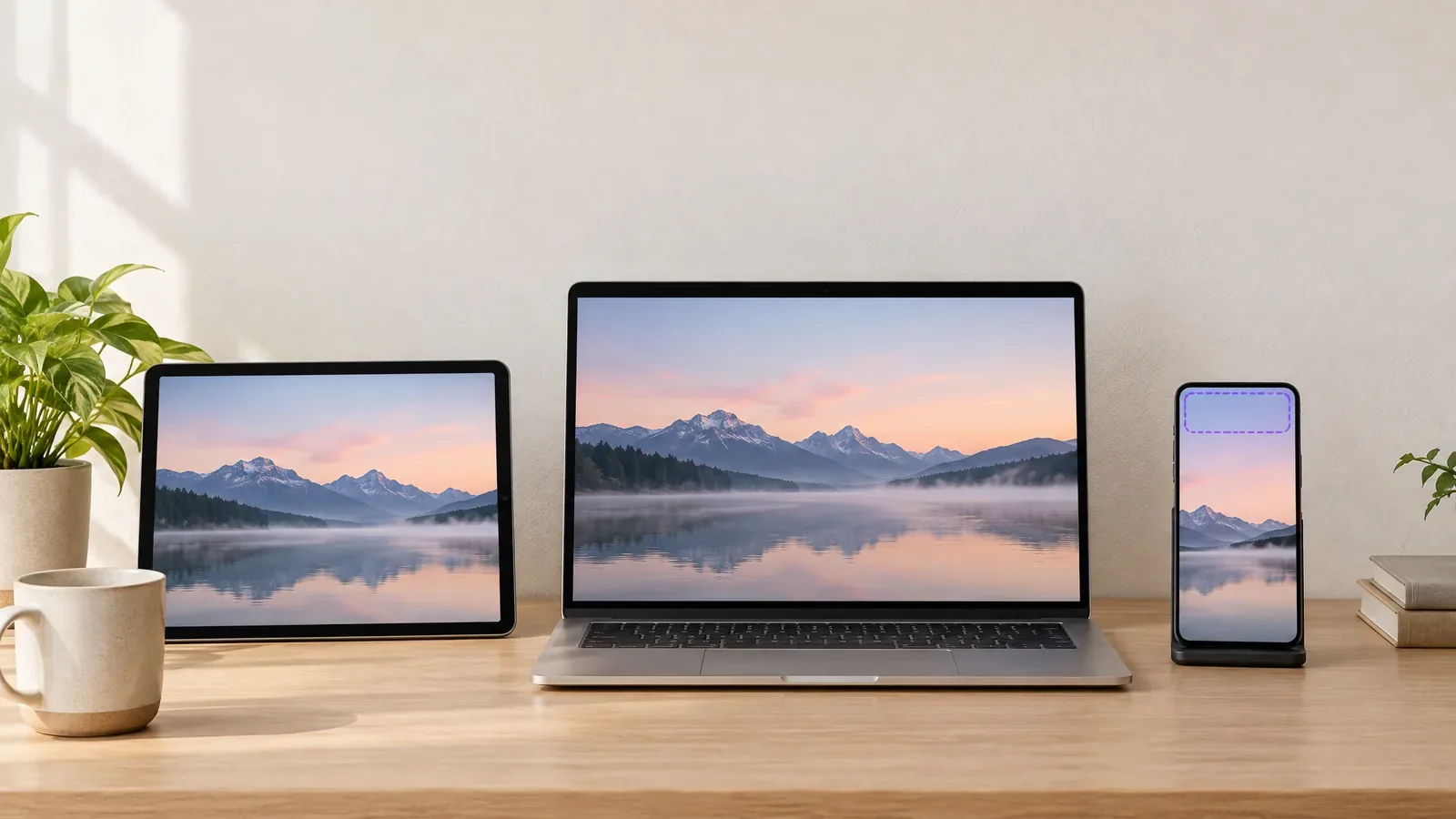
Stock wallpapers get old fast, and searching for one that actually matches your taste takes longer than making it. Here is how to make a wallpaper with AI using the MagicShot AI wallpaper generator: write a description, pick the right shape for your screen, and generate. Ten minutes from now you can have a background nobody else has.
What you need before you start
A MagicShot account, signed in.
An idea of the mood: calm lake, neon city, a minimal abstract pattern, your favourite colour palette.
To know whether the wallpaper is for a phone or a desktop. That decides the aspect ratio.
Step 1: Open the AI image generator
The wallpaper tool runs on MagicShot's AI Image Generator. Open it from the Image menu in the app. The left panel has a Model picker, a Prompt box and an Aspect ratio menu.
Step 2: Pick a model
The model list is grouped by maker, and each one shows its credit cost. Pricier models are not automatically better for wallpapers. A mid-priced model is usually enough for a clean landscape or abstract, and you can step up if you want more detail. The cost for your choice appears on the Generate button.
Step 3: Choose the aspect ratio for your screen
This is the step people skip, and it is why wallpapers end up cropped badly. The app offers five shapes:
9:16 Vertical for phone lock screens and home screens.
16:9 Landscape for desktop and laptop screens.
3:4 Portrait and 4:3 Landscape for tablets and older screens.
1:1 Square for avatars and posts, not usually for wallpapers.
Step 4: Write the prompt
Describe the scene the way you would brief a photographer. Name the subject, the light, the colours and the feel. Two examples:
A quiet mountain lake at dawn, low mist, soft pink and blue sky, wide empty foreground, calm and minimal.
A rainy neon street at night, reflections on wet pavement, lots of dark space at the top for phone icons.
The second prompt shows a trick. Leave empty space where your icons or widgets will sit. Ask for it in the prompt, such as "empty sky at the top" or "dark negative space", and the wallpaper stays readable once your apps are on top of it. If your first prompt feels thin, the Improve button next to the prompt box expands it for you.
Step 5: Generate, compare and download
Press Generate. Look at the result on its own, then think about how it will look behind your icons. If it is close but not right, change one thing in the prompt, like the time of day or the colour, and run it again. Download the one you like and set it as your wallpaper in your phone or computer settings.
Wallpaper prompt ideas by style
Calm and minimal: Soft sand dunes at sunrise, smooth curves, warm beige and peach tones, large empty sky.
Dark and moody: A lone lighthouse on a cliff in a storm, deep blue shadows, one warm light in the window.
Cosy: A small cabin in a snowy pine forest at dusk, warm glowing windows, quiet and still.
Abstract: Flowing ribbons of teal and violet on a dark background, smooth and glossy, plenty of empty space.
Nature close-up: A single green leaf with dew drops, macro, soft blurred background.
How to set it as your wallpaper
Download the image, then set it in your device settings. On most phones that is in the Wallpaper section of Settings, and on a computer it is under Personalization or Appearance. Preview it behind your icons before you confirm, and crop or reposition if the app asks.
Mistakes to avoid
Generating a square image and cropping it to a phone shape. You lose the top and bottom of your scene. Pick the right ratio first.
Packing the scene with detail. Busy wallpapers fight with your icons.
Changing five things at once between attempts. Change one, so you know what worked.
Troubleshooting
The wallpaper looks soft on my screen
Try a model with a higher credit cost for more detail, or ask for "sharp detail" and "high resolution" in the prompt. If you have a good image that is simply too small, run it through the image upscaler.
My icons get lost on top of it
Regenerate with calmer areas where the icons go, or darker, simpler space at the top and bottom.
It does not look like what I pictured
Be more specific about colours and lighting. "Warm sunset" is vague. "Orange and violet sky, long shadows" gives the model something to work with.
Pick the screen, pick the ratio, write a prompt with room for your icons, and iterate once or twice. When you are ready to make your own, open the AI wallpaper generator and start with one phone and one desktop version.