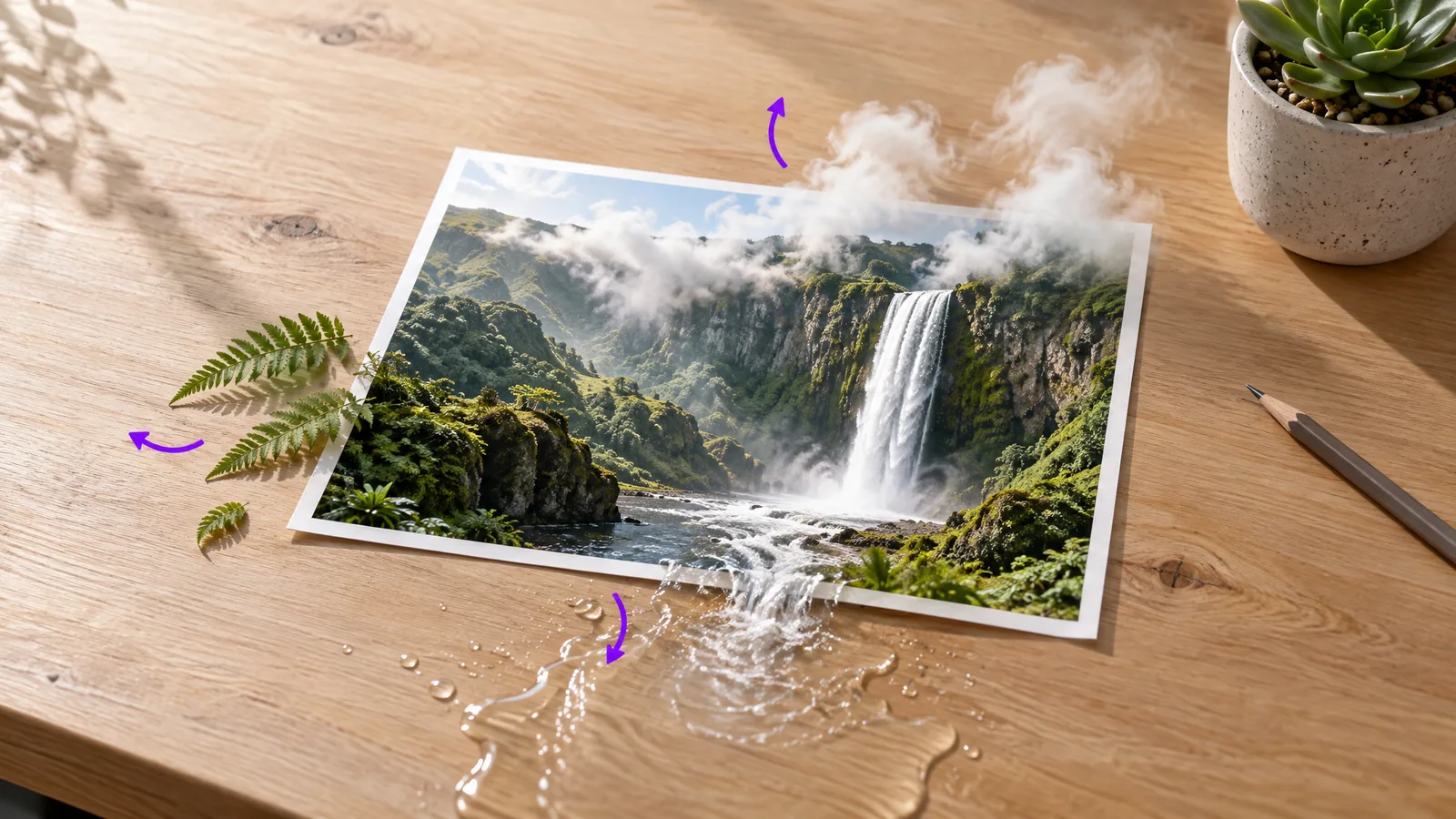
A still photo can only do so much on a feed. Add a little motion and it stops people scrolling. Here is how to turn a photo into a video with the MagicShot image to video tool: upload the photo, pick a motion style, describe the move, and generate. You get one free video a day on the free MagicShot Flash model, so you can try it without spending anything.
What you need before you start
A MagicShot account, signed in.
One photo with a clear subject. A sharp portrait, a product shot or a landscape all work.
A simple idea of the movement: a slow push-in, a gentle breeze, a camera orbit.
Step 1: Open Image to Video
Open Image to Video from the Video menu in the MagicShot app. The left panel starts with Add the photo to animate. Choose a photo from your library or upload one.
Step 2: Pick a motion style (optional)
The main area shows a gallery of styles grouped under Camera Moves, Subtle Life, Scene Animation, Transformations, Narrative Beat and Energy. Names like Pull Back Reveal, Orbit Around, Slow Pan and Parallax Depth show what each one does. A style is optional. It fills in the prompt as a starting point, and you can write your own instead.
Step 3: Describe the motion
The prompt box is required, and it works best when it describes movement, not the photo. The app's own example is "gentle push in, hair moving in the breeze". Name one camera move and one bit of life in the scene, and stop there. Not sure what to write? Press Improve and the tool expands your idea into a fuller prompt. Read it before you generate.
Step 4: Choose the model, ratio and length
Model: MagicShot Flash is marked free in the app and is a good first try.
Aspect ratio: match where the video will live. Use vertical for Reels, Shorts and TikTok, and wide for YouTube or a website.
Duration: shorter clips are quicker to make. The app notes that longer clips cost more credits.
Step 5: Generate and review
Press Generate. With the free model the button reads Free instead of a credit number. Watch the clip once all the way through. Did the subject keep its shape? Does the motion look natural? If something is off, change one thing in the prompt and run it again.
Prompts that work
Slow push-in on her face, soft breeze moving her hair, warm light.
Gentle orbit around the product, steam rising, shallow depth of field.
Slow pan across the landscape, clouds drifting, calm mood.
Which photos turn into a video best
Portraits: a clear, front-facing photo with good light. Ask for subtle life, like hair moving or a small head turn.
Products: a clean shot on a simple background. A slow orbit or push-in shows it off without distracting from it.
Landscapes: pick a photo with layers, like foreground, hills and sky. A slow pan or drifting clouds feels natural.
Old family photos: keep the motion very gentle, and avoid big camera moves.
Mistakes to avoid
Writing a long paragraph. One camera move and one detail is enough.
Asking for fast action from a still photo. Subtle movement looks more believable.
Starting with a blurry or very dark image. The tool can only work with what the photo shows.
Changing several things at once between attempts, so you cannot tell which edit helped.
Use the clip
A short animated photo makes a good Reel opener, a product teaser, a moving profile image or a looping background for a website. Add a voiceover or music in your editor if you want sound.
Troubleshooting
The motion looks warped
Ask for something calmer. Fast, complex movement is harder to render cleanly than a slow push-in or a gentle pan.
The face changed during the clip
Start with a sharp, front-facing photo and keep the camera move small.
I hit my daily limit
The free allowance is one video a day on the free model. You can come back the next day, or use credits for more.
If you want to make a video from words alone, no photo needed, follow the guide on how to use Text to Video. For more ideas on photo animation, see our post on how to animate a photo into video with AI. When you are ready, open image to video and try your first clip.