You want a short video, but you have no camera, no crew, and no time to book a shoot. That is exactly the gap Text to Video fills. You type what you want to see, and MagicShot builds the clip for you. This guide shows you how to use Text to Video from start to finish, so by the end you will have a short video made from a single written prompt, plus a few tricks to make the next one better.
Here is what you will achieve: a finished, downloadable video clip generated from a text description you wrote in plain English. No reshoot when a client changes their mind. No stock-footage subscription. Just words in, motion out.
What you need before you start
Three things, and none of them involve gear:
A MagicShot account, signed in at magicshot.ai.
A clear idea of the shot you want. One scene, one action. "A golden retriever running through tall grass at sunset" beats "a nice dog video."
Five minutes. Generation takes a short wait, not an afternoon.
You do not need a source photo for this workflow. Text to Video starts from words alone. If you would rather animate an existing image, that is a different tool, and I will point you to it at the end.
Step 1: Open the Text to Video tool
Head to the Text to Video page inside MagicShot's AI video generator. You will see a prompt box front and center. This is where the whole thing happens. Everything you do in this guide runs from that box and the settings around it.
If you have used MagicShot's image tools before, the layout will feel familiar. Same idea, except the output moves.
Step 2: Write your first prompt
Type a description of the scene you want. The model reads your words literally, so specifics matter. A strong prompt usually names four things:
Subject: who or what is on screen. "A barista," "a red sports car," "a single espresso cup."
Action: what they are doing. "pouring latte art," "drifting around a corner," "steaming on a marble counter."
Setting: where it happens. "in a sunlit cafe," "on a wet mountain road," "on a dark kitchen island."
Look: the mood or style. "warm morning light, shallow depth of field," "cinematic, slow motion."
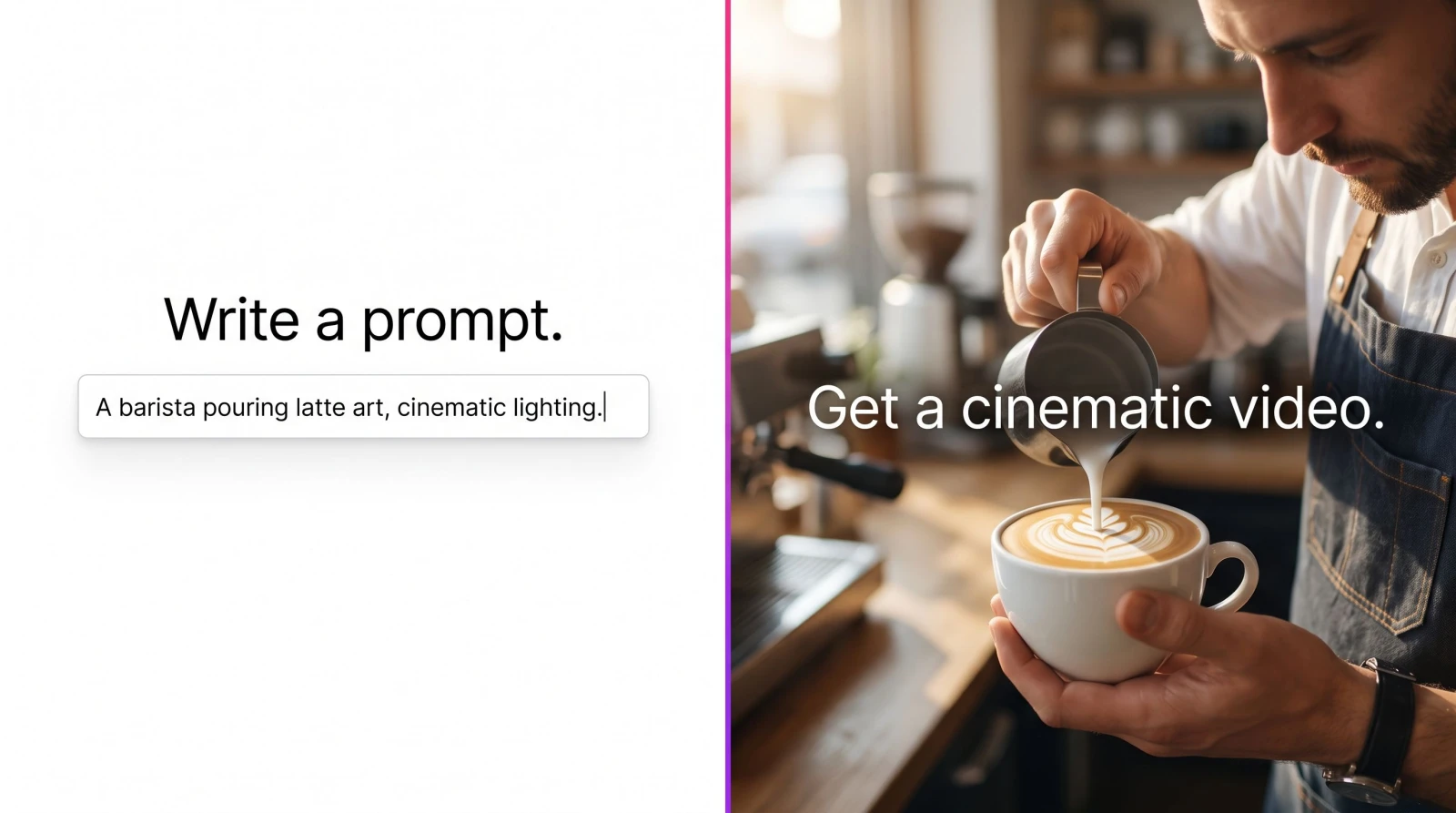
Put them together and you get something like: "A barista pouring latte art into a white cup, sunlit cafe, warm morning light, shallow depth of field, slow camera push-in." That is a prompt the model can actually build a shot from.
Why the detail pays off
Vague prompts get vague clips. The camera direction ("push-in," "pan," "static") tells the model how to move. The lighting note controls mood. Skip them and you hand those decisions to chance. Name them and you get the shot you pictured.
Step 3: Click Magic Prompt to sharpen it
Not sure your prompt is detailed enough? This is the shortcut. After you type your prompt, click the Magic Prompt button. It rewrites what you wrote into a fuller, more descriptive version, adding the camera moves, lighting, and framing cues that models respond to, without you having to learn prompt syntax.
So if you typed "dog running in a field," Magic Prompt expands it into something with breed, time of day, camera angle, and lighting. Read the enhanced version before you generate. If it added something you did not want, edit it. Magic Prompt is a starting draft you can tweak, not a locked result. It is the fastest way to close the gap between "I know what I want" and "I know how to describe it."
Step 4: Set your options
Before you generate, check the settings around the prompt box. Depending on what is available for your plan, you may be able to choose things like aspect ratio and clip length. Two quick calls to make here:
Aspect ratio: pick 9:16 for TikTok, Reels, and Shorts. Pick 16:9 for YouTube, websites, or a landing-page hero. Choosing the right frame now saves you from awkward cropping later.
Length: shorter clips render faster and hold attention. For social, a few seconds of one strong action usually outperforms a long, wandering shot.
Match the settings to where the video is going before you hit generate. It is far quicker than fixing it afterward.
Step 5: Generate the video
Hit Generate. MagicShot processes your prompt and builds the clip. This takes a short wait, not an instant, because the model is rendering every frame from your description. Give it a moment.
When it finishes, the clip plays in the preview. Watch it once all the way through. Ask yourself: did it get the subject right? Is the motion natural? Is the mood what you wrote? That review is the whole point of the next step.
Step 6: Review, refine, and regenerate
First results are rarely your last. If the clip missed, adjust the prompt rather than starting from scratch:
Wrong subject or detail? Be more explicit. Add color, count, or breed.
Motion too fast or too still? Add or change the camera cue. Swap "static shot" for "slow pan," or "fast" for "gentle."
Mood off? Rework the lighting and style words. "Golden hour" reads very differently from "overcast, moody."
Change one thing at a time so you can see what each edit does. This is the same loop a director runs on set, except you are not paying for a second shoot day to run it.
Step 7: Download and use your clip
Happy with it? Download the video. Now it is yours to post, drop into a longer edit, or hand to a client. A product teaser for an Instagram Reel, a scene for a short film, a background loop for a website header, they all come out of the same box.
If you want audio on top, add a voiceover with Text to Speech or a soundtrack from the AI Music Generator, then layer everything together in your editor of choice.
Troubleshooting and next steps
A few things that trip people up, and how to fix them:
The clip ignored part of my prompt
Long, cluttered prompts confuse the model. Cut it down to one clear subject and one clear action. If you are describing three things happening at once, split them into separate clips and stitch them later.
The motion looks jittery or unnatural
Fast, complex movement is harder to render cleanly than slow, simple movement. Try a calmer camera cue ("slow push-in" instead of "rapid zoom") and a single subject in frame.
I do not know how to phrase what I want
This is the Magic Prompt problem, and it has a one-click answer. Type your rough idea, click Magic Prompt, and let it draft the detailed version for you. Read it, tweak it, generate.
Where to go from here
Text to Video is one door into MagicShot's video tools. If you already have a photo you want to bring to life, use Image to Video instead. If you are making short-form content for social, UGC Videos and the AI Video Effects Generator are built for exactly that. Same principle every time: describe what you want, let the tool do the shoot.
The habit that separates good clips from lucky ones is the review loop. Generate, watch, adjust one thing, generate again. Three rounds beats one hopeful prompt.
That is the full workflow. Write a specific prompt, sharpen it with Magic Prompt, set your frame, generate, refine, download. Do it once and the second clip takes half the time.