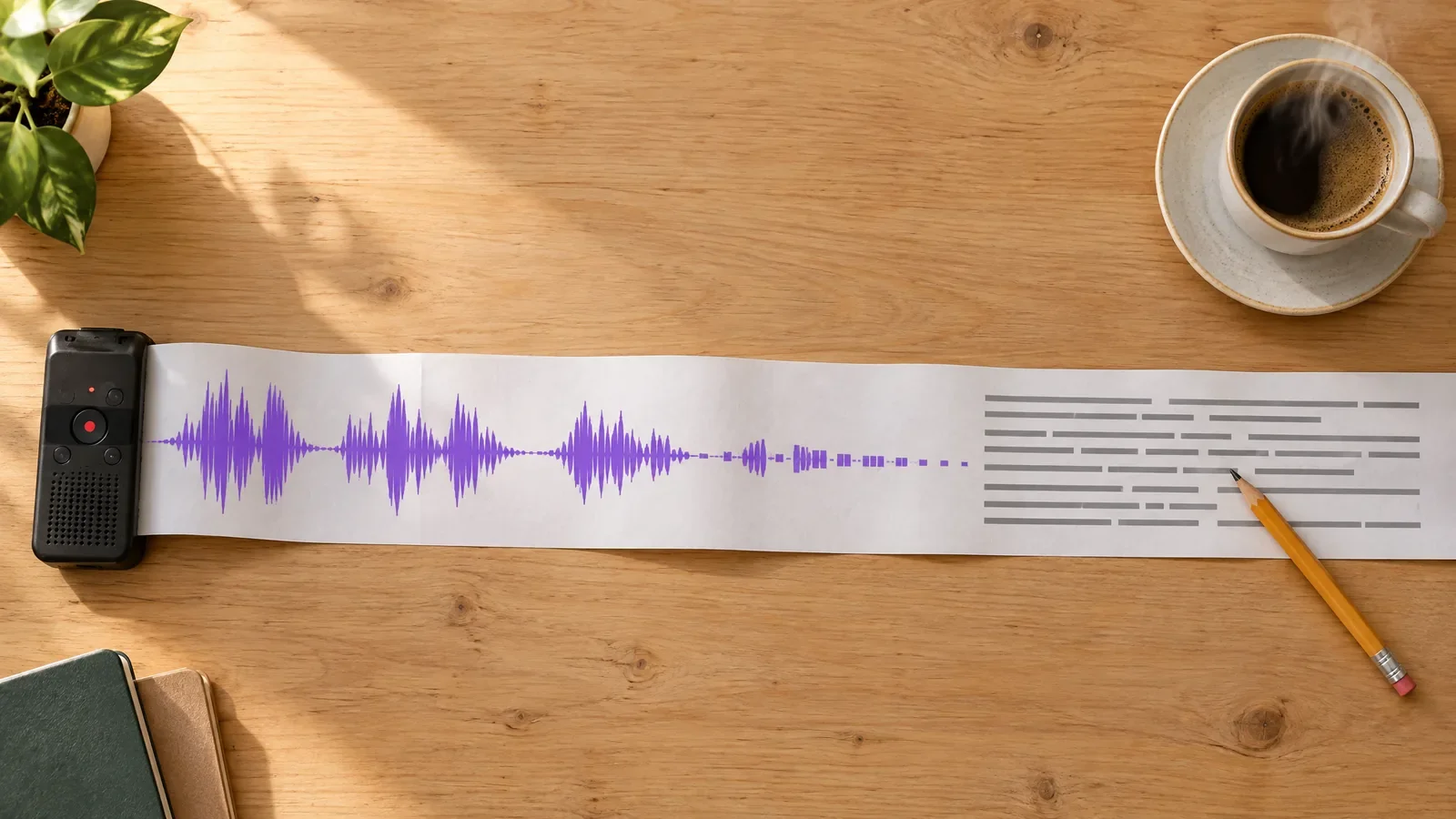
You have a recording, an interview, a voice note or a podcast episode, and you need the words on a page. Typing it out by hand takes several times as long as the audio runs. Here is how to transcribe audio to text with the MagicShot AI audio transcriber: upload the file, press Generate, and copy the result. Four steps, and most recordings come back in one to four minutes.
What you need before you start
A MagicShot account, signed in.
An audio file with speech in it. A voice note, an interview and a podcast all work.
Roughly the time it takes to make a coffee. The app estimates usually one to four minutes per recording.
One thing decides most of the quality: how clear the recording is. The tool itself says clearer audio transcribes more accurately, and that matches what you would expect from any speech-to-text system. A quiet room and a phone held near your mouth beat a noisy cafe every time.
Step 1: Open the Audio Transcriber
Go to the AI Audio Transcriber in the MagicShot app. The left panel has a single drop zone labelled Add your audio. Click it and choose your file, or drag the recording in.
Step 2: Check the model
The model box is pre-set to Magic Plus, marked as recommended. Leave it there unless you have a reason to change it. The Generate button shows the credit cost before you commit. At the time of writing it showed 10 credits.
Step 3: Press Generate
Click Generate and wait. The transcript is built in order, from the first word to the last, so you get the whole recording written out rather than a summary. For a short voice note this is quick. For an hour-long interview, give it a few minutes.
Step 4: Copy or download the transcript
When it finishes you can copy the text straight out, or save it as a .txt file. Paste it into your doc, your CMS or your notes app.
How to transcribe audio more accurately
Record close to the speaker. Distance and room echo are common causes of errors.
Cut dead air and music first. A cleaner file gives the tool less to guess at.
Split very long files. A 20-minute chunk is easier to proofread than one three-hour block.
Read it once against the audio. Names, product terms and numbers are where any automatic transcript slips. Fix those by hand.
What people use it for
Turning interviews into quotes for an article.
Writing up meeting notes from a recording.
Pulling a script out of a podcast episode so you can repurpose it as a blog post.
Making a text copy of a voice note you do not want to replay.
If you want to go the other way, from text back to audio, the guide on how to use text to speech covers the reverse workflow.
Tips for different kinds of recordings
Interviews
Ask people to speak one at a time. Overlapping voices are the hardest thing for any transcription tool, and you will spend your proofreading time untangling them. If you record the call yourself, a headset beats laptop speakers every time.
Podcasts
Use the cleanest version you have, ideally the edited master without intro music over the first words. Music underneath speech is where words go missing.
Voice notes and meetings
A phone placed in the middle of a table picks up the nearest voice well and the farthest one badly. For meetings, put it closer to whoever is talking most, or record each person separately if you can.
A faster way to proofread
You do not need to read every word. Skim the transcript while the audio plays at a slightly faster speed, and stop only where the text looks odd. Check names, brand names, numbers and dates first, because those matter most and are the most likely to be wrong. Then do a quick search for words you expect to see, like the guest's name or the product being discussed, to confirm they appear spelled correctly.
What to do with the transcript
Pull the best quotes for an article or a social post.
Turn the structure into a blog outline, one section per topic the speaker covered.
Write show notes for a podcast episode.
Keep a searchable text archive of recordings you would otherwise never revisit.
Troubleshooting
The transcript has wrong words
Usually a clarity problem. Re-record closer to the mic, or clean the file and run it again.
It is taking longer than four minutes
Long recordings take longer. Wait a little, and if you do this often, split big files before uploading.
I need the transcript in a document
Save the .txt file, or copy the text into Word or Google Docs and format it there.
That is the whole workflow: add the audio, keep the recommended model, generate, copy. Try it on a short voice note first so you can see how it handles your own voice, then move on to the long recordings through the AI audio transcriber.