Most phone photos do not need a full editing session. They need a picture enhancer. You shot something in bad light, it came out a little dark and a little soft, and you would rather not fiddle with five sliders. This is the quick version: one upload, one pass, a visibly cleaner photo, using MagicShot's image editor.
What a Picture Enhancer Fixes in One Pass
A single enhance pass usually brightens a dim exposure, reduces the grain a phone sensor adds in low light, and sharpens soft edges, all at once. A plain sharpening filter only tackles the last of those. It leaves the noise and the dim exposure underneath, which is why sharpened phone photos often still look rough.
How to Clean Up a Phone Photo
Upload the photo to MagicShot's image editor.
Choose the enhance option. No sliders are needed for a quick fix.
Generate and check the darkest part of the frame first, because noise shows there before anywhere else.
Download it, or run it again on one area if a patch still looks rough.
Does It Work on Screenshots and Batches of Photos?
Yes to both. A screenshot that has already been compressed has less detail to recover than an original camera photo, but the enhance pass still improves noise and sharpness. For a camera roll from one event, batch processing applies the same enhancement across a set so you do not upload and generate one at a time.

Why Low-Light Photos Look So Bad
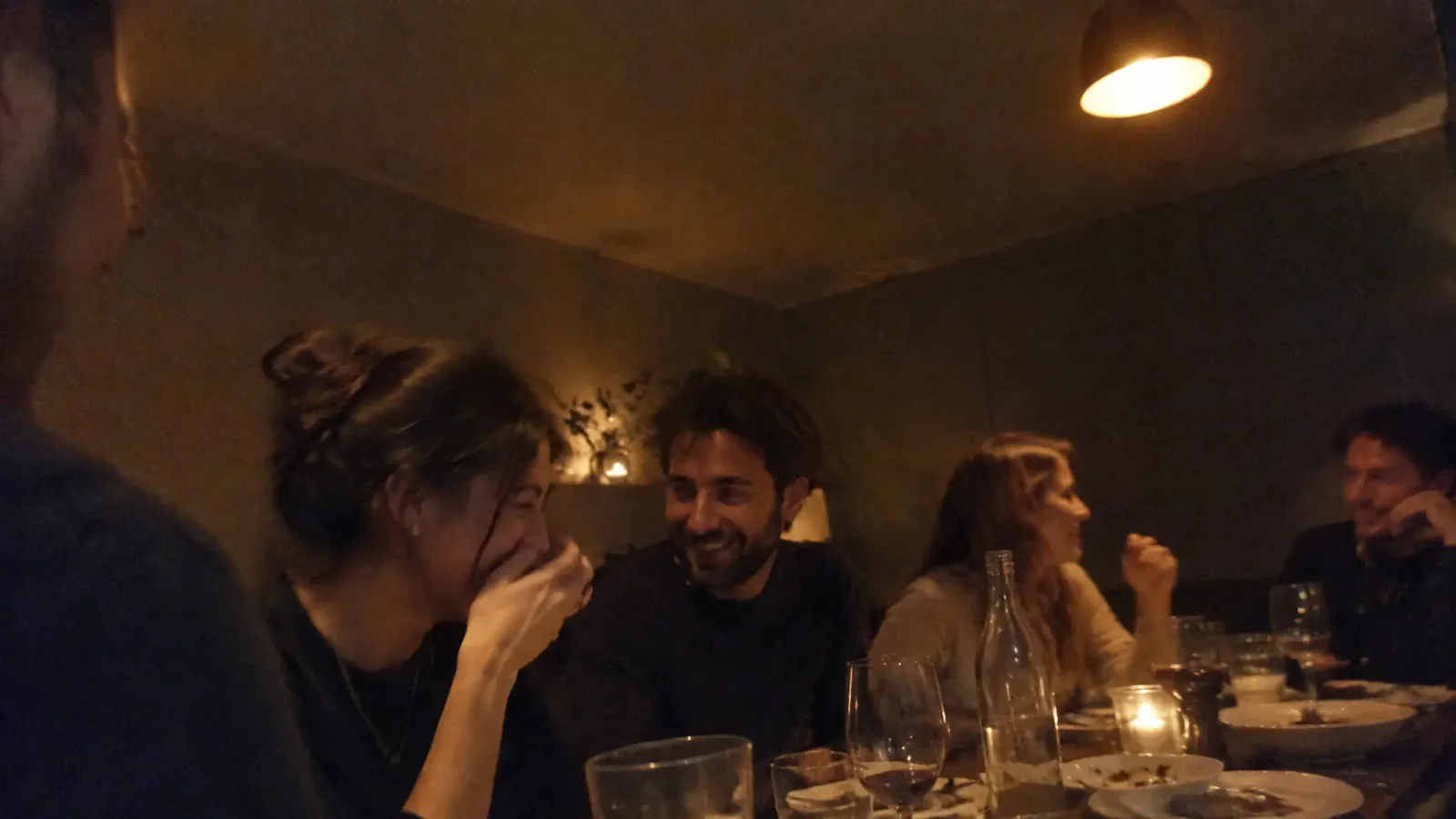
A phone shooting in a dim room does two things at once: it underexposes the image, and it raises its sensor sensitivity to compensate, which adds visible noise. Enhancing fixes both together. It brightens the image while smoothing grain. Just pushing the exposure slider up would make the existing noise louder, not quieter.
Tips Before You Enhance
Start from the original file, not a copy that was sent through a messaging app, which compresses images heavily.
Enhance once. Running the same photo repeatedly can leave skin and textures looking waxy.
Compare against the original at full size before you decide it is better.
Read Next
Image Enhancer: How AI Actually Improves a Blurry, Low-Res Photo for the fuller explanation behind this quick workflow.
AI Enhance Photo: When It Helps and When It Over-Processes if a result comes back too smooth.