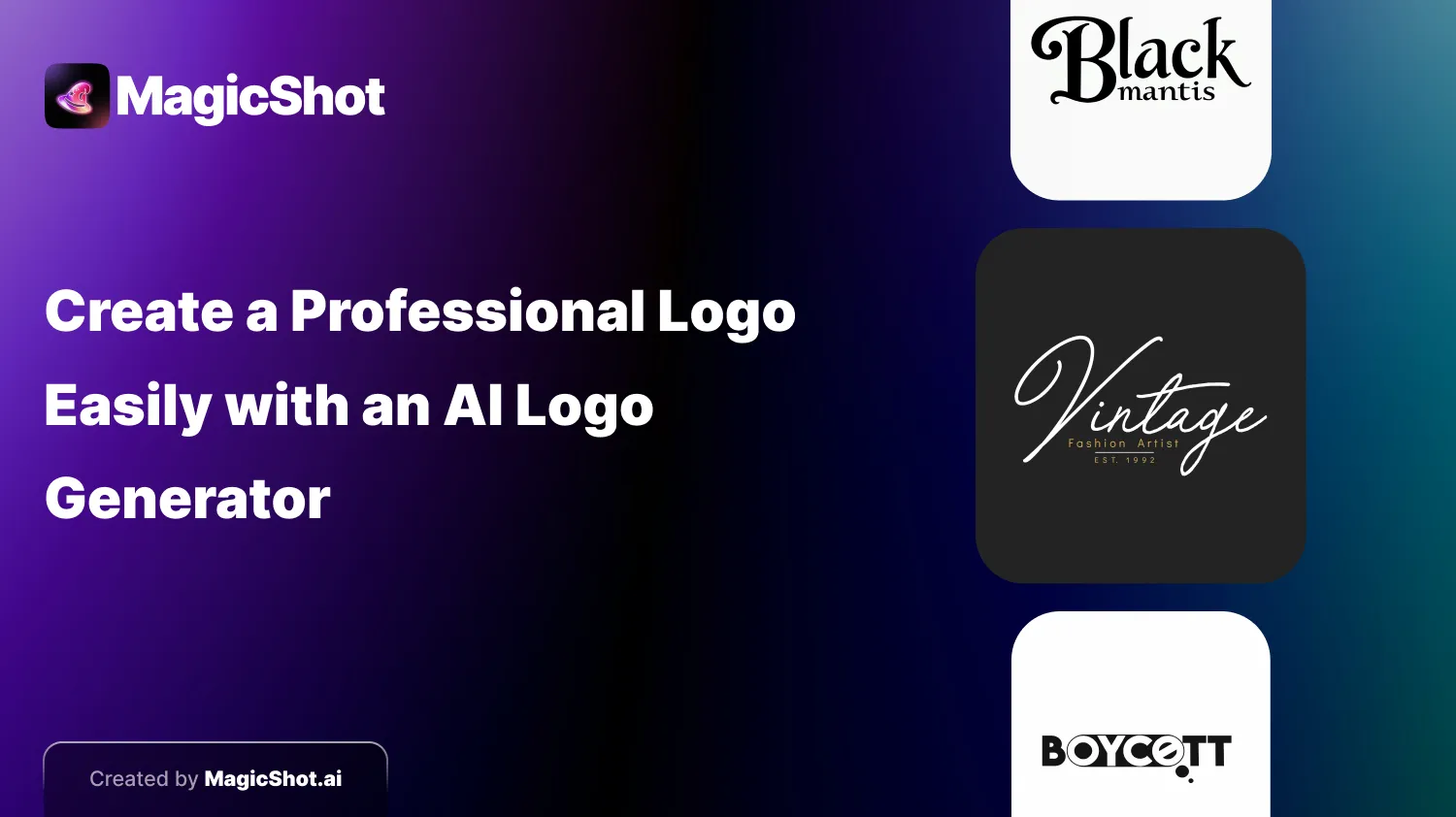
A logo has to do a lot with very little: be recognisable at the size of a favicon, readable on a dark background, and still look like your brand on a shopfront. An AI logo generator will not make those decisions for you, but it can produce a dozen directions in minutes, which is a faster way to find the one worth refining. This is a walkthrough of MagicShot's AI logo maker, followed by the checks a logo needs before you commit to it.
Before you open the tool
Spend five minutes on a mini-brief. It makes the prompt much better.
What the brand does and who it is for. - Three words for the feel, such as friendly, precise and modern. - A symbol idea, if you have one: a letterform, an animal, a simple shape. - Colours you want, and any you want to avoid. - Where it will appear: app icon, website header, packaging, signage.
Step by step in MagicShot
1. Open the logo generator
Go to MagicShot and open the AI logo maker from the menu, or use the link above.
2. Describe the logo
The first box asks you to describe your logo. This is the most important input. Name the brand type, the style (minimalist, geometric, vintage), any shape or symbol, and the colours. "A minimalist fox head made of two triangles, deep green and cream, flat vector style, on a plain background" works far better than "fox logo". If you are stuck, the Inspiration button suggests prompts.
3. Add the brand name if you want it
There is an optional field for your brand name. Short names usually render better than long phrases. Check the spelling in every result, because generated lettering is a common weak spot.
4. Optimise the prompt and choose a version
The Optimize Prompt switch refines your description before generation, and it is worth leaving on while you are learning. Different versions give slightly different results, so try more than one on the same prompt.
5. Pick an aspect ratio
You can choose 1:1, 9:16, 16:9, 3:4 or 4:3. Square suits social profile images and app icons, and wide suits website headers. Pick the shape you will use most, then adapt later.
6. Generate, compare and iterate
Generation usually takes a few seconds. Compare the options, choose the strongest direction and change one thing in the prompt at a time, such as the symbol, the colour or the level of detail.
7. Download
Download the chosen logo as a PNG.
Checks a logo needs
Small size. Shrink it to the size of a favicon. If the detail disappears, simplify the design. - One colour. It should still work in black and white. - Light and dark backgrounds. Test both. - Readable name. Check every letter. - Uniqueness. Search for similar logos in your industry and check trademark databases before you adopt one. - Format. AI output is usually raster. If you need a scalable vector for print or signage, have a designer trace or rebuild the final version. - Licence. Confirm that your plan allows commercial use of generated logos.
Prompt ideas to try
A lettermark using the first letter of the brand, geometric, two colours. - A simple animal or object mark in a single flat colour. - An emblem inside a circle for a cafe, studio or community brand. - An abstract mark made of overlapping shapes for a tech brand.
Next steps
A logo is one part of an identity. Once you have a mark you like, pick two brand colours and one or two typefaces, and write down how the logo should and should not be used. For help choosing a tool, see our guide to choosing the best AI logo generator, and our list of top AI logo generator tools for alternatives. Generation on MagicShot uses credits.
Try Countless AI Image, Video, and Audio features on MagicShot.ai
Generate realistic photos of anything. Imagine, describe and create those images within seconds. Enhance your existing photos with our advanced AI engine.