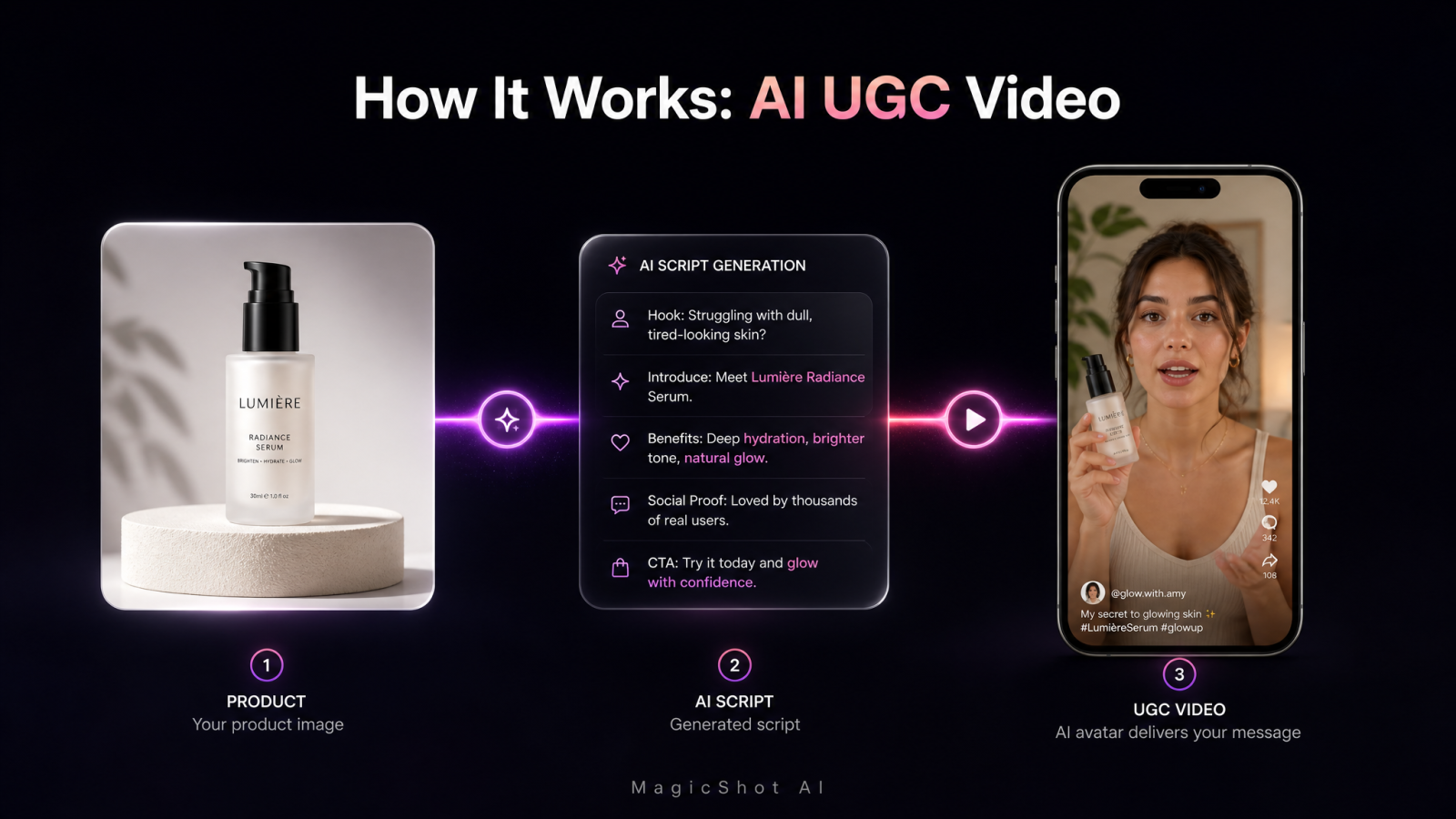
You can turn a single product photo into a creator-style ad before dinner. That's the promise behind ai ugc: instead of paying a creator to film an unboxing, you upload a photo, pick a vibe, and let a ugc ai tool write the script, generate a presenter, and voice the whole thing for you. The result is a ugc video ready for TikTok, Reels, or a paid ad account, with no camera, no creator brief, and no shipping label involved. This guide walks through exactly how MagicShot's version works, step by step, so you can make one yourself in the next twenty minutes.
What you'll need before you start: a MagicShot account on a paid plan, one or more clear photos of your product, and a short list of the details you'd tell a human creator, things like the product name, what it does, and the one benefit you want the video to hit hardest.
What ugc video is, and why brands use ai for it
UGC video is short for user-generated content video: the handheld, talking-to-camera style clips that look like a real customer or creator, not a brand's polished commercial. On TikTok and in Meta ads, this style tends to blend into the feed instead of announcing itself as an ad, which is why so many ugc ads outperform studio spots for cost per result, even when the production value is lower.
The catch has always been supply. Booking creators, shipping product, reviewing footage, and paying usage fees takes days per video, and you usually need several variants to find a hook that works. AI collapses that timeline. A brand owner can go from product photo to finished ugc content in one sitting, test five hooks instead of one, and kill the losers without having paid a creator for any of them.
How the MagicShot ugc video creator works
MagicShot's UGC video creator turns a product image and a few details into a finished clip with an AI presenter, a written script, and a synthesized voice. Here's the exact sequence, in order.
Step 1: Open the UGC video generator and start a project
From your MagicShot dashboard, open the UGC Videos tool and start a new project. If your product photo isn't ready yet, shoot or generate one first and come back, a clean, well-lit shot of the product gives the tool more to work with than a cluttered or blurry one.
Step 2: Add your product image and details
Upload your product photo, then fill in the product details the form asks for, typically the product name, a short description, and the key benefits you want called out. Be specific here. "Whitens teeth in 7 days" gives the script something to say; "great product" doesn't.
Step 3: Choose a product category
Pick the category that matches your product, whether that's beauty, tech, home goods, apparel, food, or something else entirely. The tool supports any category, and the category you choose shapes the language and pacing of the script it writes.
Step 4: Pick a vibe and a video type
Choose a vibe, such as casual, excited, review-style, or storytelling, and a video type: testimonial, unboxing, demo, or problem and solution. These two choices do more to shape the finished video than any other setting, so it's worth reading the section below before you lock them in.
Step 5: Choose an avatar and a voice
Select an AI-generated presenter from the avatar library and pair it with a voice. MagicShot's avatars are generated by the platform, not uploaded by you, so you're choosing from a roster rather than filming a person. Pick a face and voice that plausibly match the people who buy your product.
Step 6: Review and edit the script
The tool writes a script from your product details automatically. Read it before you generate. You can edit lines that sound off, tighten the hook, or swap in the exact phrasing your brand uses, then move on once it reads the way you'd want a real creator to say it.
Step 7: Generate and download your video
Hit generate. Each generation uses credits from your plan, and the finished clip is saved to your library, where you can download it or send it straight to your ad account. If the first take doesn't land, change one variable, the vibe, the avatar, or the hook line, and generate again rather than starting from scratch.
Two settings are worth double-checking before you generate: aspect ratio and length. Most brands want a vertical, feed-ready frame for TikTok, Reels, and Shorts, and a runtime short enough to hold attention through the hook, so confirm both match where you actually plan to post before you spend a generation on the wrong shape.
Once you've got a video you like, that's your template. Duplicate the project, swap the product details, and you've got a repeatable ugc video creation workflow for your next SKU. Ready to try it? Make your first UGC video.
What happens behind the scenes
Once you hit generate, the tool writes a script from the product details you supplied, synthesizes a voice reading that script, generates an avatar speaking it with lip sync matched to the audio, and assembles the visuals and sound into a single rendered clip. It's the same basic pipeline behind most ai generated video ads today: text in, script out, voice out, animated presenter out, then one rendered file at the end.
Choosing the right vibe and video type for your product
The vibe and video type you pick should match how your buyer actually talks about the product. Skincare and supplements tend to do well as a testimonial or a problem-and-solution video: someone naming a frustration, then showing the fix. Gadgets and home tools often work better as an unboxing or a demo, where the presenter shows the product doing its job rather than just describing it. Apparel and accessories usually land with a casual, excited tone, closer to a friend showing off a haul than a formal review.
If you're not sure which combination fits, generate two or three ugc product video variants with different vibes and let the results tell you. This is also where a lot of the best-performing ugc video ads get found, not from a single perfect brief, but from testing a few honest options against each other.
Avatars and voices: getting a presenter that fits your audience
Your avatar and voice choice is doing the same job a casting decision does for a real shoot: it sets who the viewer imagines is talking to them. A skincare brand aimed at 20-somethings and a supplement brand aimed at older buyers need a different ugc actor, and matching that early saves you from a video that looks right but sounds off to the audience you're trying to reach.
Don't settle for the first avatar and voice pairing you try. Generate three or four variants with different presenters and see which one gets watched longest or clicked most in testing. It costs credits, not creator fees, so testing a range is cheap compared to booking a second shoot.
Voice matters as much as face. A flat, over-formal voice reading an excited script feels wrong the moment it starts, so listen to the pairing before you commit, not just the avatar on its own. If your brand already has a house voice from other MagicShot projects, matching it here keeps your UGC-style ads consistent with everything else you publish.
Using AI UGC videos in your ads
Once you've got a finished clip, the next job is running it where your buyers already scroll: TikTok, Instagram Reels, YouTube Shorts, and Meta or TikTok ad accounts. Because each generation is fast and low-cost relative to a traditional shoot, you can treat this like any other ai video ad generator workflow: produce several hooks, let the platform's ad algorithm decide which one earns attention, and cut the rest.
A practical way to structure testing: generate three to five variants per product, each with a different opening line or vibe, and load them into your ad account as separate ad units under the same campaign. This is the same logic performance marketers use with any ai video ad creator, more raw material in, faster iteration out. If you're running these as ugc for ads rather than organic posts, check your ad platform's current policy on disclosing AI-generated content, since rules around ai video advertising disclosure vary by platform and change over time.
How MagicShot compares to other UGC AI tools
Most standalone ugc software charges separately for avatars, voices, and video generation, and you're managing yet another subscription on top of your design and photo tools. MagicShot folds the UGC video generator into a single plan alongside every other tool and top models, so your product photos, your product to video clips, and your UGC output all live in one library, pulling from the same shared credits.
That matters in practice. If you're already using MagicShot to shoot product photography or generate an AI avatar video for another use case, there's no second account, no separate voice-cloning add-on, and no new tool to learn just to add UGC-style ads to your rotation. It's one set of ugc tools instead of five bills.
Troubleshooting your first UGC video
If the avatar's lip sync looks slightly off, try a shorter, punchier script line, longer sentences give the sync more room to drift. If the voice doesn't match the energy you wanted, swap the voice option rather than regenerating the whole project, most tools let you keep the script and avatar and only change the audio. If the script sounds generic, go back to Step 2 and add a sharper, more specific product benefit; vague inputs produce vague scripts.
If you're burning through credits faster than expected, generate your script and review it before locking in the avatar and voice, since re-running a bad script costs the same as running a good one. And if a category or vibe combination isn't landing after a couple of tries, it's often the product angle that's wrong, not the settings, go back to the benefit you're leading with and try a different one.
Once you've got a workflow that works, the next step is scale: batch a handful of products through the same settings, or pair the finished clips with a tool like Text to Speech if you need a voiceover for a different cut. Either way, the fastest path from product photo to a running ad is to turn your product into a UGC ad and see what the first variant does.