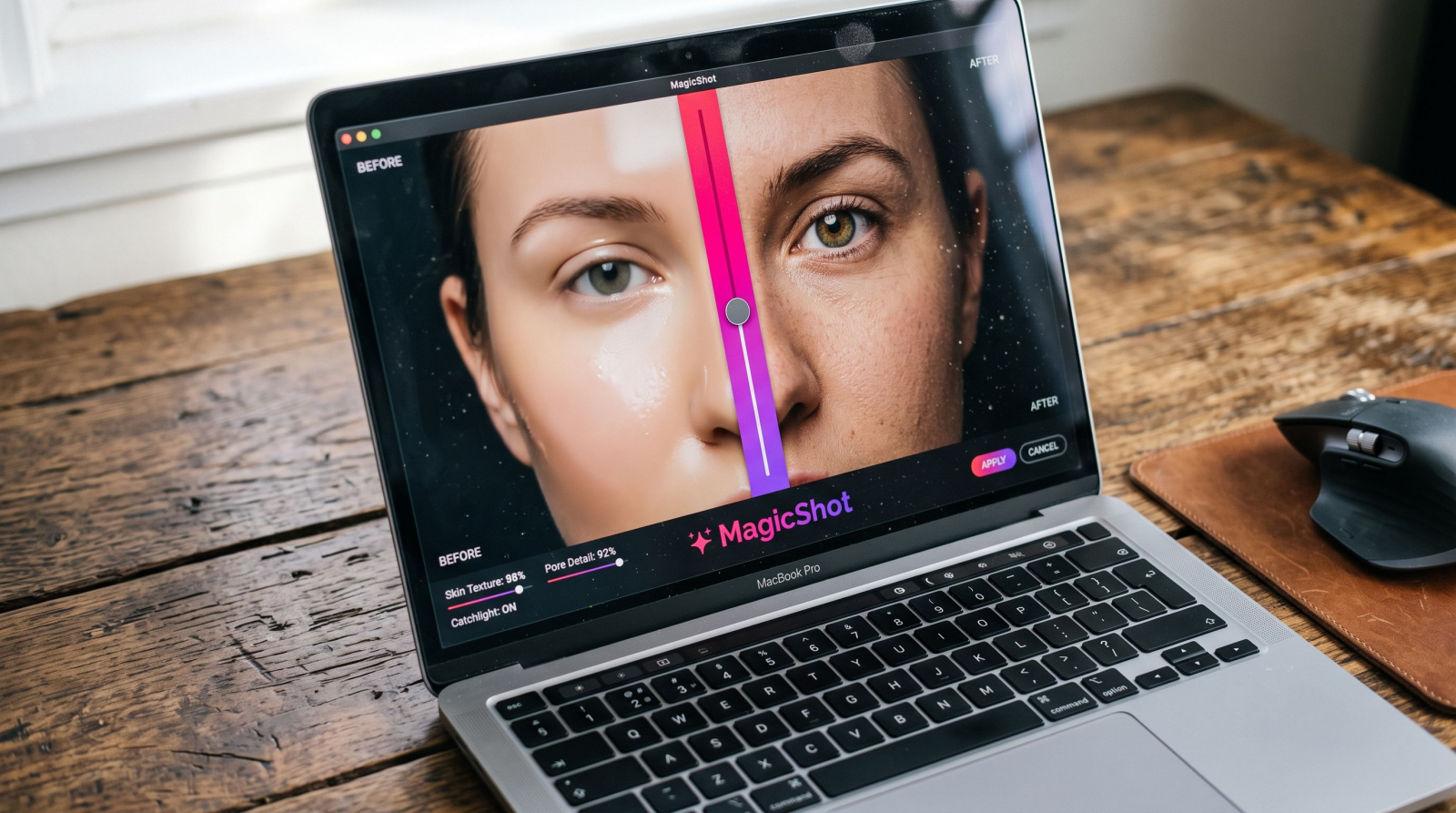
You made the image. The prompt was good. And still, something is off. A friend glances at it for half a second and says "that's AI." So the real question is not whether your generator is capable. It is why do AI images look fake even when the composition is spot on, and how you kill the specific tells that give them away. That is what this guide does: 12 diagnoses, each with the fix that makes AI images look real.
Think of it like a mechanic's checklist. You don't repaint the whole car. You find the rattle and tighten the one bolt. Most fake-looking AI photos fail on two or three tells, not all twelve. Learn to spot them and you fix in minutes what used to send you back to the prompt over and over.
Why do AI images look fake in the first place?
AI images look fake because generators optimize for what is statistically average and pleasant, not for the small imperfections that real cameras and real bodies produce. Real skin has pores, oil, and uneven tone. Real light comes from somewhere and casts one consistent set of shadows. Real eyes have moisture, tiny asymmetries, and a light source you can trace. Models smooth all of that toward a clean mean, and your brain, which reads faces for a living, catches the difference instantly.
The good news: every one of those failures is a knob you can turn. Below are the 12 tells, roughly in the order people notice them, with a concrete fix for each.
The 12 tells that scream "AI," and how to kill them
1. Plastic skin
The number one giveaway. Skin looks like a mannequin dipped in wax, with no pores, no texture, and a uniform sheen. Real skin is matte in some places and shiny in others, and it has visible detail up close.
Kill it: Prompt for texture directly. Words like "visible skin pores," "natural skin texture," "slight blemishes," and "matte finish" push the model away from the porcelain default. If your generator already produced a good pose, run a light pass to add grain rather than starting over. A tiny amount of film grain across the whole frame also helps, because real photos are noisy and AI output rarely is.
2. Dead eyes
The face is technically correct but nobody is home. Eyes lack moisture, the catchlights (those bright reflections of the light source) are missing or symmetrical in a way real eyes never are, and the gaze points nowhere.
Kill it: Ask for "sharp catchlights in the eyes" and "moist, reflective eyes." Give the subject a reason to look somewhere: "looking slightly off-camera," "mid-laugh." A person reacting to something reads as alive. A person staring dead-center at the lens with a neutral face reads as a doll.
3. Symmetrical everything
Perfectly matched eyebrows, identical ears, a face you could fold in half. Real faces are subtly lopsided, and the symmetry is one of the fastest tells your eye registers without knowing why.
Kill it: Add "natural facial asymmetry" to the prompt, and choose the generated variant where one eyebrow sits a hair higher or the smile pulls to one side. When you cull your options, reject the most symmetrical one on purpose.
4. Impossible lighting
Shadows fall in two directions at once. A face is lit from the left while the background is lit from the right. Or there is no shadow at all, which never happens outside a product catalog.
Kill it: Name one light source and stick to it. "Soft window light from the left," "golden hour backlight," "single overhead softbox." One direction, consistently described, gives the model a physics to obey. If the shadows still fight, that is your cue to regenerate rather than retouch.
5. Melted hands and extra fingers
The classic. Six fingers, a thumb on the wrong side, hands fused into mittens. Hands are hard because they bend in thousands of ways and the model has fewer clean examples of any single pose.
Kill it: Hide the difficulty. Hands in pockets, holding a coffee, crossed arms, out of frame. When hands must show, prompt "hands relaxed, five fingers, natural pose" and generate more variants than usual, because this is a numbers game. Then fix the winner with a targeted edit rather than trusting the first try.
6. Text that is gibberish
A sign, a logo on a shirt, a book spine that reads like a ransom note in a made-up alphabet. Generators approximate the shape of text without spelling it.
Kill it: Keep readable text out of the generation and add it afterward as a real overlay. If you need a clean mark on the image, build it separately with a logo generator and composite it in, so the letters are actually letters.
7. Background soup
The subject is fine, then the background dissolves into warped railings, doorways that lead nowhere, and patterns that repeat wrong. Your eye snaps to it the moment it stops focusing on the face.
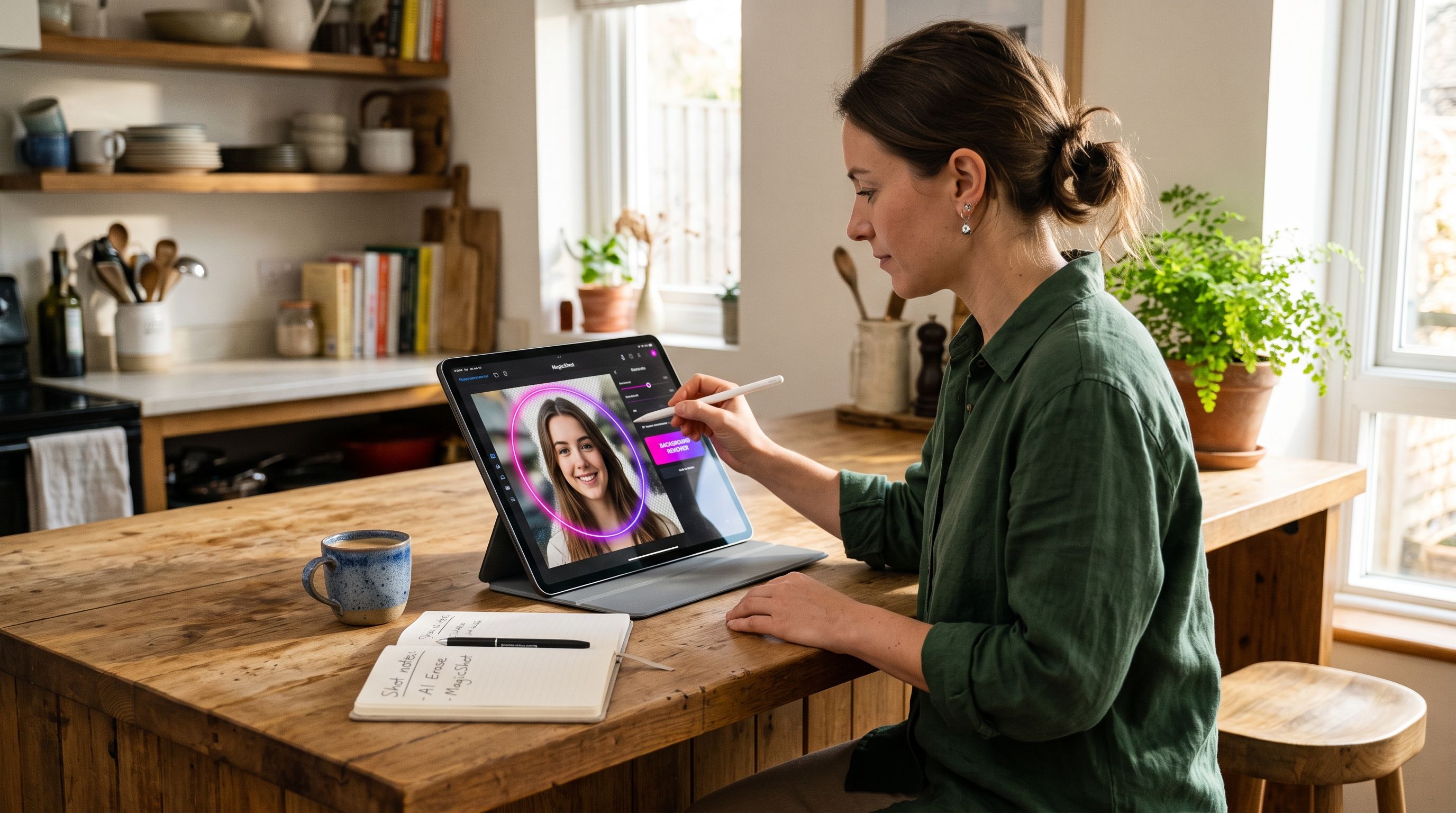
Kill it: Simplify the scene you ask for, then swap the backdrop cleanly. Isolate the subject with a background remover and drop in a plain or real-photo background. A believable subject on a simple, coherent background beats a busy scene full of small glitches.
8. Too clean, too perfect
No dust, no wrinkles in the shirt, no scuff on the shoe, no stray hair. Reality is cluttered. A room with nothing out of place reads as a render, not a photograph.
Kill it: Ask for the mess. "Slightly wrinkled shirt," "a few loose strands of hair," "a coffee ring on the desk." Imperfection is the texture of real life, and adding a little of it back is the single cheapest way to sell the shot.
9. Uncanny teeth
A smile with too many teeth, all identical, all the same blinding white, sometimes blurring into a single ridge. Teeth are like fingers: many small units that the model averages into a smear.
Kill it: Prompt "natural teeth, slightly off-white, subtle gaps" and favor a closed-mouth or soft smile when you can. If the winning image is perfect except for the mouth, that is a targeted retouch, not a reason to scrap it.
10. Wax-figure hair
Hair rendered as a solid helmet instead of thousands of individual strands, with a plastic edge where it meets the forehead. Real hair has flyaways and a soft, broken boundary.
Kill it: Prompt for "individual hair strands, flyaways, soft hairline." Backlight helps enormously, because a rim of light through hair separates it from the background and forces the model to render strands rather than a cap.
11. The AI "sheen"
An overall glossy, HDR-ish glow, like every surface got the same beauty filter. Highlights bloom, colors are a touch too saturated, and contrast is cranked in a way no real lens produces.
Kill it: Pull it back in editing. Lower saturation and contrast slightly, add grain, and warm or cool the whole frame toward a single film stock look. Naming a real camera or film in the prompt ("shot on 35mm film," "Portra 400") also nudges output away from that synthetic glow.
12. Low resolution that falls apart up close
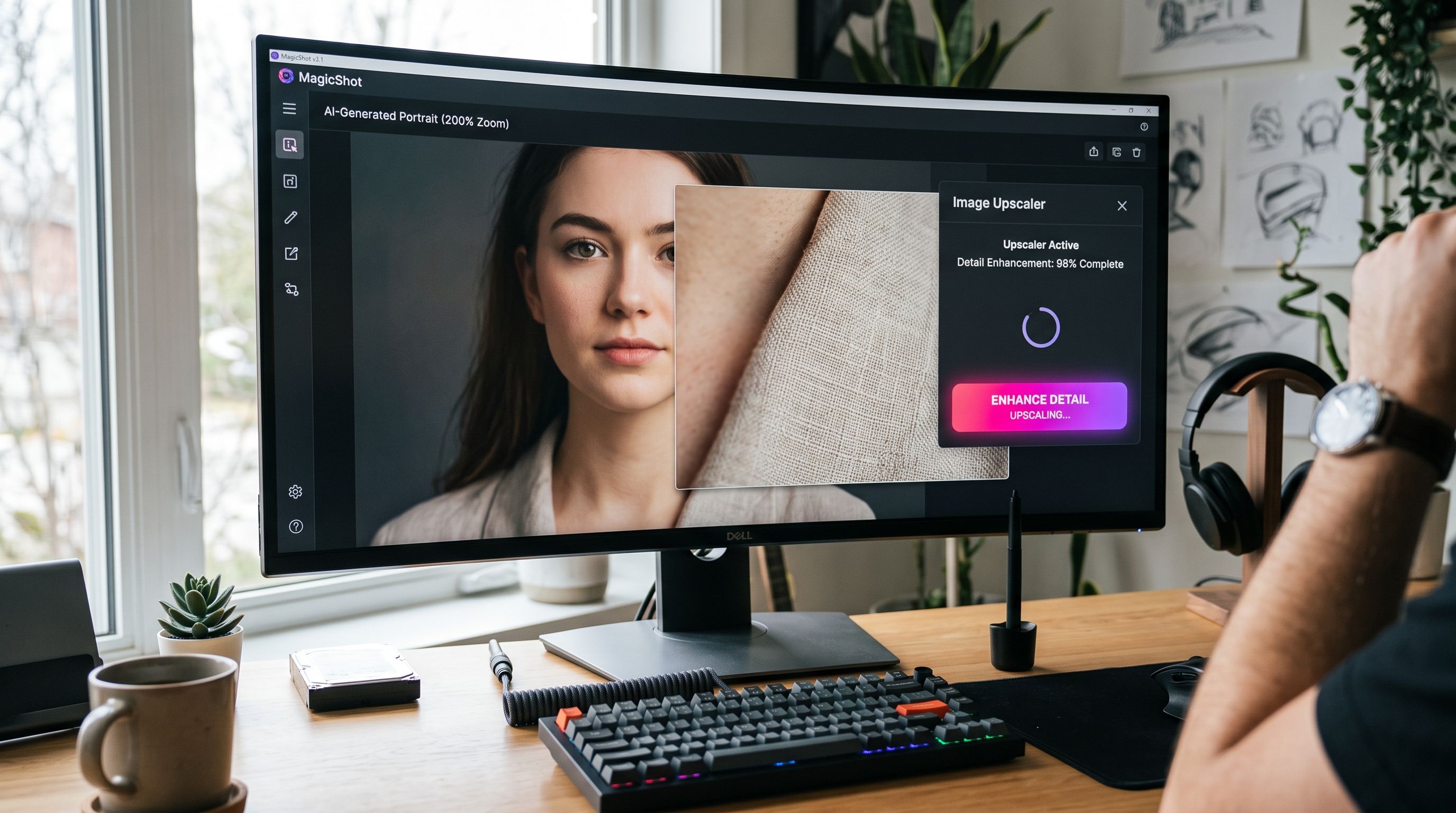
From a distance it passes. Zoom in and edges get mushy, fine detail smears, and the whole thing looks soft in a way a real photo at that size would not.
Kill it: Finish with an image upscaler to recover crisp edges and detail, especially before you print or post at full size. Sharp, clean pixels do a lot of quiet work in convincing a viewer the image is a photograph.
A fast diagnostic order that saves you time
Do not chase all 12 at once. Work top-down, because the tells at the top are the ones people see first:
Face check. Skin, eyes, teeth, symmetry. This is where 80 percent of "that's AI" reactions come from.
Hands and text. Fingers and letters are the two spots that break most reliably. Hide or replace rather than fight.
Light and shadow. Trace one light source. If shadows disagree, regenerate.
Background and polish. Simplify, swap, then add grain and a touch of mess.
Resolution. Upscale last, once everything else is right.
Run that order and you will catch the fatal tells before you waste an edit on a minor one.
Where good tools do the heavy lifting
Prompting gets you most of the way, but some tells are faster to fix than to prompt around. When the subject is a person, a purpose-built pipeline avoids the plastic-skin default in the first place. Professional headshots are trained on real faces for real use, which is why they dodge the dead-eye look better than a generic art prompt. Selling something? A product photo generator keeps lighting consistent so shadows don't argue with each other, and it beats booking a $400 studio session for a catalog you will reshoot next season.
Want range to experiment with style before you commit to realism? An AI art generator lets you dial in mood and lighting fast, then you apply the fixes above to bring a chosen frame back down to earth. For more structured visual content, an AI poster can also be useful when you need to turn an idea into a polished graphic while keeping the composition and text elements under control. The workflow is the same every time: generate wide, cull hard, fix the two or three tells that remain.
The wrap
Fake-looking AI images are not a mystery and they are not a dead end. They fail on a short, predictable list: plastic skin, dead eyes, mirror symmetry, impossible light, broken hands, garbled text, glitchy backgrounds, an unreal lack of mess, uncanny teeth, helmet hair, a synthetic sheen, and detail that melts up close. Diagnose in that order, apply the matching fix, and you turn a picture that gets flagged in half a second into one that just reads as a photo. That is the whole game, and now you have the checklist for it.