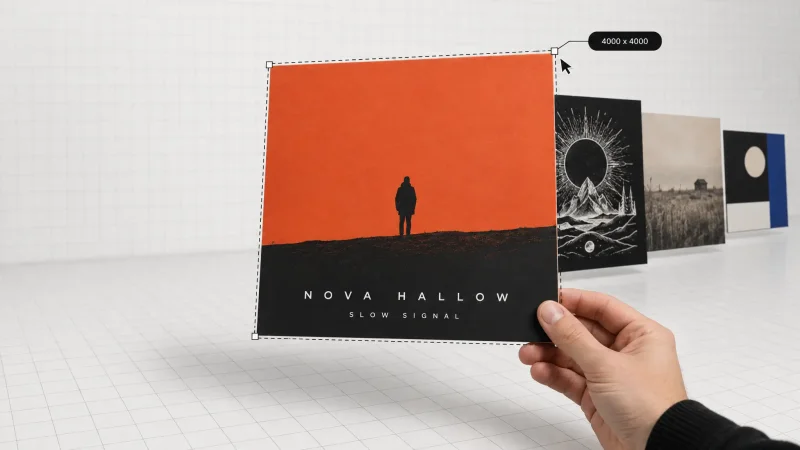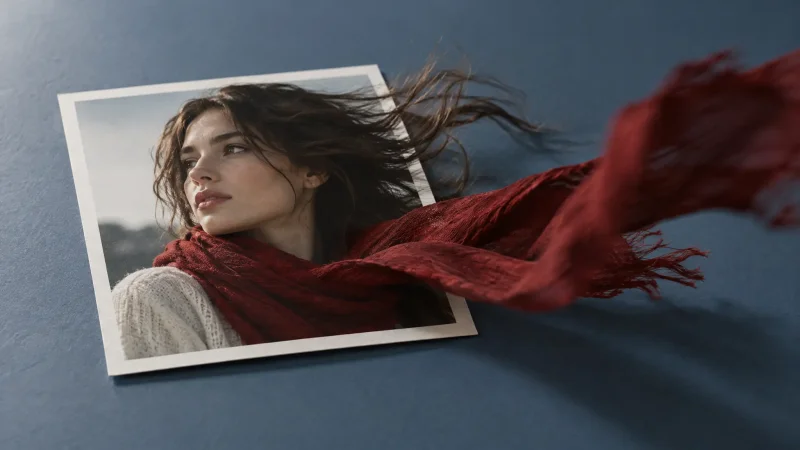
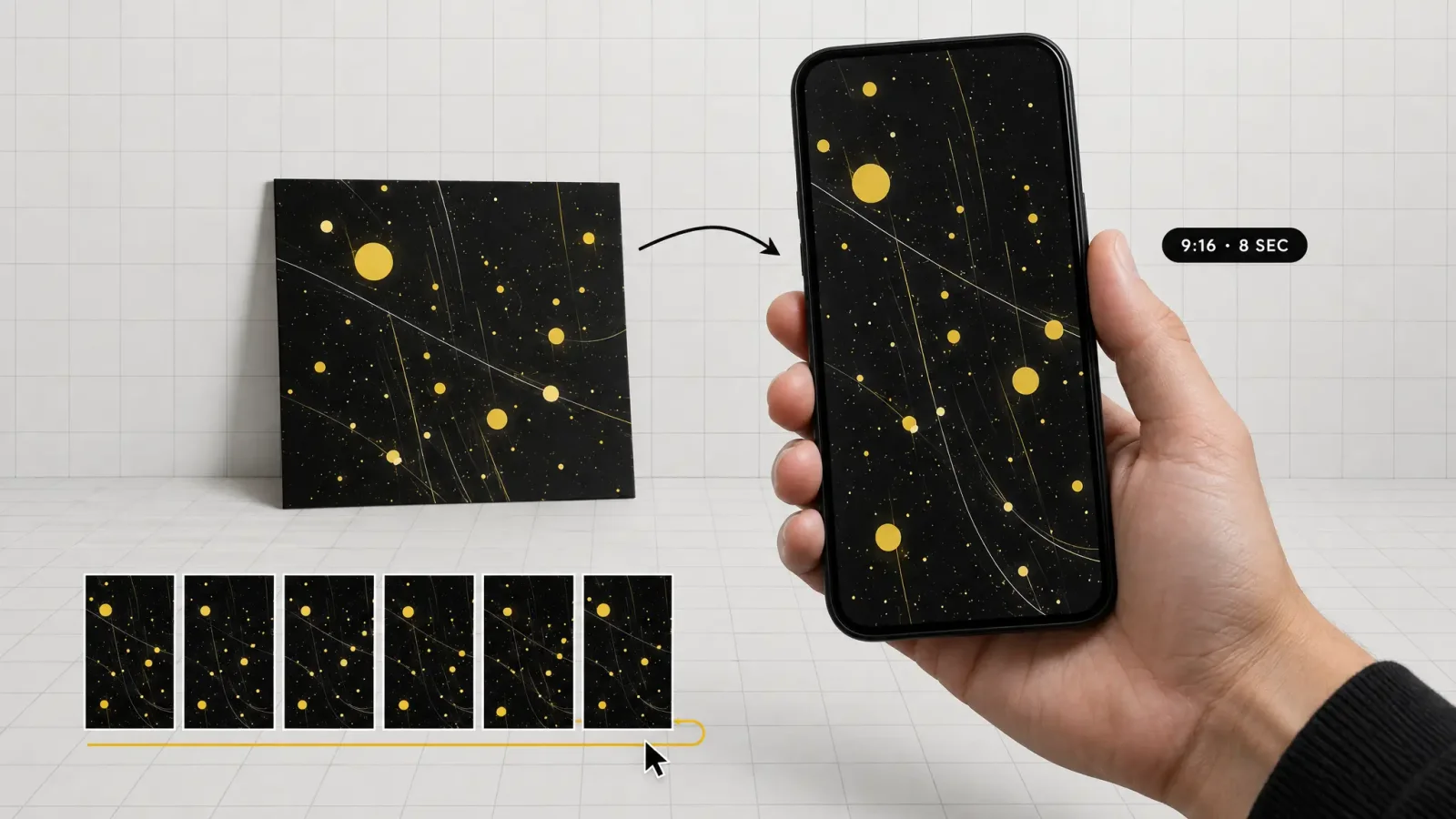
A Spotify Canvas is the short, silent video loop that plays behind a track in the Now Playing screen instead of static cover art. If you're searching for a spotify canvas maker, the short answer is: you need a 3 to 8 second vertical clip at 720 to 1080 pixels tall, exported as MP4 or JPG, and you can build that clip from a single photo or piece of artwork using AI video tools instead of a camera crew or an editing timeline.
Key takeaways
Spotify Canvas requires a 3 to 8 second vertical loop at 720 to 1080 pixels tall in a 9:16 ratio, uploaded as MP4 or JPG, according to Spotify's official Canvas guidelines.
Canvas plays silently under your track, so footage with talking, singing, or lip-synced lyrics will feel out of sync and should be avoided.
A spotify canvas maker built on image-to-video AI can turn one still image, like your album cover, into a loop without a filmed shoot.
Continuous loops, hard cuts, and rebound edits are the three loop styles Spotify itself recommends, and each one changes how "finished" the clip feels.
A paid MagicShot plan includes a commercial license, so a Canvas clip generated for a release can be used across your artist profile, ads, and promo without extra clearance.
What is Spotify Canvas and why does it matter
Canvas is a feature inside Spotify for Artists that replaces your static album art with a short looping video whenever someone plays that track. Spotify describes it as "an 8-second visual loop that shows in a vertical format to fill the screen" in the Now Playing view, and it only appears in the Spotify mobile app.
It matters because it's the one piece of visual branding most listeners actually see while a song plays. A static cover only has to look good in a thumbnail; a Canvas has to hold attention for a full loop, which changes the creative brief from "design a square" to "design a moment that repeats." That's a video problem, not a photo problem, and it's why a lot of artists get stuck: they have great cover art but no footage to loop.
Spotify Canvas size and format requirements
These are the numbers that actually get checked on upload, straight from Spotify's Canvas guidelines:
Length: 3 to 8 seconds, looped automatically.
Aspect ratio: vertical 9:16.
Height: between 720px and 1080px tall. 1080 x 1920 is the safe, sharp choice for modern phones.
File type: MP4 for video, or a JPG if you're uploading a still image instead of a loop.
Sound: none. Canvas has no audio track of its own; the track's audio plays over it.
Compare that to a standard square album cover, which is a flat image with no time dimension at all. Canvas asks for the opposite: a moving, vertical, silent clip that has to loop cleanly at second eight and pick right back up at second zero. If your source material is a single photo or illustration, that gap between "flat square" and "moving vertical loop" is exactly what an image-to-video tool is built to close.
How to make a Spotify Canvas with AI
You don't need a filmed clip to start. A single high-resolution image, your album cover, a portrait of the artist, or a piece of concept art, can become the source for the loop. Here's the practical path:
Start with a sharp still. Upload your cover art or artist photo to Image Upscaler first if the file is under 1080px tall, since Spotify will reject anything below its minimum height.
Turn the still into motion. Feed that image into Image to Video to generate subtle movement, drifting light, slow parallax, shifting color, from the single frame. This is the step that replaces a filmed shoot entirely; you're describing motion in a prompt instead of pointing a camera at something.
Add style or atmosphere. If the raw animation feels flat, run it through AI Video Effects to push it toward a specific look, grain and film flicker for a lo-fi record, glitch and chromatic aberration for hyperpop, slow bloom and soft focus for ambient work.
Build from scratch with a prompt. If you'd rather not animate an existing image, Text to Video can generate an original abstract loop, smoke, light trails, texture, directly from a written description, which is useful when the cover art itself isn't a good candidate for looping.
Export vertical and trim to length. Set the output to 9:16, keep the clip between 3 and 8 seconds, and export as MP4 before uploading through Spotify for Artists.
For a broader look at turning a single photo into a moving clip outside the Canvas use case specifically, our guide on image to video AI covers the same underlying workflow in more depth.
Genre-led direction: what actually loops well
Spotify's own guidelines point to three loop structures worth knowing before you generate anything:
Continuous loop: the clip is built so the last frame flows directly into the first, with no visible seam. This works well for slow, ambient movement, drifting particles, shifting gradients, a rotating object.
Hard cut: the clip ends and restarts on a deliberate edit point rather than trying to hide the seam. This suits high-energy genres where a jump cut reads as intentional rather than broken.
Rebound: the footage plays forward, then reverses, which is one of the more reliable ways to get a smooth loop without generating extra footage, since the clip mirrors itself back to the start.
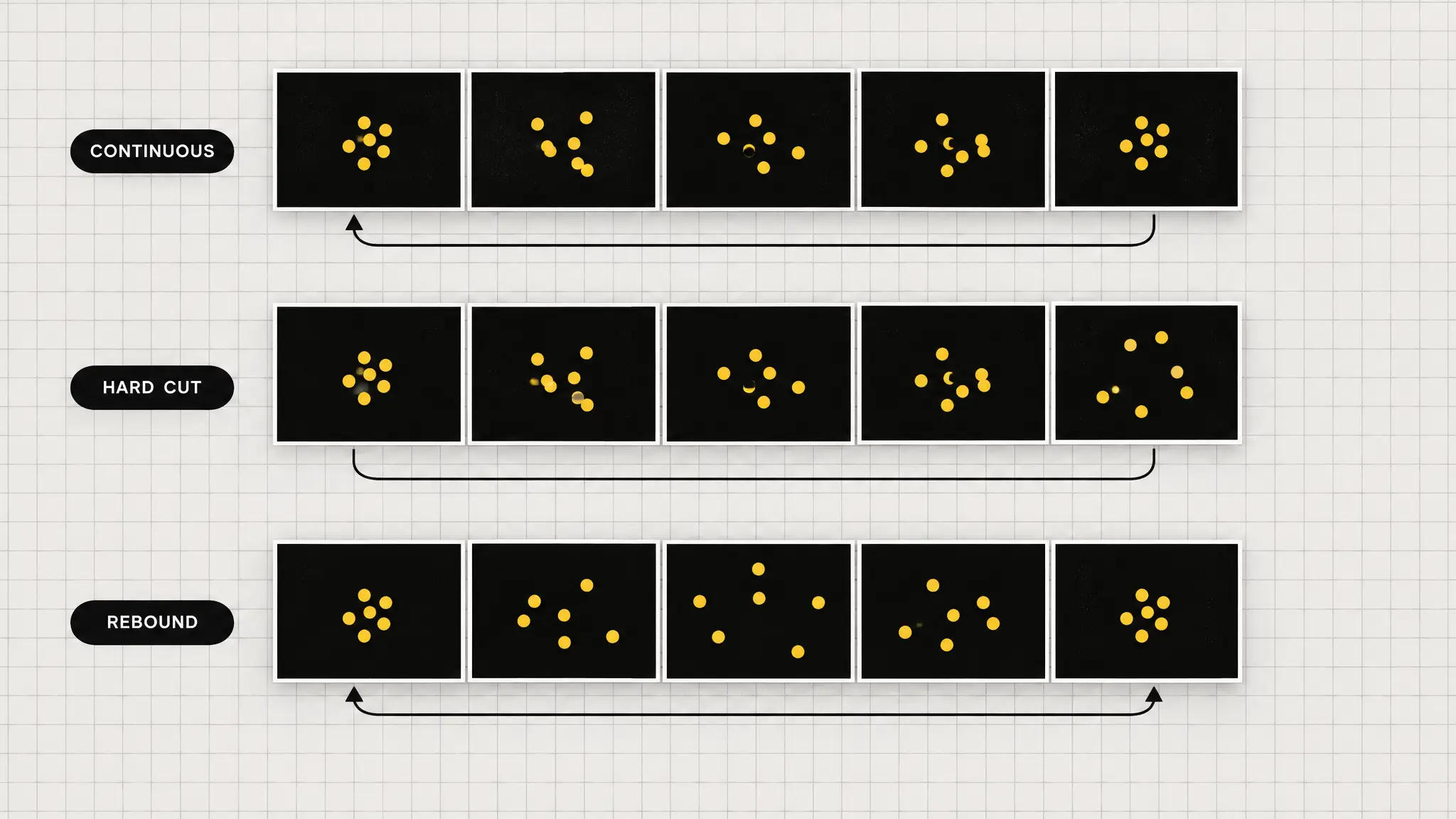
Genre should drive which of these you pick. A downtempo or lo-fi track usually wants a continuous loop with slow drift, minimal contrast change, and no hard edges. Pop and hyperpop can carry a hard cut with a flash or color shift. Acoustic or singer-songwriter work often looks best with a rebound on something small, hair moving, light flickering, rather than anything that reads as an effect.
Spotify also recommends avoiding footage with talking, singing, or rapping, since an 8-second clip can't sync with lyrics, and warns against rapid cuts or intense flashing that can overwhelm a small phone screen.
Common mistakes that get Canvas clips rejected or ignored
Most Canvas uploads don't fail because of the concept, they fail on the technical checklist. The fixes are straightforward once you know what to check.
Wrong aspect ratio. A square or horizontal export gets rejected outright. Set the canvas (the generation setting, not the Spotify feature) to 9:16 before you export, not after.
Under the height minimum. Old cover art saved at low resolution won't clear 720px tall once cropped to vertical. Upscale it before animating it, not after, since upscaling video is far less reliable than upscaling the source photo.
A visible loop seam. If the first and last frames don't match in a continuous loop, the restart looks like a stutter. Either commit to a hard cut on purpose or regenerate with a tighter loop prompt.
Expecting audio. Canvas carries no sound of its own, so a clip built around a musical cue or vocal moment will feel disconnected once it's actually playing under the real track.
Text and lyrics baked into the video. Small on-screen text tends to disappear at phone size and can clutter a screen that already shows the track title and artist name.
Can I use an AI-generated Spotify Canvas commercially
Yes, as long as the tool you generate it with grants commercial rights on the output. Paid MagicShot plans include a commercial license on generated images, video, and audio, which covers a Canvas clip used on a released, monetized track, in paid promotion, or across an artist's other marketing without needing separate clearance. That license lives on the account, not the individual file, so the same generation covers the Canvas, a matching Instagram teaser, and any ad built from the same clip.
It's worth double-checking any rights tied to source material you upload rather than generate, a photo you didn't take, a logo you don't own, since a generator's license only covers what it produces, not material you fed into it without permission to use.
Getting started with a Spotify Canvas maker
A Canvas is a small deliverable with a strict spec, which makes it a good first project if you haven't used AI video generation before. Start from one image you already have rights to, upload it, animate it with a short prompt, trim to 3 to 8 seconds, and export vertical. The full workflow runs end to end without needing a separate video editor to assemble the clip afterward.
What makes a good Spotify Canvas design
A good Canvas matches its genre's energy, loops without an obvious seam, and never fights the track for attention. It should feel like an extension of the artist's existing visual identity rather than an unrelated video, use motion that a phone screen can render clearly at small size, and skip on-screen text that clutters a display already showing the track title and artist name. The best ones hold up on repeat for the full length of a play, not just the first few seconds.
If the cover art itself started as a generated image rather than a photo, the AI Art Generator can produce a few alternate versions, different crops, palettes, or lighting, so you have more than one candidate frame to test as a loop before settling on the one that plays best.
Testing the loop matters more than most people expect. Play the exported clip on an actual phone before uploading, not just on a desktop monitor, since motion that reads as subtle at full screen can look either too slow or too busy once it's shrunk into a vertical strip on a 6-inch display.