In today’s video-centric digital world, turning a static photo into a dynamic video has become easier than ever with AI. Image-to-video AI tools allow anyone, from individual content creators to large businesses to animate static images into eye-catching videos, a capability that has become a game-changer for creators, marketers, and enterprises alike. This article explores what image-to-video AI is, how it works, the personal and industry benefits, the top tools, and additional insights on this exciting technology.
What Is Image-to-Video and How It Works
Image-to-video AI refers to artificial intelligence technology that can convert one or more still images into a moving video. It leverages advanced machine learning models (like neural networks) to analyze your images and then synthesize motion, transitions, and effects so that the final output “feels alive”. In practice, the AI treats a static photo as if it were the first frame of a short film, predicting what should happen next in the scene based on patterns learned from vast video data. For example, if your photo contains a candle flame or a sky with clouds, the AI knows (from training on millions of videos) that fire tends to flicker and clouds drift, and it will imaginatively animate those elements in the video.Behind the scenes, these tools use a combination of AI techniques. First, a neural network (e.g. a CNN) recognizes objects and features in the image. Then generative models like GANs (Generative Adversarial Networks) or diffusion models take over to generate intermediate frames and realistic motion based on the image content. GAN-based systems have a “generator” and a “discriminator” network working together - one creates new frames and the other critiques them, resulting in increasingly realistic motion with each iteration. Newer diffusion-based systems add random noise to the image and then gradually remove it, predicting the next frames step by step for very smooth and detailed results. The AI effectively interpolates between frames (filling in the in-between motion) to ensure the final video plays with natural, continuous movement Additional elements like camera panning, background music, or even voiceovers can often be added automatically to enhance the video’s storytelling impact.The result is a short video clip where your once-static image now has motion and life. A single portrait can have the subject blinking and smiling; a landscape photo might show water rippling and trees swaying. All of this is achieved without manual animation, purely through the AI’s learned understanding of how the world moves. In sum, image-to-video AI uses sophisticated algorithms to do what a human animator might do - imagine and render motion from a still picture - but it does it in a matter of seconds or minutes, making video creation faster and more accessible than ever.Top Image-to-Video AI Tools (2025 Edition)
A growing number of AI tools and platforms offer image-to-video generation capabilities. Below, we highlight some of the best image-to-video AI tools available, with a brief overview of each.MagicShot.ai, All-in-One Image to Video AI Platform
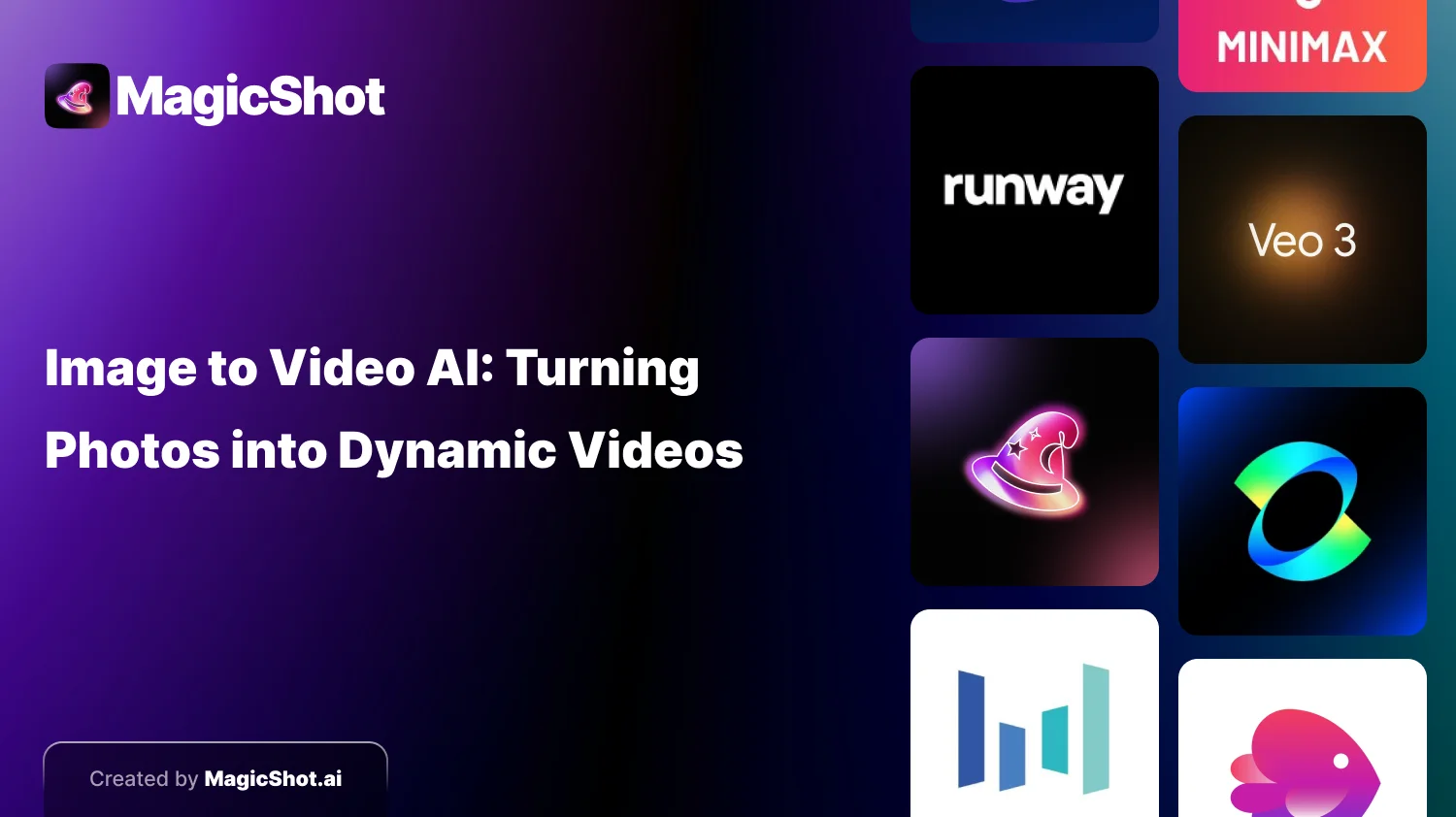
MagicShot.ai is a powerful creative platform that brings together the most advanced AI image-to-video models in one seamless interface, giving you flexibility, performance, and stunning results in seconds. Unlike other tools that rely on just one model, MagicShot offers multiple trending AI video engines you can choose from, depending on the look and feel you want.Top AI Models Available on MagicShot:
Google Veo 2: Hyper-realistic motion and cinematic smoothness.
ByteDance Magic Video: Ideal for dynamic, animated storytelling visuals.
Kling 2.5 (Tencent): Known for long-form, high-frame-rate realism.
Runway Gen-3: Great for stylized effects and naturalistic transitions.
Pika Labs (Turbo): Fastest turnaround with creative filters.
Other AI Image-to-Video Tools
Runway ML: A creative video tool known for intuitive workflows and rapid Gen-2 and Gen-3 models for motion video generation. Great for prototyping and creators.
Pika Labs: Offers fun, experimental video creation with prompt-based controls and styles. Popular among meme creators and casual users.
Invideo: A traditional online video editor with added AI features for image-to-video and script-to-video generation. Best for business and branding.
Vidnoz AI: Known for its diverse animation styles (anime, 3D, cartoon). Works well for social sharing and influencer content.
Luma Dream Machine: High-end cinematic video generation from images using physics-aware AI. Ideal for ultra-realistic results and professional use.
Personal Benefits of Using Image-to-Video AI
For individual users, hobbyists, or content creators, image-to-video AI offers a host of benefits that make it an appealing tool for personal projects:Save Time and Effort: You can create an animated video from a photo much faster than by manual editing. AI automates the motion and effects, freeing you from hours of video editing and enabling you to produce content in minutes.
More Engaging Content: Videos are inherently more eye-catching and interactive than static images. Even a single photo can be transformed into an attention-grabbing video that boosts engagement on your personal social media pages. (Think of an Instagram post where your still travel photo now has moving clouds and flowing water, it’s more likely to stop viewers from scrolling!)
No Advanced Skills Needed: Most image-to-video AI tools are very user-friendly, with simple interfaces or drag-and-drop functionality. This means anyone can animate images without needing professional video editing skills. You just upload a picture and perhaps describe what you want, and the AI handles the complex work.
Cost-Effective Creativity: Instead of hiring animators or videographers for personal projects (which can be expensive), you can use these tools (often free or low-cost) to get high-quality results. Image-to-video AI provides an affordable way to produce polished videos from your photos, avoiding the need for pricey software or services.
Creative Expression and Storytelling: On a fun note, these tools let you experiment and bring your imagination to life. You can animate old family photos for nostalgia, create short story videos from sketches or artwork, or make your own GIFs and memes. By adding motion and music to images, you enhance storytelling and make content that resonates more with your friends or followers.
Industry Applications of Image-to-Video AI
Beyond personal use, image-to-video AI is being adopted across various industries to streamline content creation and unlock new possibilities. Here are some of the main sectors leveraging this technology (we’ll keep it to the top few):Marketing & Advertising: In advertising, visuals need to grab attention quickly. AI tools let marketers turn a static image to video for short ads with minimal effort, with platforms like Invideo Agent helping bring those visuals to life through motion and creative effects. This means companies can produce personalized, targeted video campaigns at scale (far faster than traditional video shoots), helping brands engage customers with dynamic content. For example, a marketer can take a static banner image and turn it into a moving promo video with animated text and effects, boosting click-through rates.
Entertainment & Media: The entertainment industry is using image-to-video AI to create animations and special effects from still images or concept art. Movie and game studios, for instance, might generate quick storyboard animatics or concept scene videos from artwork, saving time in pre-production. Content creators on YouTube and other media platforms can also animate their thumbnails or images to make videos. This technology opens up new forms of visual content, and media companies are leveraging it for anything from visual effects to generating short clips for news and stories.
Education & Training: Educators and e-learning content developers turn static diagrams or illustrations into short explanatory videos. For example, a biology teacher could take an image of the water cycle and create a video with moving arrows and transitions to better explain the process. Instructional content becomes more engaging when a picture comes to life, and virtual tutors or training modules can be created without filming video from scratch. This lowers the barrier to produce educational videos, making learning materials more interactive and easier to understand.
E-Commerce & Retail: Online retailers often have catalogs of product photos. With AI, those photos can be instantly turned into “scroll-stopping” product videos for social media and ads, showcasing the product from different angles or with text and effects. This helps businesses improve their social media presence and convert more viewers into customers. For example, an e-commerce store can animate a still image of a sneaker with rotating views and promotional text, creating a video ad without a video shoot. Such videos tend to drive higher engagement and sales compared to static images.
Social Media & Influencers: For social media influencers and content creators, image-to-video AI is a quick way to generate fresh content. An influencer can turn a photoshoot picture into a trendy video reel by adding motion (like making a still pose appear to have a moving background or subtle subject movement). This keeps their feed lively and engaging. Because video posts typically get more reach on platforms like Instagram and Facebook, these AI tools help boost follower engagement while saving creators time. Even memes and fan content can be animated for extra viral flair.
Real Estate: Real estate agents are using AI to transform property listing photos into video tours or slideshow videos. Rather than just a gallery of house photos, they can easily generate a short video that pans across rooms, adds transitions between images, and even overlays details about the property. This makes listings more attractive on social media and property websites. Tools exist that let agents upload 5-10 property photos and quickly get a polished video with music and captions, perfect for marketing homes with no video editing experience required.
(There are other domains exploring image-to-video AI as well, for instance, the healthcare field has looked into animating medical images for patient education, and artists use it to create hybrid art, but the industries above are the primary ones harnessing this tech today.)
Choosing the Best Image-to-Video AI Tool
With all these tools available, how do you choose the best image-to-video AI tool for your needs? It really depends on your specific goals and requirements. Consider factors like ease of use, available features (styles, music, templates, etc.), output quality, speed, pricing, and support when making your decision. For a casual user who just wants to create fun videos for social media, a simple and free tool might suffice. A business user might prioritize a tool with branding options and high reliability. An artist might look for the one that offers the most creative control or highest fidelity.
That said, if we have to highlight one standout “best” tool overall, MagicShot.ai is a top contender for a broad range of users. MagicShot combines a friendly, straightforward interface with extremely powerful AI capabilities under the hood. It basically gives you the best of all worlds: multiple advanced models, lots of AI features beyond just image-to-video, and a one-stop platform for creative content generation. MagicShot’s all-in-one approach means you can experiment with different AI techniques in one place rather than juggling multiple apps. Additionally, MagicShot’s outputs are high-quality and the service is optimized for fast performance, which is a big plus if you plan to create content regularly. Given these strengths, MagicShot stands out as an excellent choice for most people, whether you’re an individual enthusiast or a professional creator, to start transforming your photos into videos.
Of course, the “best” tool can be subjective. Some users might prefer the specific styles of Vidnoz for artistic projects, or the fine-tuned control of InVideo for business projects. It’s a good idea to try a couple of free versions or demos to see which interface and results you prefer. But you won’t go wrong starting with a versatile platform like MagicShot that lets you do a bit of everything. By leveraging these AI tools, you’ll be able to effortlessly turn static images into dynamic stories, taking your content creation to new heights
Future Trends in Image-to-Video AI
Image-to-video AI is a fast-evolving field, and the coming years promise even more exciting developments that will make these tools more powerful and convenient. Here are a few key trends and what they mean for creators:
Even More Realistic Videos: AI models are improving rapidly, which means the videos generated from images will continue to become more lifelike and high-fidelity. We’re already seeing AI that can produce near-photorealistic motion, and this trend will only get stronger. In the future, it might be hard to tell whether a short clip was generated from a single photo or filmed in real life!
Greater User Control: Future image-to-video tools will likely give creators more fine-grained control over the outcome. You might be able to dictate specific camera angles, adjust how vigorous or subtle the motions are, or edit the AI’s “storyboard” for the video. This means you won’t be limited to whatever the AI guesses, you can steer it more, making the creative process a true collaboration between human and AI.
Integration with Other Media Tools: We can expect better integration of image-to-video AI with other content creation platforms and workflows. For instance, your photo editing software might directly have a “generate video” button, or video editors like Adobe Premiere could incorporate AI plugins that animate images on the timeline. Everything could become more seamless, so using AI-generated videos is as easy as using stock footage.
Real-Time or Near Real-Time Generation: As computing power grows and algorithms get more efficient, the dream of real-time image-to-video generation could become reality. Imagine pointing your phone’s camera at a scene and an AI creating a live animated version of it on the fly, or uploading an image and getting a video back almost instantly. Faster generation will make these tools even more convenient and interactive (perhaps even used in live video streams or AR/VR applications).
Multimodal Inputs and Creativity: Currently, many tools take just an image (or a set of images) plus optional text prompt. In the future, we might see multi-modal inputs, for example, you give an AI a photo and a short audio clip of music, and it creates a video where the visuals move in sync with the music’s mood. Or combining text, images, and maybe a sketch. This could lead to highly customized video outputs that match a very specific vision or story the user has in mind.
Broader Industry Adoption: As the technology matures, more industries will find niche uses for image-to-video AI. We touched on healthcare, we might see patient scan images turned into explainer videos for medical training. In fashion, a single outfit photo might be animated to show how the fabric flows on a moving model. The market for AI-generated video content is expected to grow tremendously (one report projected it to reach billions of dollars in value by 2030), which indicates we’ll be seeing these tools in all sorts of creative and commercial contexts.
In summary, image-to-video AI is an exciting and empowering technology that is already changing how we create visual content. Its benefits for personal users and industries are significant, from saving time and costs to unlocking new creative potential. With user-friendly platforms like MagicShot and others, anyone can start animating their photos today. And as the tech improves, we’re heading toward a future where the line between photos and videos blurs, and any image can become a vivid moving story at the click of a button. Now is a great time to dive in and experiment with image-to-video AI, and be part of this creative revolution in content creation!