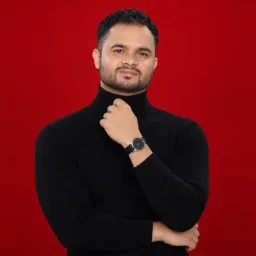
A profile picture maker has one job: make you look like you on a 40 pixel circle. Most tools fail at that job because they design for the big preview and ignore the tiny one everyone actually sees. Your face gets pushed to the edge, your logo gets clipped by the circle mask, and contrast that looked fine on a laptop screen turns into a gray smudge next to your username.
This guide covers why that happens and how to fix it: crop discipline, contrast rules, circle-safe framing, and generating a set of styled variants instead of one static image. If you want to skip the theory and just build one, MagicShot's profile picture maker handles the cropping, framing, and style generation in one pass.
What a Profile Picture Maker Should Actually Fix
Most people open a profile picture maker expecting a filter. What they need is a size and shape problem solved. Every platform renders your picture differently: LinkedIn shows a large square in your banner and a tiny circle in comments, TikTok shows a small circle next to your username, and Discord shows an even smaller circle next to every message you send. One flat photo cannot serve all of those without a plan.
A real profile picture maker treats size as a design constraint from the start, not something you fix with a crop tool later. That means centering the subject with margin to spare, boosting local contrast so features stay readable when the image shrinks, and checking how the edges look once a circle mask is applied. Skip any one of those steps and a sharp photo turns into a blur the moment it hits a comment thread.
Crop and Contrast Rules: Why PFPs Fall Apart at 40 Pixels
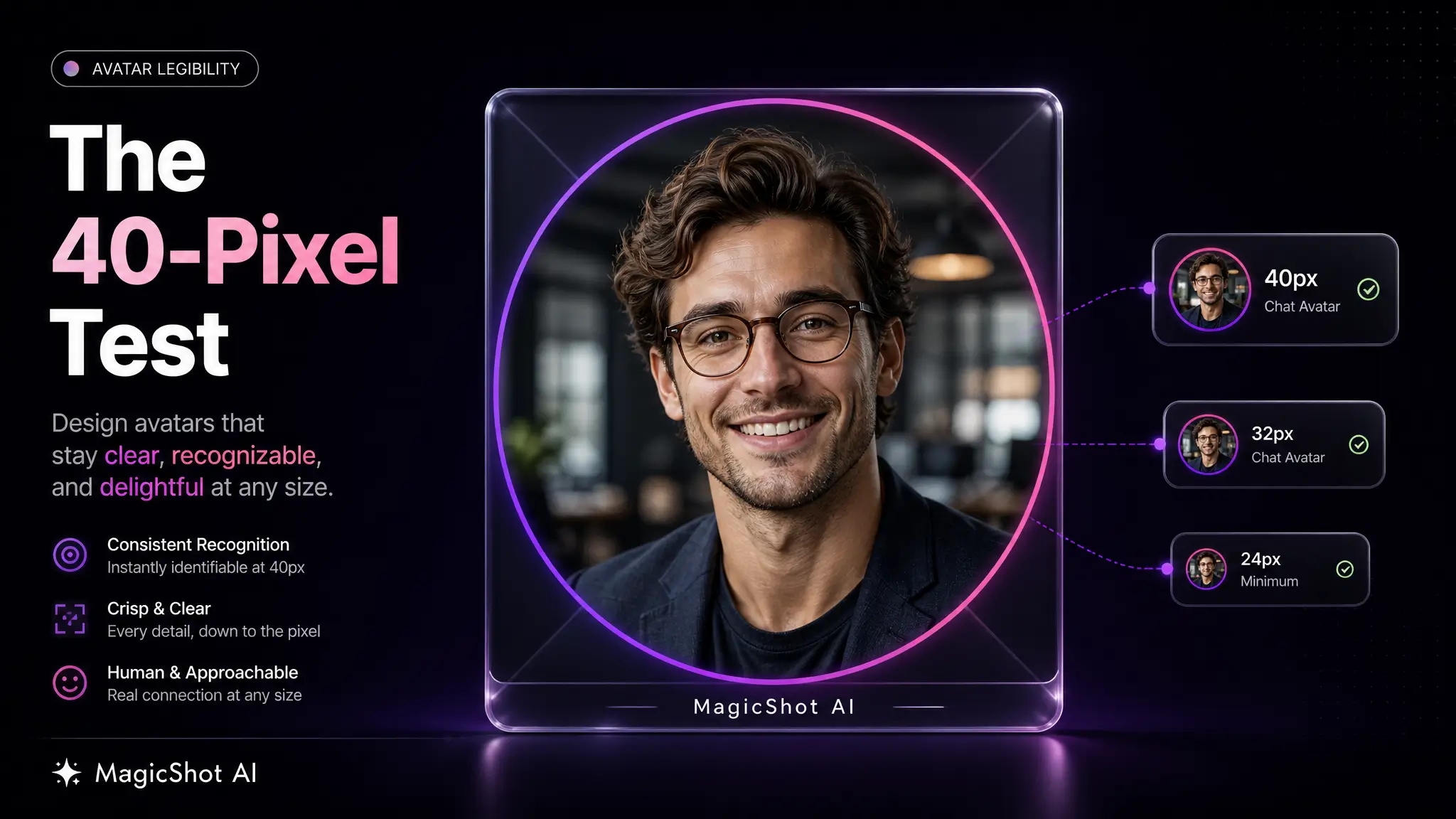
Your profile picture is almost never viewed at full size. It's viewed at 32px, 40px, or 48px, next to a username, competing with everything else on the screen for half a second of attention. Detail that reads clearly at 1000px disappears at 40px. Fine hairlines vanish. Soft gradients turn muddy. Text in a logo becomes an unreadable smear.
Three rules fix most of this:
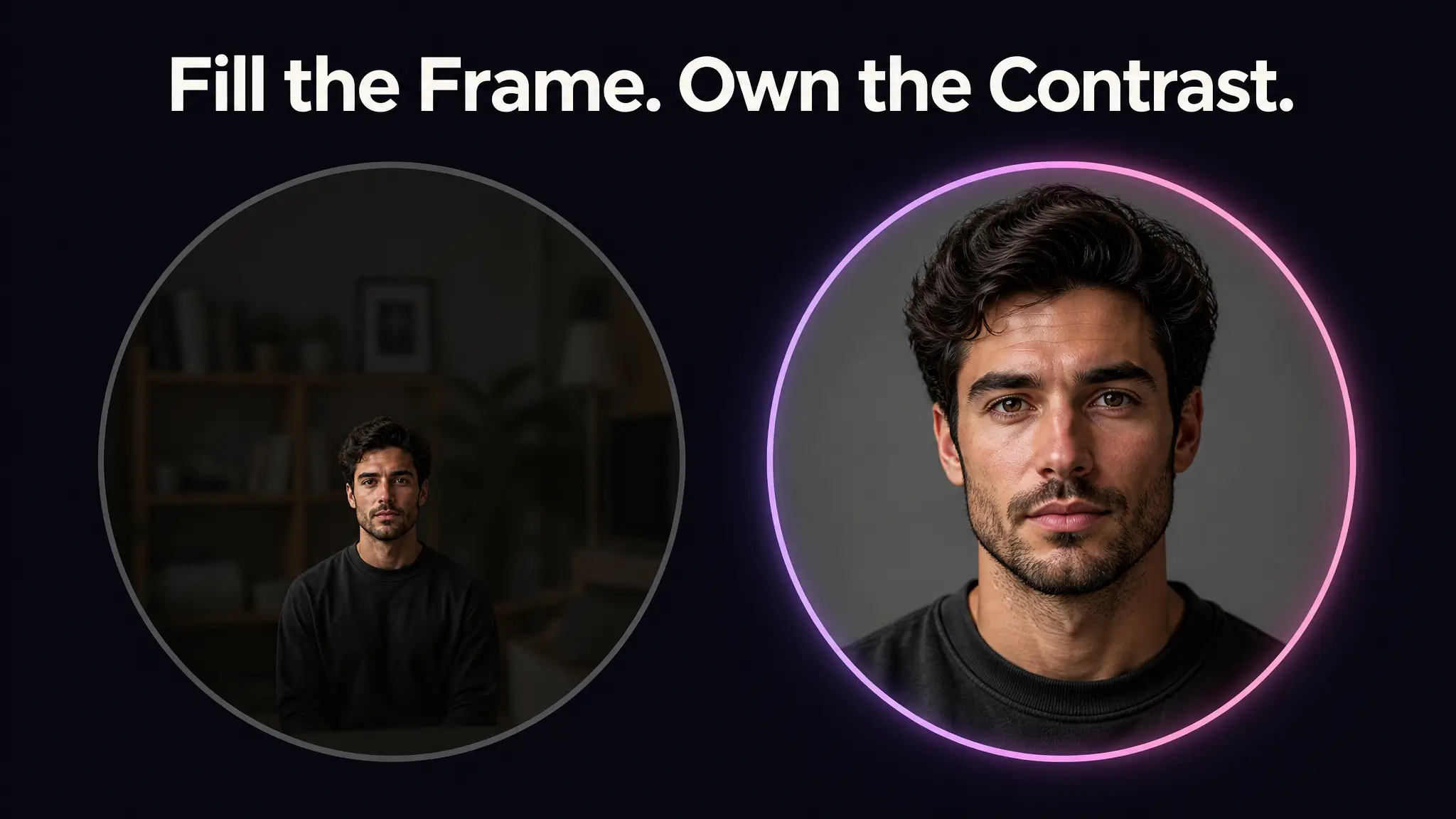
Fill the frame. Leave too much background and your subject shrinks with the photo. At small sizes, a face that takes up 30% of the frame reads as a gray blob. Aim for the subject filling 60-70% of the frame.
Push contrast between subject and background. A pale face on a white wall or a dark hoodie on a black background loses its edges first when the image compresses. A clear tonal gap is what keeps the shape recognizable at thumbnail size.
Simplify before you shrink. Busy patterns, extra faces, or cluttered backgrounds all compete for the same few pixels. A profile picture generator that adds a clean, single-tone backdrop before rendering will outperform a raw photo with a messy background, because it removes the noise before the size reduction creates more.
This is the biggest gap between a decent avatar cropper and a good one. A basic pfp cropper just cuts a square or circle out of whatever you upload. A good one adjusts contrast and framing for the size the image is actually heading to, not the size on your screen right now.
Circle PFP Framing: Designing for a Crop You Don't Control
Almost every platform that matters, TikTok, Discord, LinkedIn, WhatsApp, X, renders your profile picture as a circle even if you uploaded a square. That circle mask cuts the four corners of your image and nothing else. If your subject's shoulders, a logo edge, or important detail sits in those corners, it's gone the second the platform applies its own crop.
Designing a circle pfp that survives this means working inside an invisible inner circle, not the full square canvas. A safe rule: keep everything you care about within roughly 85% of the square's width, centered. Anything outside that gets eaten by corner clipping on at least one platform. A face positioned dead center with headroom to spare survives every circle crop, while the same face shifted to one edge to look "artistic" gets half cut off on Discord and looks fine on Instagram, because the two platforms don't mask identically.
If you're building a logo-based avatar rather than a face, this matters even more. Square logos with text or shapes touching the edges are the most common circle-crop failure. Round out the composition, or add breathing room, before you export.
PFP Cropper vs Avatar Cropper: What Each Should Handle
The terms get used interchangeably, but a pfp cropper and an avatar cropper solve slightly different problems. A pfp cropper usually takes an existing photo and resizes or reframes it. An avatar cropper more often works alongside an AI-generated image, where the framing decision happens before the final render, not after.
That difference matters because fixing bad framing after the fact is limited. You can crop tighter, but you can't recover detail that was never there, and you can't fix contrast baked into the original lighting. That's the case for handling crop and contrast at generation time instead of as a repair step: get the framing right when the image is created, and the crop step becomes a formality instead of a rescue mission.
Either way, test your result at actual size before you commit. Export it, shrink it to 40px in any image viewer, and look at it next to text. If your face or logo still reads clearly, the crop worked. If it turns into a smudge, adjust the framing, not just the crop boundary.
How to Make Your Own Profile Picture With an AI Avatar Generator
If you're wondering how to make your own profile picture without hiring a photographer or fighting a phone camera in bad light, an AI avatar generator skips both problems. You upload a handful of reference photos, the generator learns your face, and it produces new images in whatever style you pick, corporate headshot, cartoon avatar, cyberpunk portrait, clean studio backdrop.
The practical workflow:
Upload 5-10 clear reference photos. Different angles and lighting help the model understand your actual features instead of guessing from one flattering shot.
Pick a style built for small-size legibility. Simple backgrounds and strong subject-background contrast, not busy scenes with a dozen competing elements.
Generate variants, then test each at PFP size. Don't judge the result on a full-screen preview. Shrink it first, since that's how everyone else will see it.
This is also the fastest fix for anyone who dreads getting their photo taken. An AI avatar generator turns a folder of casual phone photos into professional-feeling options without a studio booking, which matters if your only alternative was avoiding the profile picture field entirely.
Building an AI PFP for TikTok, LinkedIn, and Discord
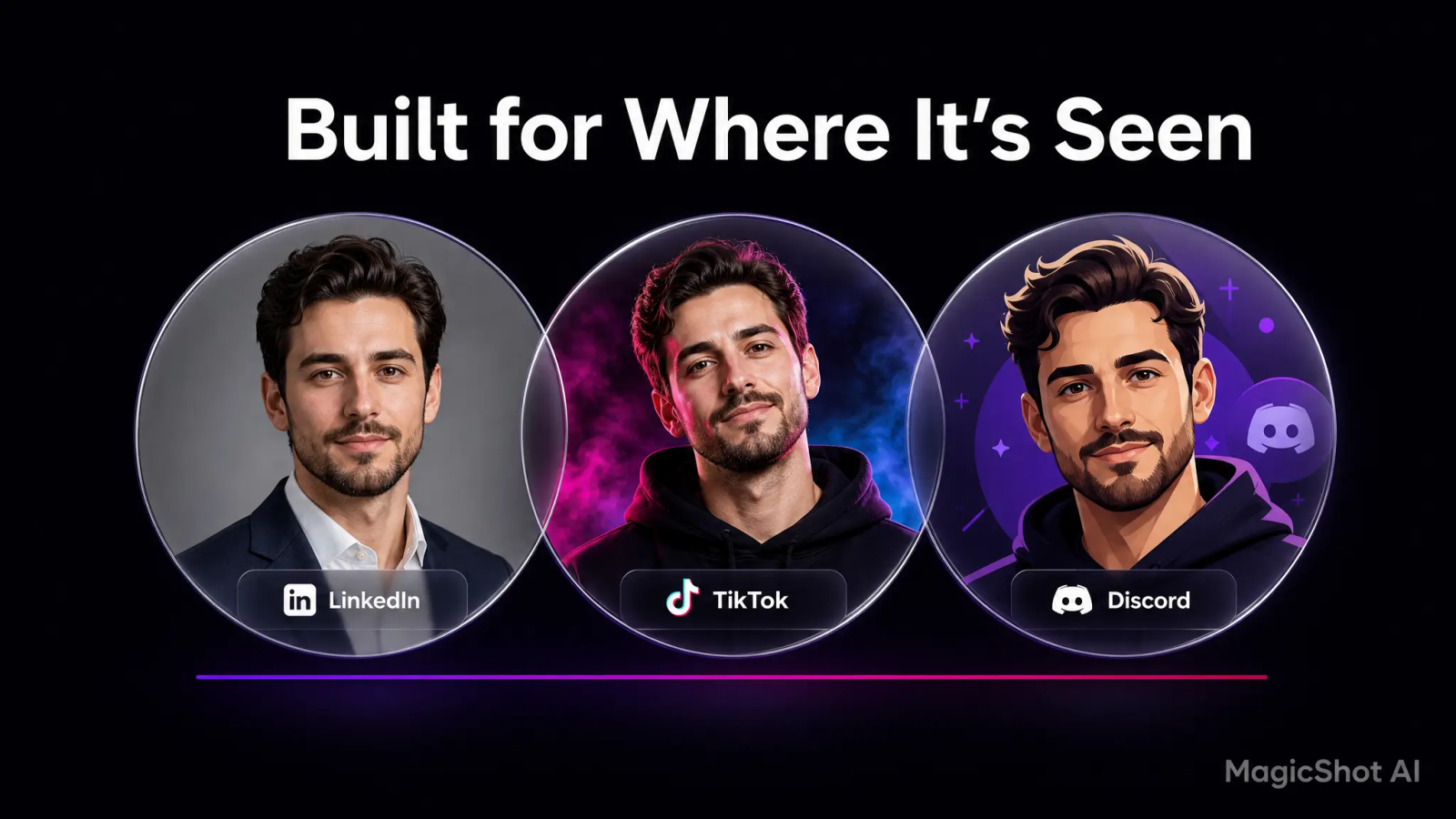
One image rarely works everywhere. A TikTok PFP sits in a small circle next to a username on a busy feed, competing with video thumbnails, so bold contrast and a simple silhouette win. A LinkedIn photo gets judged in a larger square first and needs to read as professional rather than loud. A Discord avatar shows up dozens of times per conversation at a tiny size, so it needs to be recognizable even smaller than a TikTok circle.
Rather than compromise with one photo trying to do all three jobs, generate styled variants for each platform:
A high-contrast, bold version for TikTok and gaming platforms
A cleaner, neutral-background version for LinkedIn and professional networks
A stylized or illustrated version for Discord, forums, or gaming communities where a cartoon avatar fits the culture
The same face, three different treatments, each built for how and where it's actually seen. An AI pfp generator that supports multiple style outputs from one upload set makes this a five-minute task instead of three separate photo shoots. If you're setting up a profile for a dating app specifically, the framing and lighting rules shift again, worth a look at a tool built for dating profile photos if that's the platform you're optimizing for.
Choosing a Profile Picture Creator That Fits Your Workflow
Not every profile picture creator handles the full job. Some only generate the image and leave cropping to you. Some only crop and leave style generation out entirely. Before you commit to one, check three things: does it generate multiple style variants from your uploads, does it show a circle-crop preview before you export, and does it produce platform-sized versions in one session instead of re-uploading for every site.
A profile picture generator that handles all three saves the repeat work of re-editing every time you switch platforms or get tired of your current look. MagicShot bundles this avatar and PFP workflow into the same subscription as top AI models and every other tool, so the same account that builds your profile picture also covers product photos, logo work, and video generation when those needs come up.
Wrapping Up
A profile picture only has to do one job well: read clearly at a tiny size, in a circle, next to your name. Get the crop, contrast, and framing right at the source, and every platform's own compression and masking stops being a threat. Build variants for each platform instead of forcing one photo to cover all of them, and test everything at actual size before you call it done.
Start with MagicShot's profile picture maker if you want the cropping and style generation handled together instead of as two separate steps.