
Most background removers do fine on a product against a white table. The differences show up on the hard cases: wispy hair, glass, jewellery, or a cluttered background. This guide compares the built-in removers in Canva and Adobe Express with a dedicated tool like MagicShot's AI background remover, and it is honest about when you do not need another subscription at all.
Start with the right question
Do not ask which tool is best. Ask what is in your photo and where the cutout is going. A quick social post and a print-ready product catalogue need different levels of edge quality.
Canva and Adobe Express: good for quick cutouts
Both are built into a design editor, which is their biggest advantage. You remove the background and keep working on the same canvas, with no export and re-import. They work well on a single subject against a plain, high-contrast backdrop, such as a product on a white surface or a person in front of a solid wall. If you already pay for Canva Pro or an Adobe plan, the included remover covers a lot of everyday work.
Where built-in tools can struggle
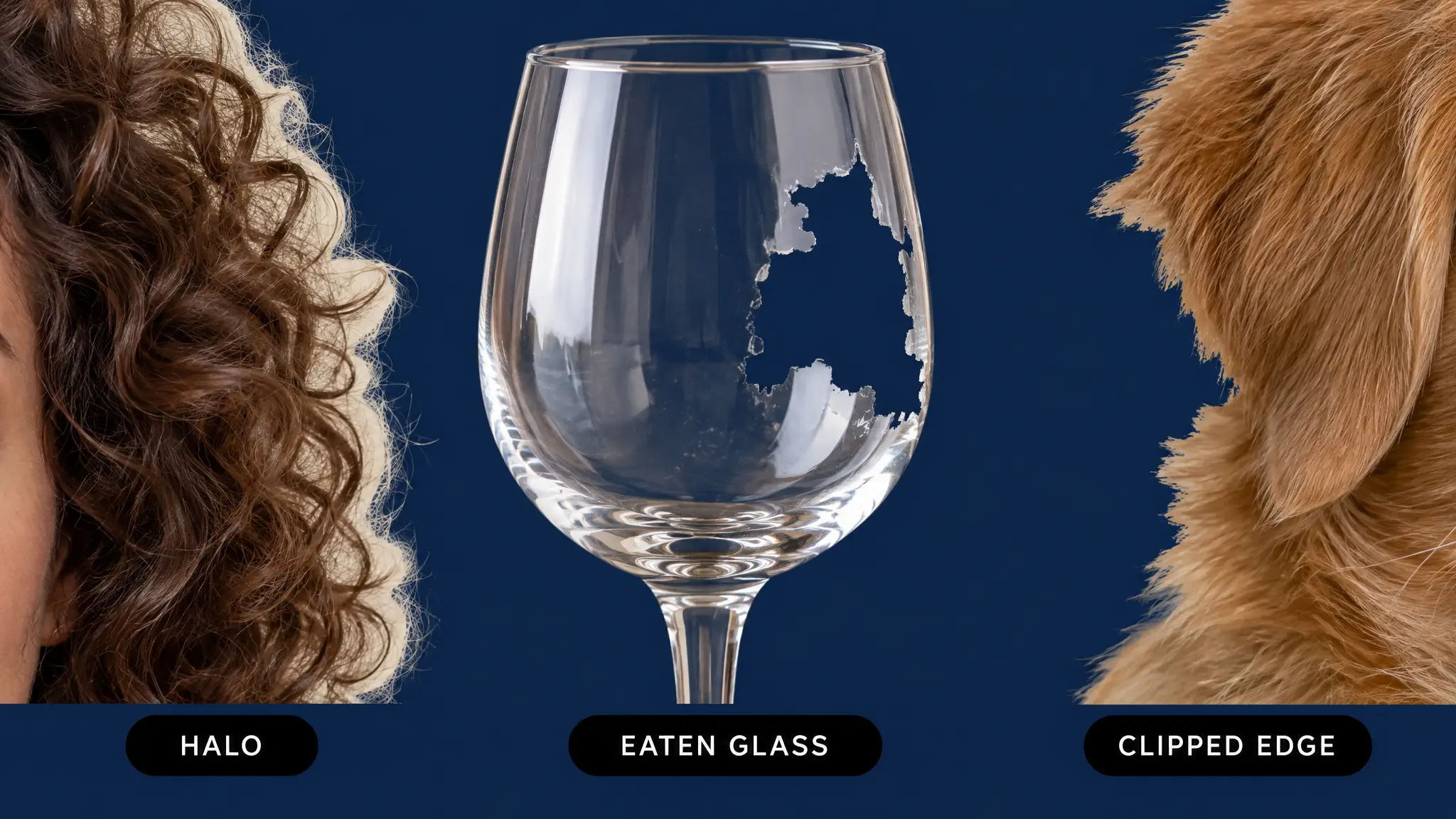
Fast, general-purpose cutout models are tuned for common cases. You may see problems with:
Fine or flyaway hair and fur, where a faint halo or chopped strands are the usual sign.
Glass and semi-transparent items, which can be removed or turned solid.
Jewellery and reflective metal, where small gaps and highlights confuse the edge.
Busy or multi-tone backgrounds, especially when the subject's colours match the background.
Results change between versions, so test your own photos rather than trusting any general claim, including this one.
A 5-minute test you can run yourself
1. Pick three photos: an easy one, one with hair or fur, and one with glass or shiny metal.
2. Run each through every tool you are considering.
3. Place each cutout on both a dark and a light background and zoom in to 200 percent.
4. Look for halos, missing pieces, jagged edges and holes in see-through areas.
5. Pick the tool that handles your hardest photo, not the easy one.
Where MagicShot fits
A dedicated background remover is worth it when you do not already have a design-suite subscription, or when you cut out many images with tricky edges, such as sellers with product catalogues. It is a paid tool, so if Canva or Adobe already does the job on your photos, you do not need it.
To use it, upload the photo, choose background removal in the image editing tool, and export as a PNG so the transparency is kept. There is no manual lasso or magic wand step. For specific uses, see our guide to transparent images for products, logos and stickers.
Quick recommendation
Already inside Canva or Adobe Express, simple subject: use their built-in remover.
Hair, fur, glass or a busy background: try a dedicated remover and compare.
Large batches of product photos: test two or three tools on your hardest images, then standardise on one.
Final delivery: always check the cutout on the real background it will sit on.