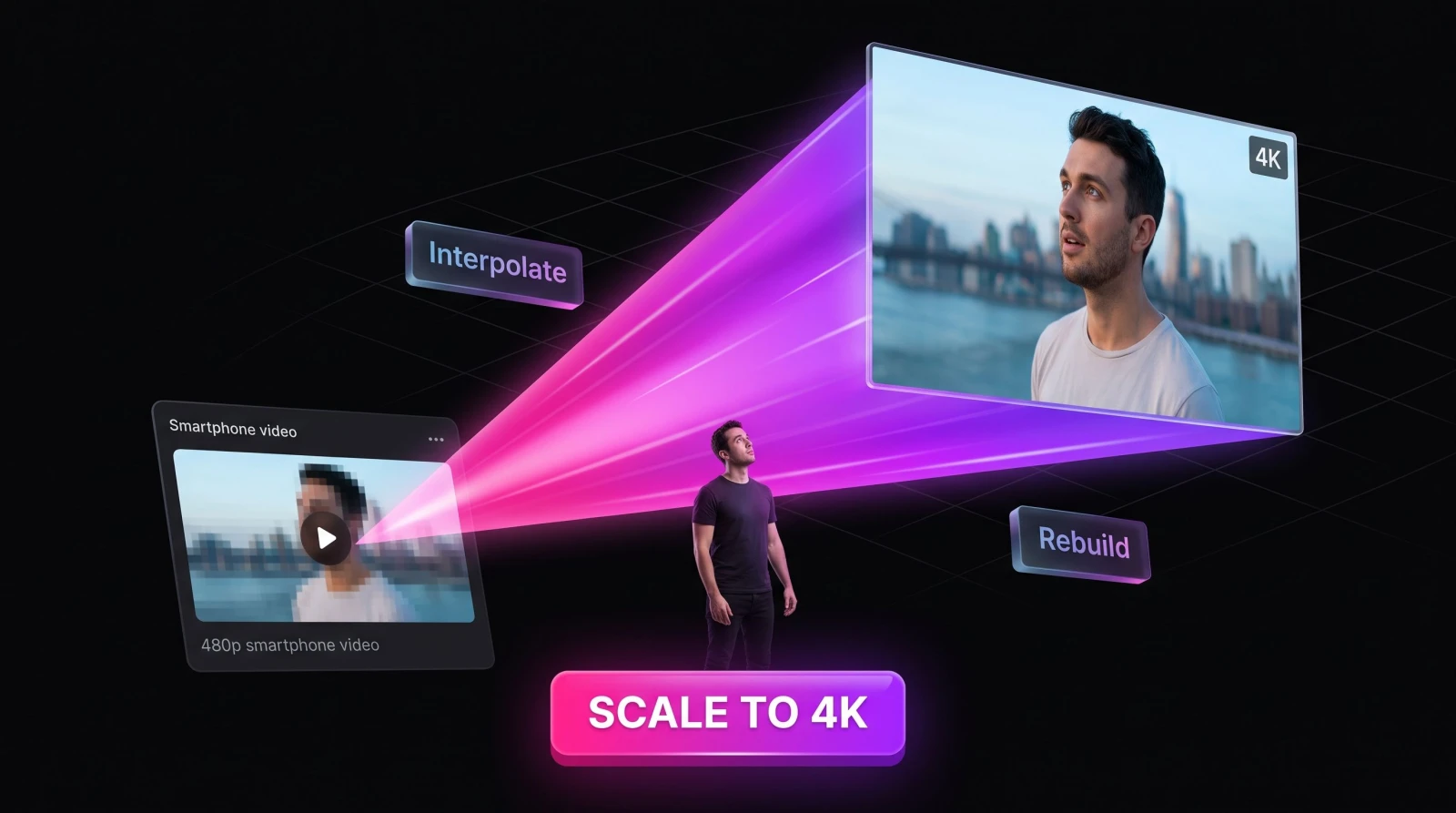
You shot the perfect moment. Then you opened it on a big screen and it looked soft, grainy, and a size too small for where you wanted to post it. An AI video upscaler fixes that. It takes a low-resolution clip and rebuilds the missing detail, so a 480p or 720p file can come back as a clean 1080p or 4K video. No reshoot, no expensive editor, no waiting three days for a contractor to send it back.
Older resizing tools just stretched the pixels you already had, which is why the result always looked blurry. AI works differently. It has learned what real edges, skin, fabric, and text are supposed to look like, so instead of guessing wide it fills in believable detail. That is the difference between a clip you delete and a clip you ship.
What an AI video upscaler actually does
An AI video upscaler raises the resolution of a video by reconstructing detail frame by frame rather than simply enlarging existing pixels. Feed it a small, soft source and it returns a sharper version at a higher resolution, with cleaner edges, tighter texture, and less of that mushy look you get from a basic stretch.
Think of the two approaches side by side. A traditional resize takes a 720p frame, spreads it across a 4K canvas, and averages the gaps. You get a bigger blur. The AI approach analyzes each frame, recognizes what it is looking at, and paints in detail that fits, edges stay crisp, hair keeps its strands, and a logo stays a logo instead of turning into a smear.
The practical payoff is simple. Footage you had written off becomes usable again. Old family videos, phone clips buried in your camera roll, screen recordings, product B-roll, and downloaded assets that arrived too small can all be brought up to a size that looks right on modern displays.
How the AI video upscaler works, step by step
1. Upload your clip
Drop in the video you want to fix. That could be a 480p home video, a 720p social clip, or a product shot that came out softer than you expected. The source does the choosing here, so start with the actual file you plan to use, not a re-exported copy that already lost quality.
2. Let the AI rebuild each frame
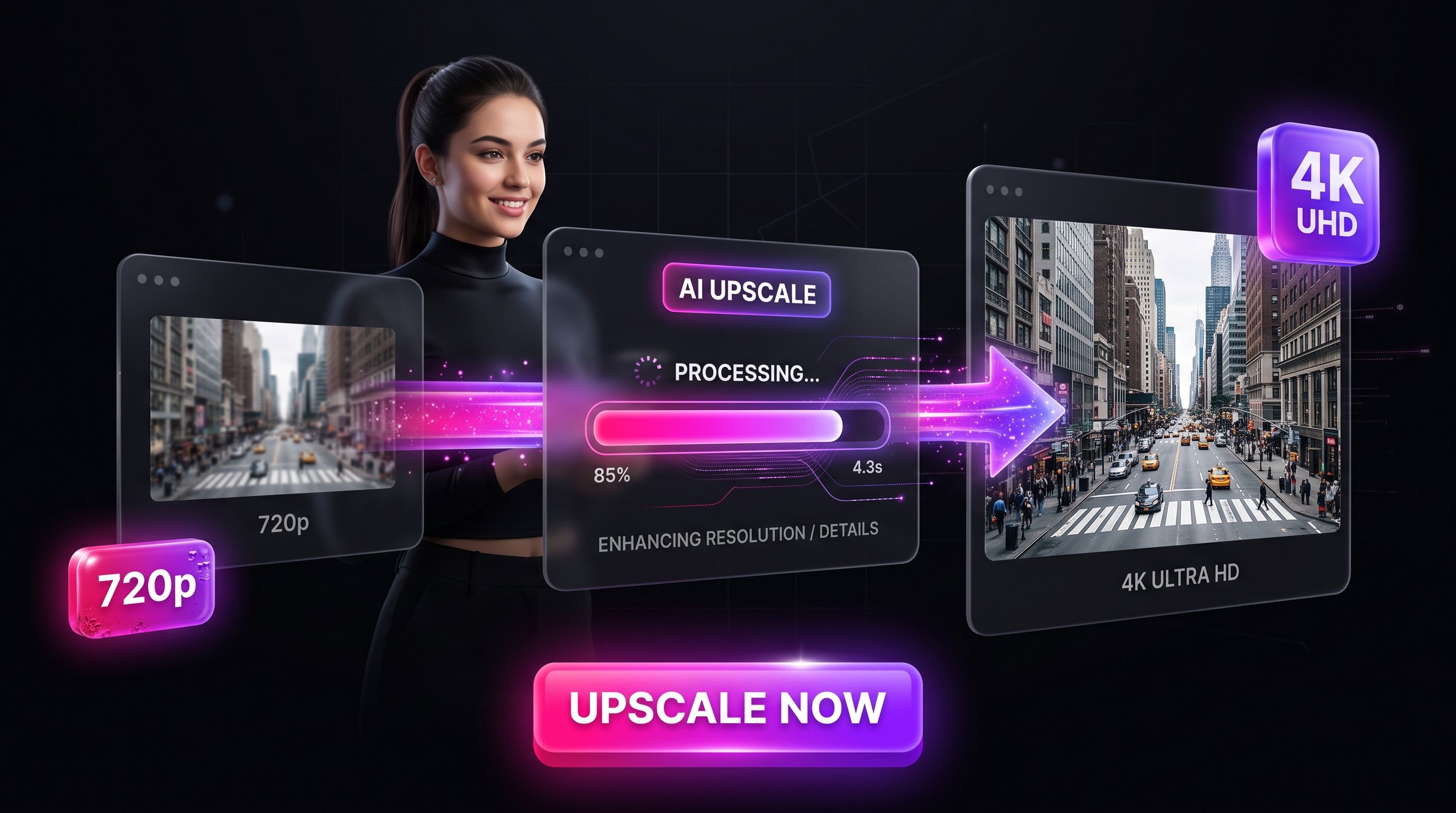
The model works through the video frame by frame, sharpening edges, cleaning up compression noise, and adding detail where the original was too small to hold it. Because it processes every frame with the same logic, motion stays smooth instead of flickering between sharp and soft.
3. Download at the higher resolution
You get back an upscaled file, ready to drop into your edit, your product page, or your social post. Same clip, more resolution, none of the soft, pixelated look you started with.
When to reach for an AI video upscaler
This tool earns its keep in a handful of very specific situations. Here is when creators and small teams actually open it.
Old footage you cannot reshoot
The wedding clip from 2011. Your grandfather telling a story on a camcorder. That one take you nailed on an old phone. You cannot go back and film it again, so upscaling is the only way to make it look right on a modern TV or in a highlight reel. If you also want to fix faded, damaged stills from the same era, the photo restorer handles the photo side of the archive.
Social clips that need to fill the screen
Vertical video on TikTok and Reels is unforgiving. A 720p clip stretched to fill a phone screen looks cheap, and viewers scroll past cheap. Upscaling gets your footage to a size that reads as clean and intentional. Once it is sharp, you can push it further with the AI video effects generator or record a voiceover with text to speech.
Product and store video
Shoppers judge fast. Soft, low-res product video reads as low quality, and that hesitation costs sales. Sharper footage on a product page or an ad set does the opposite. If you are building product video from scratch, pair upscaling with image to video to turn a single product photo into motion.
Downloaded or repurposed assets
Stock clips, licensed B-roll, and content pulled from an older archive often arrive smaller than your timeline needs. Rather than dropping a tiny clip into a 4K edit and watching it look out of place, upscale it first so everything matches.
Resolution, bitrate, and why size alone lies
People assume a bigger number means a better video. Resolution is only half the story. A 4K file that started life as a heavily compressed 480p clip and got stretched will still look soft, because stretching does not add information. What you want is real detail at the new resolution, and that is exactly what the AI adds.
Two things drive how good the output looks. First, the resolution jump, going from 720p to 1080p asks less of the model than going from 480p to 4K, so a smaller, more honest target usually looks cleaner. Second, the quality of the source. A lightly compressed clip has more real detail for the AI to build on than one that has been saved and re-saved a dozen times. When both are in your favor, the result can look like it was shot at the higher resolution to begin with.
A quick before-and-after mindset
Before you upload, pick the moment in your clip that matters most, a face turning to camera, a product close-up, a line of on-screen text. That frame is your test. If it comes back sharp and natural, the rest of the clip almost always follows. Judging the upscale on a wide, motion-heavy shot tells you far less than judging it on the frame your audience will actually study.
What a video upscaler can and cannot do
Straight talk, because false expectations waste your time. An AI video upscaler rebuilds detail that is plausible from what the source gives it. It is very good at sharpening edges, cleaning compression artifacts, and making a small clip look right at a larger size.
It is not a mind reader. If a face is so blurry the original has no features to work from, the AI cannot invent a specific person's likeness out of nothing. If the footage is badly out of focus at the moment of capture, upscaling raises the resolution but cannot un-blur a bad shot. Start with the best source you have, and the result climbs with it.
Rule of thumb: upscaling multiplies the quality that is already there. It does not create quality that never existed.
Who reaches for a video upscaler most
Different people bring different clips to the same tool, and the win looks different for each.
Creators and editors
You pulled a great reaction clip from an old stream, or a viewer sent you phone footage that belongs in your video but sits at 480p. Upscaling lets you cut it into a 1080p or 4K timeline without a jarring drop in quality when it appears on screen.
Sellers and small brands
You have product video sitting in a folder that looks fine on a phone and rough on a laptop. Sharpening it before it goes on your Etsy listing or ad set removes the one detail that quietly signals low quality. Sellers often pair the upscaler with a clean product photo generator so the still images match the video.
Families and archivists
Home video is the classic case. Camcorder tapes, early phone clips, and burned discs all sit well below modern resolution. Upscaling brings them close enough that they play comfortably on the TV in the living room instead of a postage-stamp window.
Upscaling fits into a bigger workflow
Most people do not upscale a clip and stop. It is one step in getting a video finished and posted. A common run looks like this: generate or shoot the footage, upscale it so it holds up at full size, add sound, then publish.
If you are producing content start to finish, MagicShot keeps the rest of that chain in one place. Build clips from a prompt with text to video, create authentic-feeling promo content with UGC videos, and score the whole thing with the AI music generator. The upscaler is the finishing pass that makes sure none of that work looks soft when it hits the feed.
Tips for the sharpest result
Use the original file. A clip that has been re-shared, re-exported, and re-compressed has already lost detail. Track down the closest thing to the source you can find.
Match your target, not the maximum. If you are posting to Reels, 1080p is often plenty. Reserve 4K for large screens and product pages where the extra resolution actually shows.
Upscale before you add effects and text. Overlays and captions look sharpest when they sit on top of an already-clean base, not the other way around.
Check faces and text first. These are the two spots viewers notice most, so scrub to a frame with a face or a logo and judge the result there.
The bottom line
An AI video upscaler turns footage you were about to delete into footage you can post. It rebuilds detail instead of stretching pixels, which is why the result looks like a better version of your clip and not a bigger blur. Old memories, social video, and product footage all get a second life at a resolution that holds up on the screens people actually watch on. Upload the clip, let the AI rebuild each frame, and download something worth sharing.