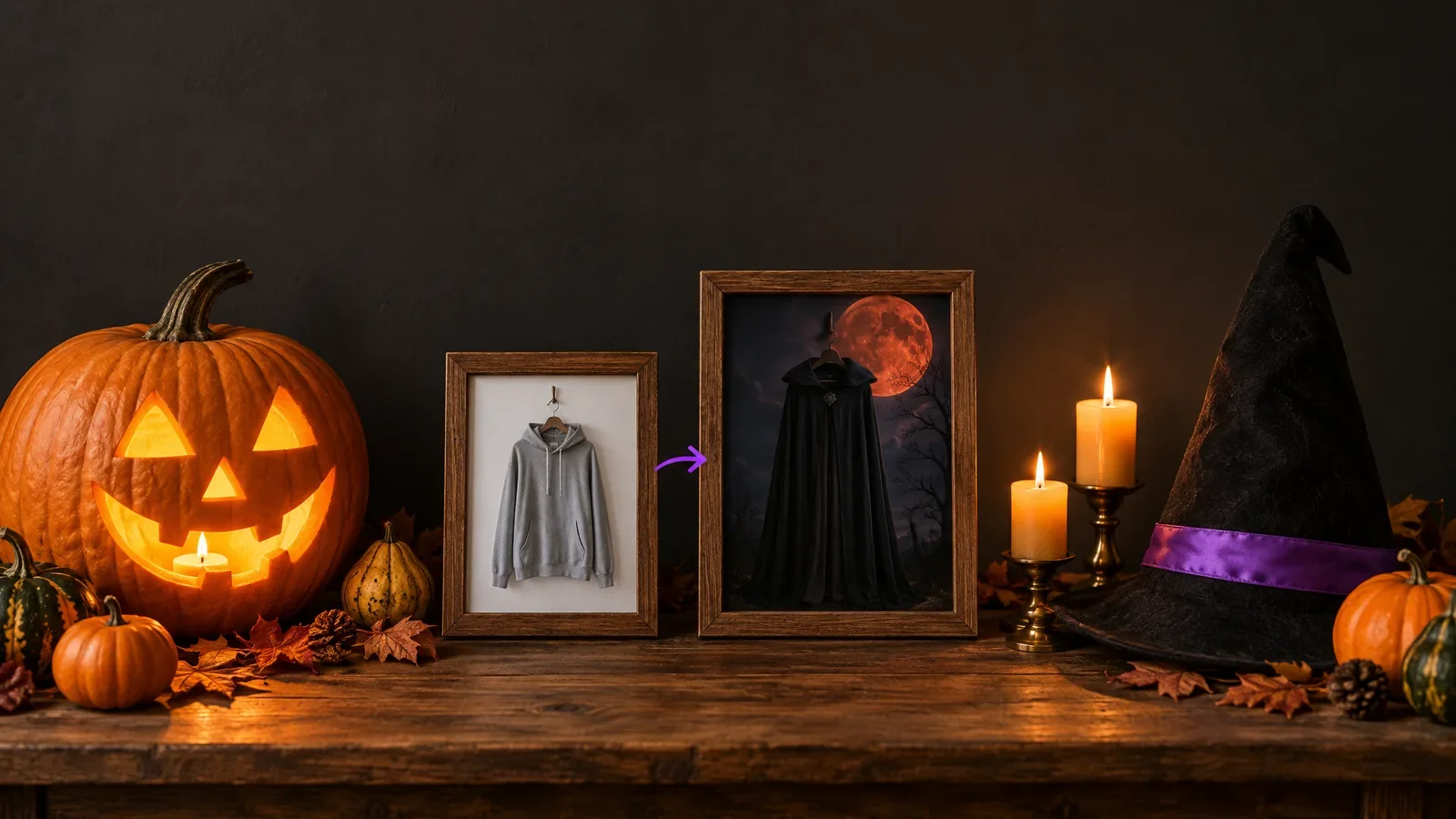
You do not need a costume shop, face paint or a spare weekend to turn up as a Victorian ghost. An AI Halloween costume starts with one ordinary photo: upload it to the MagicShot Image Editing tool, describe the look, and the tool dresses you, your friend or your dog for the occasion. It is also the way into the Halloween Glow-Up challenge, where the top three entries share 100,000 credits. Entries close on October 31, 2026.
How to make an AI Halloween costume from your photo
Pick a clear photo. One person facing the camera, good light, nothing covering the face. A selfie by a window beats a dark party shot.
Open Image Editing. Add the photo. The first photo is the one that gets edited. You can add up to 14, and the extra ones act as references.
Say what to change. Write the costume, the setting and the mood in one or two sentences. The tool shows example prompts under the box if you want a starting point.
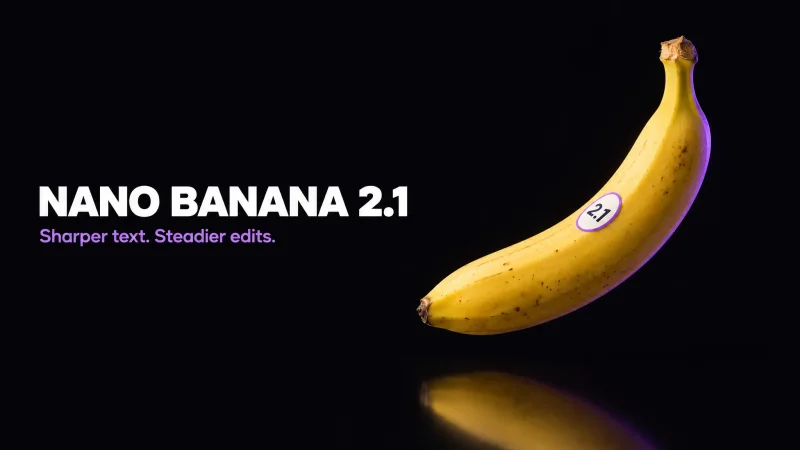
Check the model and cost. The default model at the time of writing is Nano Banana 2.1, and the Generate button showed 122 credits. The button always shows the cost before you commit.
Generate, look, adjust. If the face drifts or the costume is wrong, change one detail in the prompt and run it again.
Six Halloween looks to try
These are example prompts. Copy them, then swap in your own details. Each one names the costume, the setting and the lighting, which is what makes the result feel like a scene and not a filter.
1. Victorian ghost
Turn me into a translucent Victorian ghost standing in a candlelit haunted manor hallway, pale blue glow, keep my face recognizable.
2. Neon zombie
Make me a zombie with cracked skin and faintly glowing green veins in a rainy neon-lit alley at night, keep my face recognizable.
3. Witch under a blood moon
Dress me as a witch with a pointed hat and a long dark cloak, a huge red moon behind me, a few bats in the sky, keep my face recognizable.
4. Classic monster, reimagined
Reimagine me as a vampire count with a high collar, subtle fangs and a gothic castle behind me, candlelight, keep my face recognizable.
5. A costumed pet
Put my dog in a small witch hat and cape on a porch lined with carved pumpkins, warm lantern light.
6. Fog, fangs and face paint
Add skull face paint, glowing eyes and low graveyard fog around me, dark moody lighting, keep my pose.
Prompt tips that keep you looking like you
Say "keep my face recognizable". It is the single most useful line. Without it, a heavy costume can change your features.
Change the outfit and the background first. Ask for makeup, fangs or skin effects second. Big face changes are where a likeness gets lost.
Name the light. Candlelight, moonlight, neon and fog each give a different mood. Light is what ties you and the background together.
Change one thing per attempt. If you change the costume, the setting and the lighting at once, you will not know which one fixed or broke the result.
Use a photo with space around you. A tight crop leaves little room for a hat, a cape or a moon.
Last-minute Halloween costume ideas for 2026
Google Trends shows US searches for last minute halloween costume ideas, couple halloween costumes and funny halloween costumes all climbing this month. An AI preview will not replace the real thing at the party, but it lets you test three looks on your own photo in a few minutes before you buy or sew anything.
Couple costumes: use a photo of the two of you and describe each person's costume separately in the prompt.
Funny costumes: go over the top, for example "a dramatic opera ghost in a powdered wig, keep my face recognizable".
Last-minute looks: pick one of the six looks above and change only the setting. A new background is the fastest way to make it yours.
Pets, kids and friends
Pets work well because the costume does most of the talking: a hat, a cape, a pumpkin patch. For a look at the same idea beyond Halloween, see our post on AI pet dress-up. If you edit a photo of another person, ask first. That goes double for children. Only upload photos you have the right to use.
The Halloween Glow-Up challenge
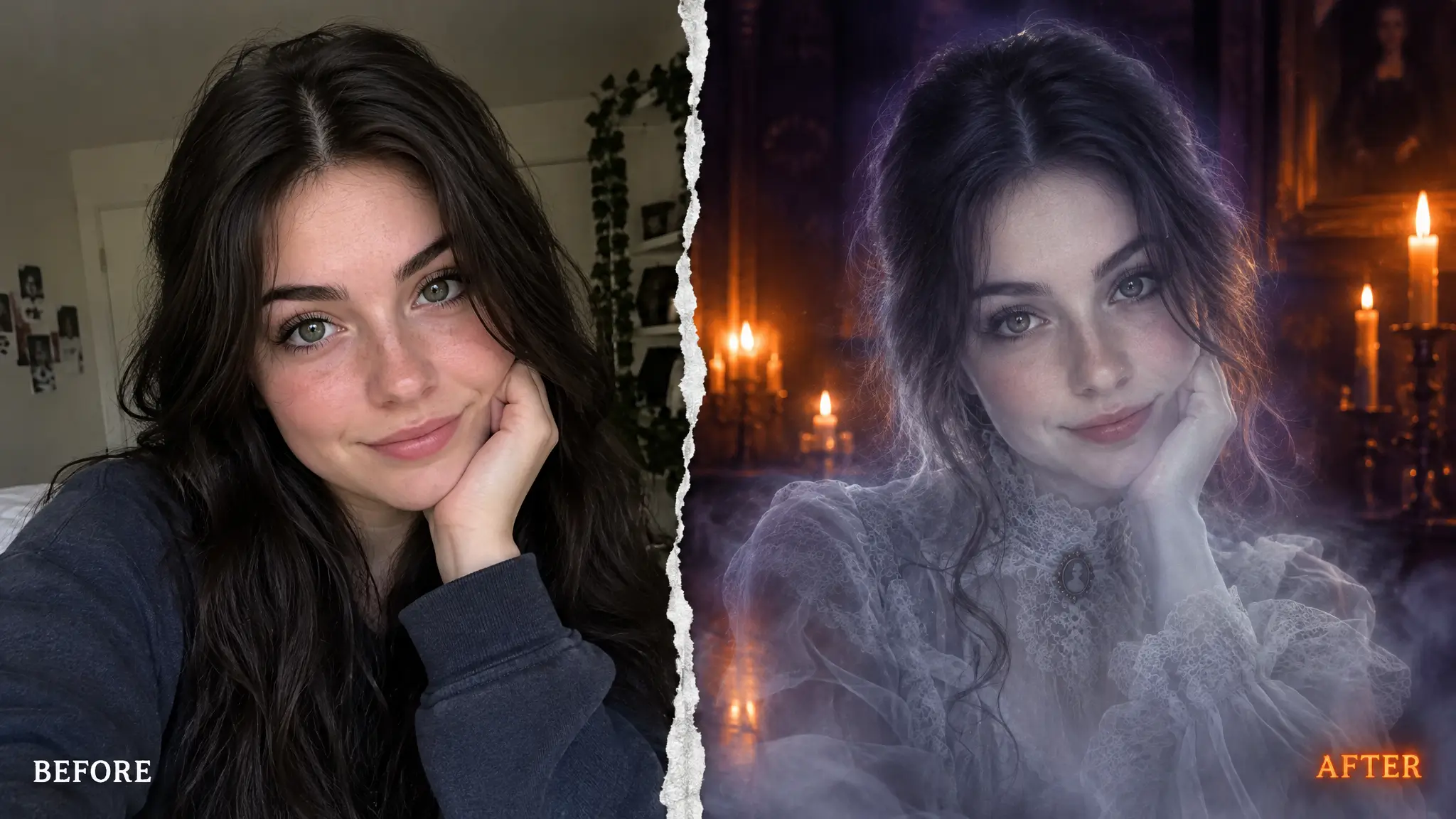
MagicShot's community challenge asks you to give your own photo a Halloween makeover with Image Editing. The prize pool is 100,000 credits, split three ways.
1st place: 75,000 credits
2nd place: 20,000 credits
3rd place: 5,000 credits
Key dates: entries opened on October 20, 2026 and close on October 31 at 18:29 UTC. Voting then runs until November 3 at 18:29 UTC. Winners are announced on the challenge page after judging.
How winners are picked: each member gets one vote, and you cannot vote for your own entry. The ten most-voted entries make a shortlist, and the judges choose the three winners from it.
How to enter
Make your Halloween edit in Image Editing.
Publish it as a public template.
Add it to the Halloween Glow-Up challenge on the challenge page, then share the link so people can vote.
The rules in short: the entry must be your own, made on MagicShot with Image Editing after the challenge started. The template has to be live and public. You can enter up to three times.
Halloween presets outside the challenge
The Halloween page also lists ready-made looks in other tools, such as Pet Dress Up, the Avatar Generator, Baby Photoshoot, Product Photography and the Album and Book Cover Makers. They are good for profile pictures and posts. Only the Image Editing presets, Halloween SFX and Gothic, count towards the challenge.
When it does not look right
The face does not look like me
Add "keep my face recognizable" and tone down the face effects. Move the horror into the costume and the setting.
The costume looks flat
Add a light source and a setting, for example "lit by a single candle in a dark hallway".
The background swallowed me
Ask for a clearer subject: "keep me in sharp focus, background slightly darker".
If you want a polished still of the same photo afterwards, you can sharpen it with the image upscaler or the face enhancer. When you are ready, open Image Editing, pick one look from the list and make your first AI Halloween costume.