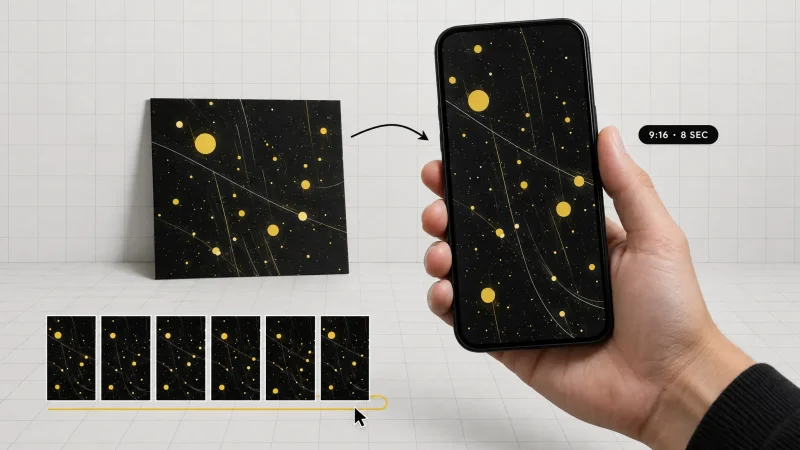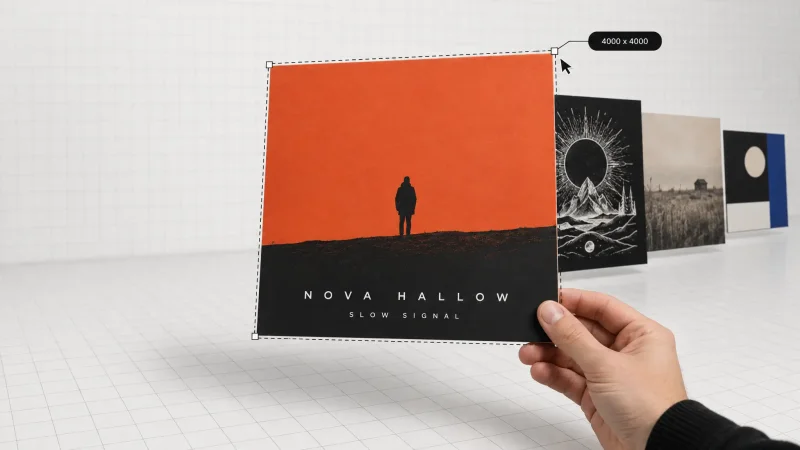
You took the shot, but the crop is wrong. Someone's elbow got cut off, the background feels cramped, or your product photo needs a taller frame for a print ad. An AI expand image tool fixes that without a reshoot, a second photographer, or an afternoon in Photoshop patching pixels by hand. Feed it a photo, tell it which direction to grow, and it generates new, matching pixels along the edges so the picture looks like it was framed that way from the start. This guide covers what outpainting actually is, how MagicShot's Extend Image tool works, the real jobs it replaces, and how to get results that hold up once you zoom in.
What Is AI Expand Image (Outpainting)?
AI expand image, also called outpainting, is the process of using a generative model to add new, believable pixels beyond a photo's original borders instead of stretching or cropping what's already there. Ordinary resizing just crops content or leaves ugly bars around it. Outpainting studies the lighting, texture, and perspective of your existing photo, then generates content that continues the scene naturally, whether that's more sky above a mountain, more sidewalk beside a subject, or the rest of a body finishing out a headshot.
This is different from an image upscaler, which sharpens and enlarges pixels that already exist. Expanding a photo doesn't make it sharper, it makes the canvas bigger by inventing new, matching content around what you already have. If a listing photo, a poster, or a print needs both a bigger canvas and a crisper file, most people extend the frame first, then run the result through an image upscaler for the final resolution boost.
How MagicShot's Extend Image Tool Works
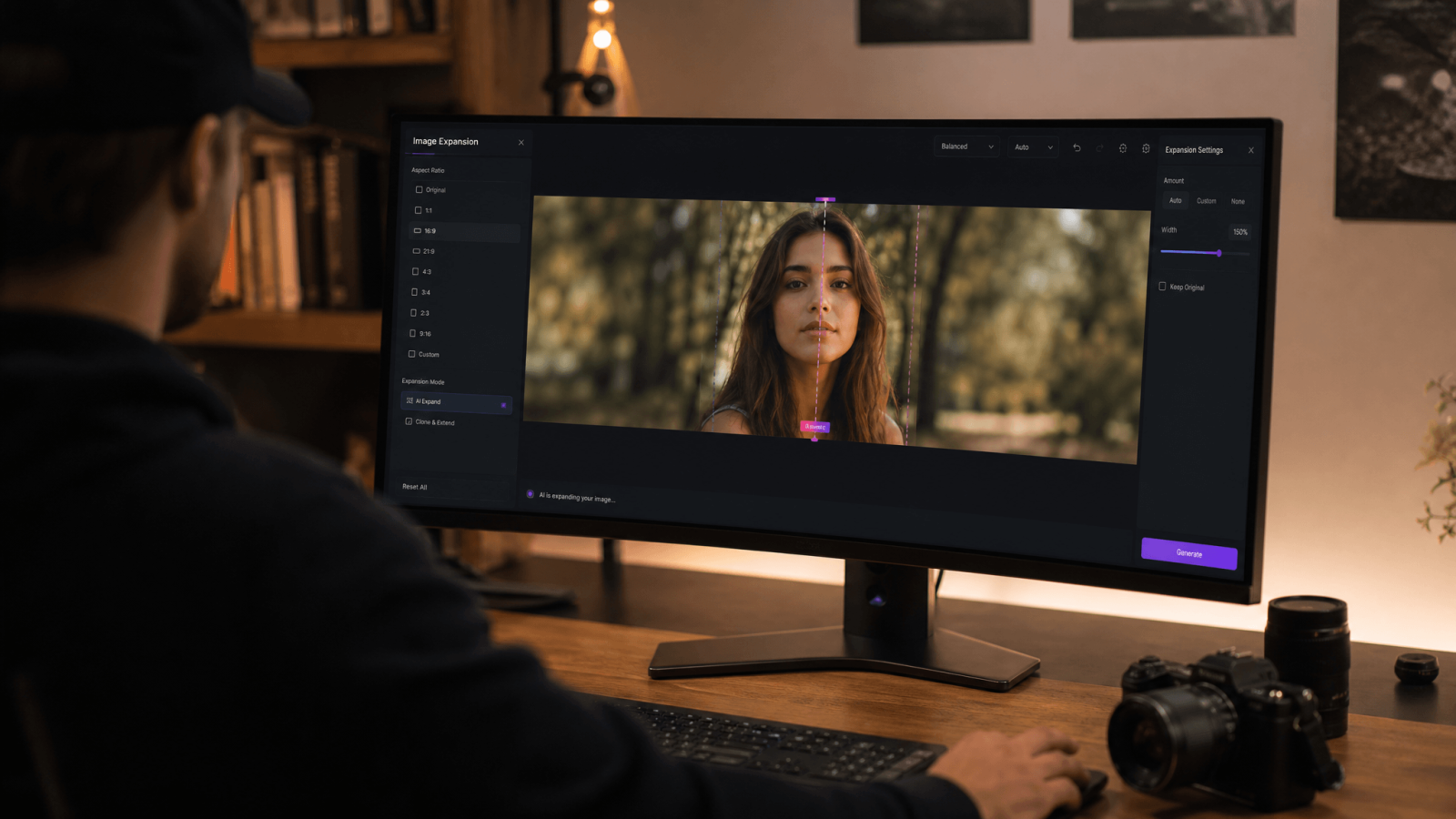
Getting from a tightly cropped photo to a full frame takes three steps:
Upload your photo. Any portrait, product shot, or landscape you want to grow works as a starting point, cropped edges and all.
Choose your direction and ratio. Pick which side needs more room, top, bottom, left, right, or all around, and the aspect ratio you're building toward, like a square for social media or a tall frame for a poster.
Generate and download. The tool renders new content that matches your original photo's lighting and style, then hands you back a single, wider or taller image ready to use.
Who Actually Uses This Tool
This isn't a niche trick, it solves a problem almost every photo eventually runs into: the frame doesn't match the format you need next.
Online sellers shoot one product photo, then need a square crop for Instagram, a tall crop for Pinterest, and a wide banner for their Shopify homepage, all from the same shot.
Real estate agents inherit listing photos shot too tight on a room, and need the walls or ceiling extended so the space reads as bigger and more complete.
Portrait and event photographers deliver a client's favorite shot in a ratio the original crop never allowed, without scheduling a second session.
Print shops and framers get asked to enlarge a photo onto a canvas size the original file doesn't cover edge to edge.
Social media managers take one photoshoot and reframe it for five platforms that each crop profile and cover images differently.
Turning a Half-Body Photo Into a Full-Body Picture
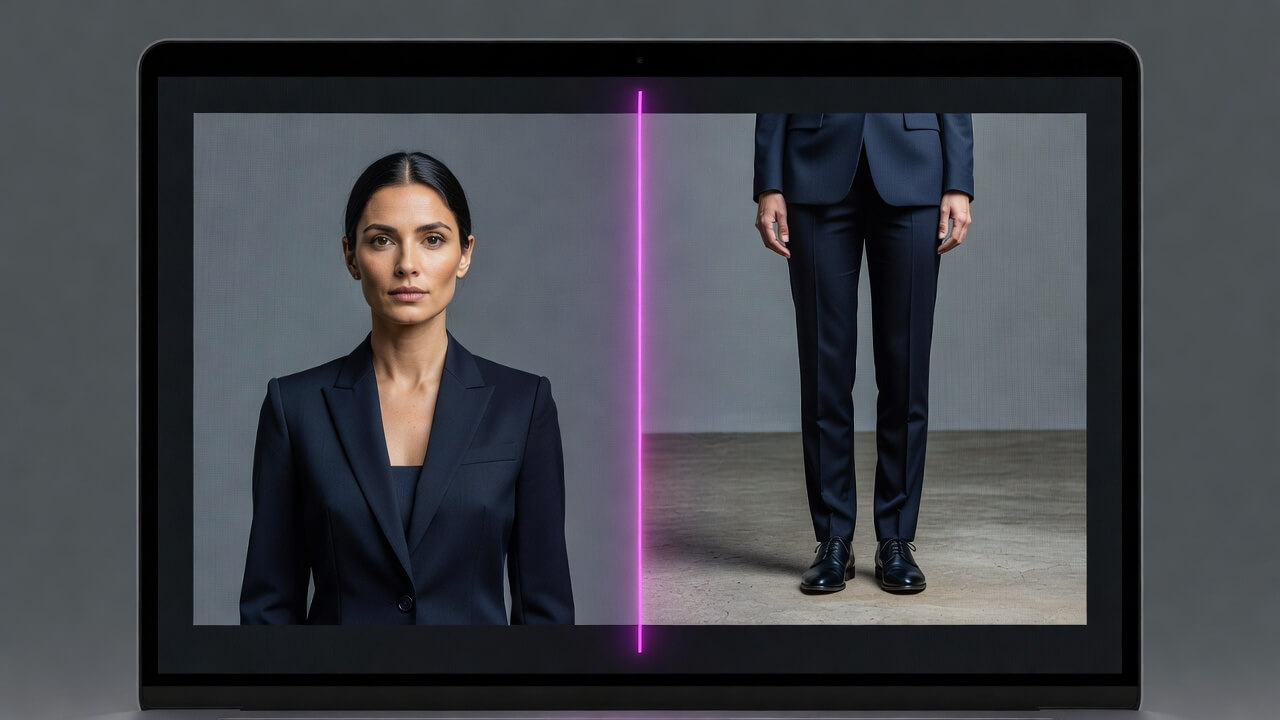
One of the most common requests is turning a waist-up photo into a full body picture, whether that's for an award certificate that calls for a full-length portrait, a game avatar reference, or a fashion mockup where a cropped headshot just won't do. AI expand image handles this by extending the canvas downward and generating legs, feet, and ground that match the clothing, pose, and lighting already in the shot.
Worth being upfront about: the result is a plausible full-body version of the photo, not a recovery of the literal, unphotographed legs. It's a creative reconstruction, not a factual record, and it's best used for portraits, avatars, and mockups rather than anything that needs to document exactly how someone looked. For fashion-specific results, like swapping in full outfits or trying different looks on a generated body, MagicShot's AI Fashion Model tool is built for that exact job.
Other Real Jobs an AI Photo Expander Solves
Extending a photo isn't just a portrait trick. It shows up across everyday work:
Marketplace listings. Etsy, Amazon, and Shopify each want product photos in specific ratios. Instead of reshooting on a bigger backdrop, extend the existing shot's background. MagicShot's Product Photo Generator is built for this kind of listing-ready output.
Wallpapers and prints. A phone photo that's perfect but the wrong shape for a desktop background or a canvas print can be widened or heightened without warping the subject, no matter what size screen or canvas it needs to fill.
Old, tightly cropped photos. Scanned family photos often lost their edges to old frames or damaged borders. Combine outpainting with MagicShot's Photo Restorer to fix damage first, then extend the frame back out.
Social banners and covers. LinkedIn, YouTube, and Twitter all crop profile and cover images differently. One expanded master image can be reframed for every platform instead of shooting new photos for each.
Video projects. A still photo that's the wrong aspect ratio for a video project can be expanded to fit a widescreen or vertical frame before it ever gets animated and posted as a clip.
AI Expand Image vs Cropping, Photoshop, and a Reshoot
Cropping only removes information, it can never add back what wasn't captured. A Photoshop content-aware fill can extend simple backgrounds but struggles badly with faces, hands, and complex patterns, and it still demands a paid subscription and real skill to use well. Booking a photographer for a reshoot can run into hundreds of dollars once you count the studio, the editing, and the schedule you have to work around.
The fastest fix for a badly cropped photo isn't a better crop. It's more photo.
AI image expansion skips the cost of all three: no missing pixels, no manual retouching, no second shoot. You use the photo you already took and let the model fill in what the camera didn't capture.
Tips for Cleaner Outpainting Results
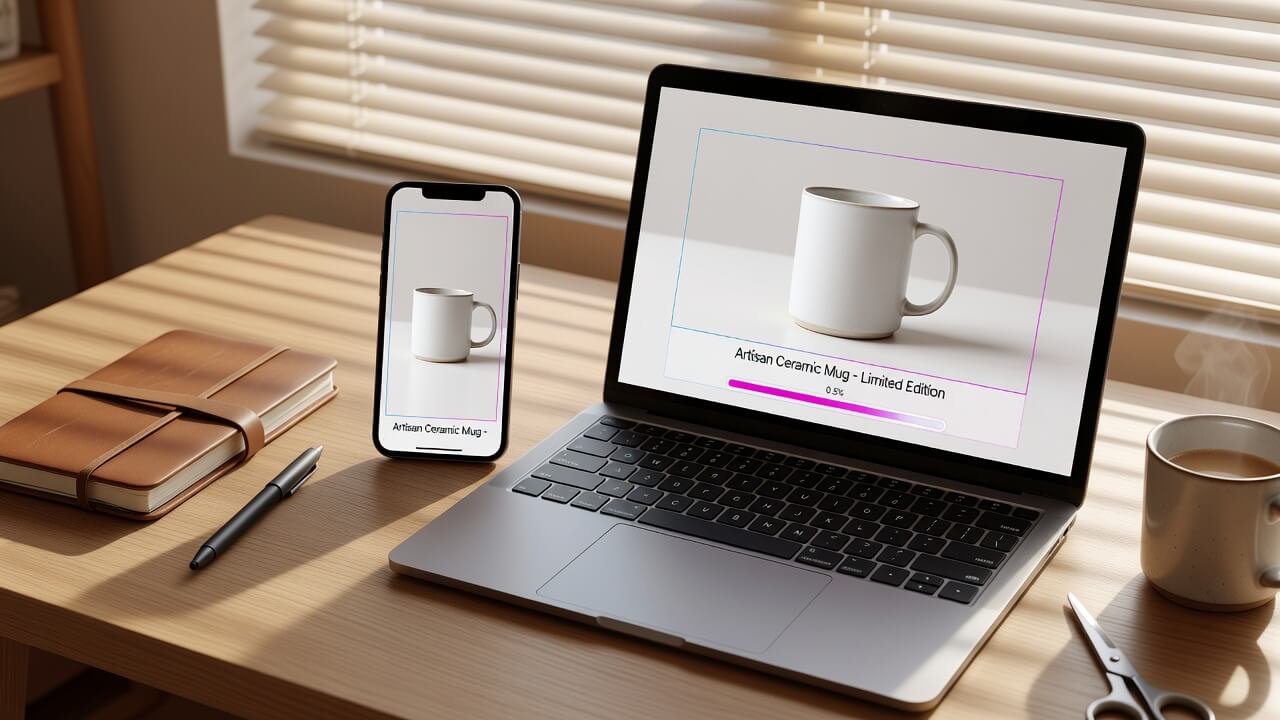
A few habits make a real difference in how convincing an expanded photo looks:
Start with the highest resolution version you have. More detail in the original gives the model more to match when it generates new pixels.
Expand in smaller steps for busy scenes. A photo with lots of texture or pattern, crowds, patterned fabric, detailed backgrounds, extends more convincingly in modest increments than one huge jump.
Simple backgrounds extend best. Plain walls, sky, grass, and solid-color backdrops are the easiest for any AI expander to continue believably.
Upscale after you expand if the final file needs to be large. Extend the frame first, then run the result through an upscaler for posters, banners, or print.
Match your aspect ratio to where the photo is actually going. A square crop for an Instagram grid, a 9:16 frame for a Reel, and a wide banner for a website header all call for a different extension, so pick the ratio before you generate rather than cropping again afterward.
Formats, File Sizes, and What to Expect
Extended photos come back as a single flattened image, sized to the aspect ratio you picked, not a layered file you need to blend yourself. That matters if you're batch-processing a shoot: there's no manual masking or feathering step between the original photo and the final export. If your next step is a heavily edited composite, keep a copy of the original crop on hand, since outpainting works from the photo you upload and won't reconstruct a version that never existed in the source file.
It's also worth setting expectations on faces versus backgrounds. Extending sky, grass, walls, or fabric tends to look convincing almost immediately, because those surfaces are naturally repetitive and forgiving. Extending toward a second face or a complex hand position is a harder ask for any generative model, MagicShot's included, so the closer your extension direction is to open space rather than fine detail, the fewer retries you'll need.
Cropping a photo is a one-way trip. Once the frame is set, whatever fell outside it is gone unless you go back and reshoot. AI expand image gives you a way back: it takes the photo you already have and finishes the frame you actually needed. Whether you're fixing a too-tight headshot, resizing a product photo for a new marketplace, or rescuing an old family picture that lost its edges, MagicShot's Extend Image tool turns a cropped photo back into a complete one.