
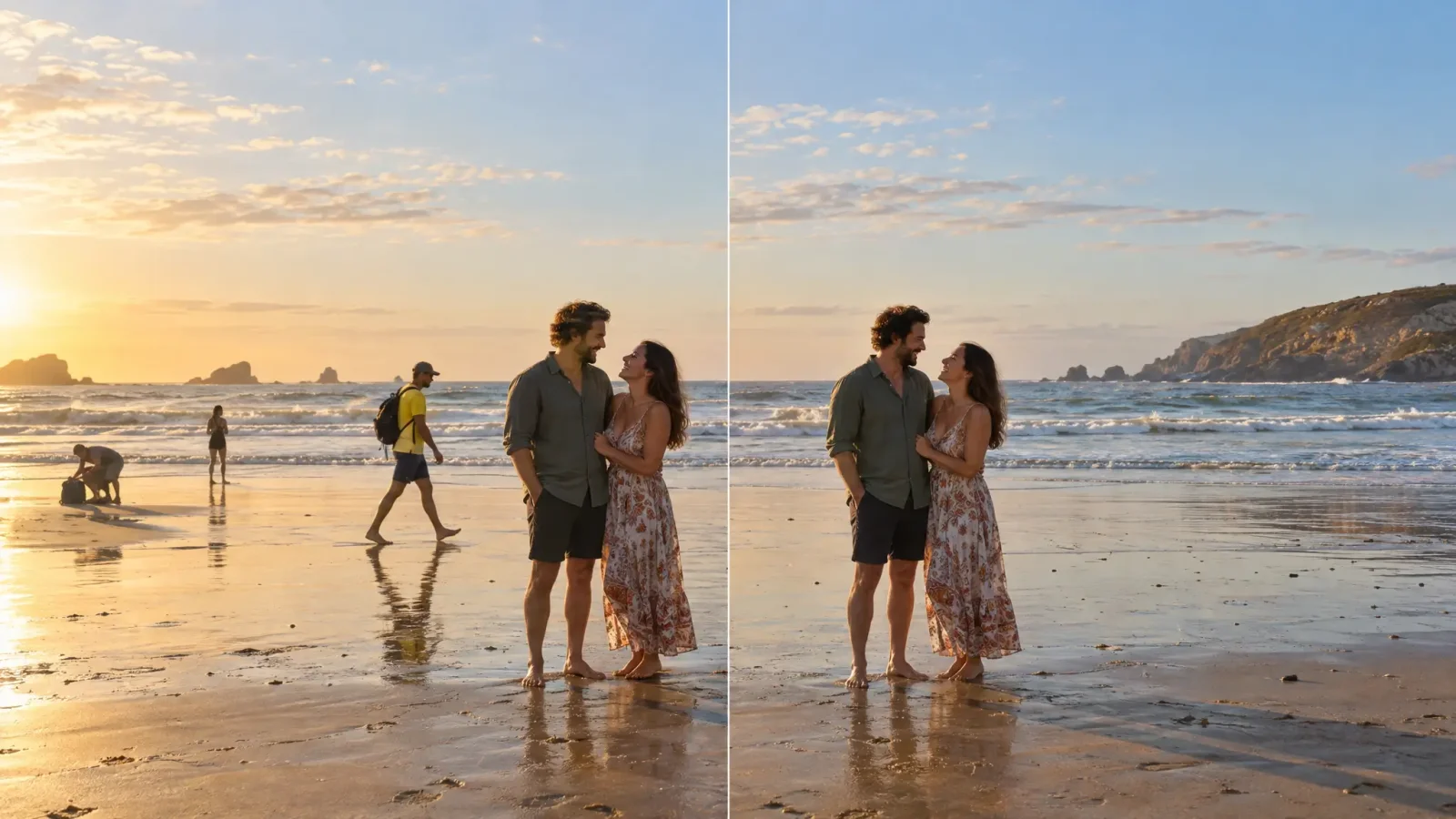
A stranger walking through your vacation shot, or a passerby standing behind your subject at the wrong moment, is one of the most common reasons people want to remove people from photos after the fact. The tool identifies the person you mark, removes them, and reconstructs what was likely behind them based on the surrounding scene. It works cleanly on an isolated background figure and gets harder in a crowded scene or when the person overlaps your actual subject. This guide covers how to remove people from pictures cleanly, including how to remove people from photos with more than one extra person in frame.
How to Remove People From Photos: Filling the Gap
Once you mark the person to remove, the editor deletes them and reconstructs the space using the surrounding pixels, the same underlying approach used for removing text or objects. On an open background, like sand, sky, or a plain wall, that reconstruction is usually convincing. On a scene with a distinct pattern or texture right behind the person, like a railing, a building line, or foliage, the fill has to guess at continuing that pattern, which is where results get less reliable.
When It Works Cleanly
The cleanest results come from a background figure who is fully separate from your subject, standing against a relatively simple backdrop. A photobomber off to the side of a beach photo, or a random pedestrian in the background of a street shot, both fall into this category. The tool has a clear, isolated region to work with and a simple surrounding pattern to extend into the gap.
When It Gets Harder
Crowded scenes with several overlapping people are the hardest case, since removing one person can leave gaps where another person's arm or shoulder was partially hidden behind them. A person who's partially blocking your actual subject is similarly tricky: the tool has to reconstruct not just background but a plausible piece of your subject that was never actually photographed. Results here are more likely to need a second pass or a tighter crop around just the overlapping area.
Removing Someone From a Group Photo
To remove someone from a group photo without it reading as edited, keep the surrounding people and background as undisturbed as possible and mark only the person you're removing. A tight, accurate selection around just that person gives the reconstruction less to guess at than a broad selection that includes nearby people or objects.
Multiple People at Once
You can mark and remove more than one person in the same pass if they're separate figures against a simple background. For a crowded scene with several people close together, removing them one at a time and checking the result after each pass usually gives a cleaner outcome than trying to remove everyone in a single step. The same image editing tool handles both object removal and background reconstruction in one workflow. If the photo needs a full background swap rather than removing one person, see our guide on comparing background remover tools.