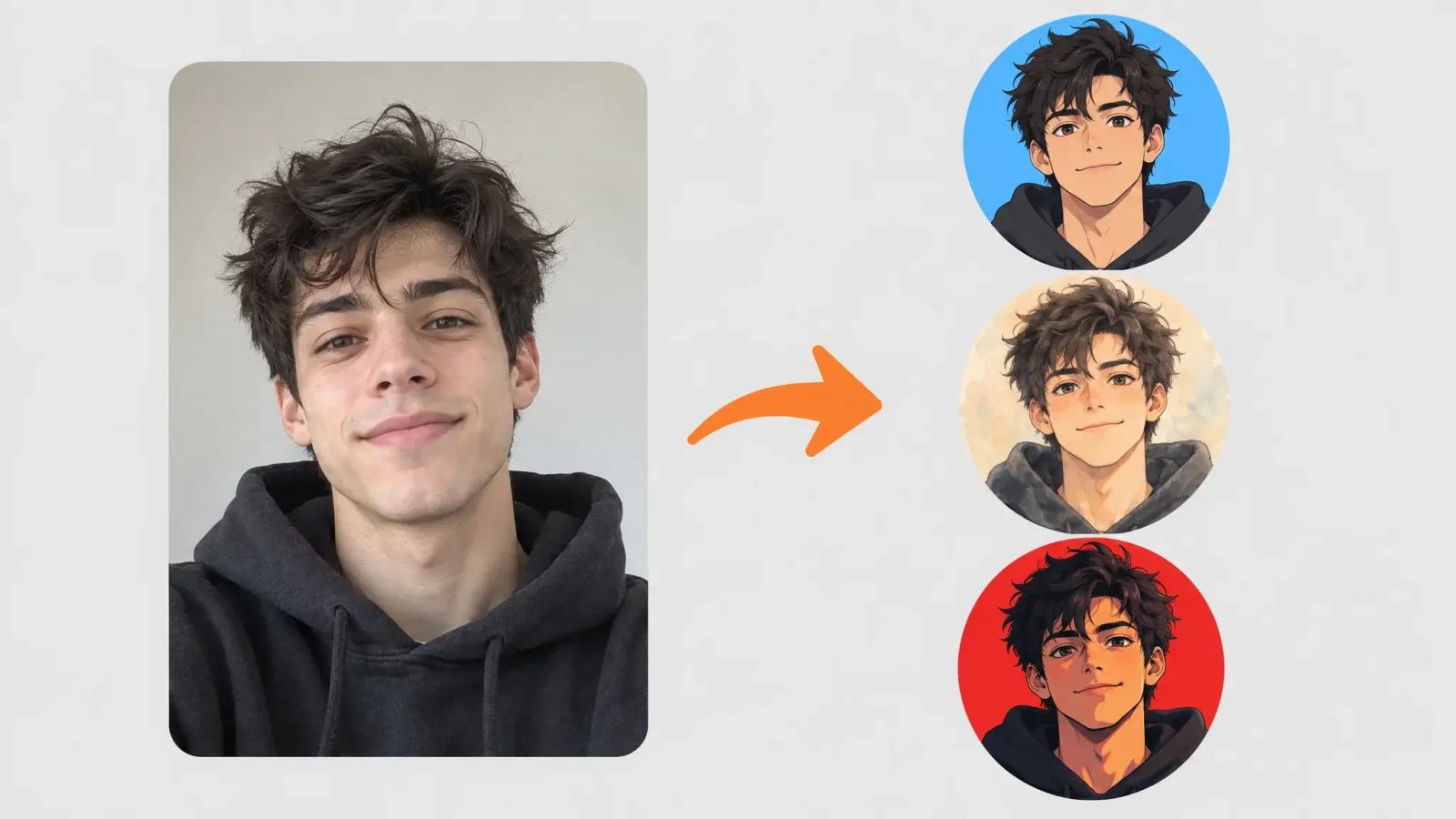
An anime PFP lives at about the size of a thumbnail. In a Discord chat it is a small circle next to your name, and on X it gets cropped to a circle too. That changes how you should make one. A detailed illustration that looks great full-size can turn into mud at that scale, so this guide is built around what survives being tiny.
Start With the Photo, Not the Style
The generator keeps the shape of your face, your hair and your expression, so the source photo decides most of the result. Pick a shot where your face fills a good part of the frame, the light is even, and nothing covers your eyes. Sunglasses, heavy shadows and hats pulled low tend to give odd results. A photo taken at arm's length by a window beats a posed one in a dim room.
If you would rather not use your own face, a photo of a friend who agreed to it, or a character-style prompt, works the same way. Only upload photos of people who are fine with it.
Pick a Style That Reads at Small Size
Open the Anime Generator and try two or three styles on the same photo before you decide. Judge each one by shrinking it, not by looking at the large preview.
Clean line art with flat colour: holds up best at thumbnail size. Eyes and hair shape stay readable.
Soft painterly or watercolour: feels more personal, but fine texture disappears when small. Good if your profile mostly shows the large version.
High contrast and bold colour: stands out in a long member list, though it can look harsh next to softer avatars.
The Shrink Test
Before you upload, zoom your browser out until the image is roughly the size of a chat avatar. Can you still tell where the eyes are, and does the hair shape make a clear silhouette? If the answer is no, the style is too detailed for a PFP. Go back and pick a simpler one, or crop closer.
Crop for the Circle
Most platforms show your picture in a circle, so the corners are thrown away. Keep the face centred and leave a little room above the hair. A tight crop on the face and shoulders nearly always looks better than a full-body image squeezed into a small circle. If you want the whole scene turned into anime instead, that is a different job, and our guide to the anime filter for full photos covers it.
Make It Yours
Once you have a result you like, small choices make it feel less generic: a hair colour you actually have or always wanted, one accessory such as glasses or an earring, a background colour that matches your server or brand. If you want a more stylised avatar rather than a direct anime version of your photo, the Avatar Generator gives you category-based looks to start from.
Common Problems
The face does not look like you: use a clearer, more front-facing source photo, and try a style with less exaggeration.
Eyes look strange: usually caused by glare or glasses in the photo. Retake it without them.
It looks great large and bad small: run the shrink test and choose a simpler style.
Backgrounds are distracting: use a plain background in the source photo, or crop tighter.
Using It Across Platforms
Keep the same image, or the same character look, on every account you use. People recognise a consistent avatar faster than a username. Export a square file and let each platform do its own circle crop, so you are not stuck with a pre-cropped image that looks off somewhere else.