What the Zombie Shift video effect does
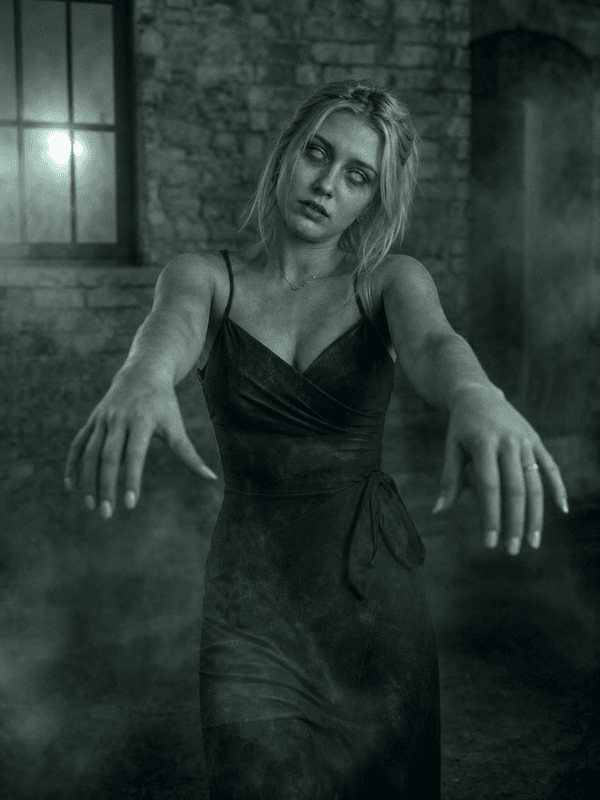
The Zombie Shift effect runs a full zombie conversion inside the footage you upload. Over a few seconds the skin loses colour and cracks along the cheekbones, veins darken under the surface, the eyes go milky, and the head drops into that unmistakable dead-weight tilt. The person watching sees the moment it turns, not a jump cut to someone in face paint.
Clips that convert cleanly
This AI zombie effect reads the face and shoulders, so give it both. A short clip with you facing the lens, lit from the front, and moving slowly gives the decay somewhere to land. Three to eight seconds is enough.
Slow movement sells it. A gradual head turn or a step toward camera lets the shift build frame by frame instead of flickering.
Show the neck and jaw. Hoods and high collars hide the areas where the grey skin and cracks are most visible.
Keep the background steady. A locked-off or lightly handheld shot keeps the effect pinned to you rather than smearing into the wall.
Where it gets posted
Halloween countdowns, horror edits, zombie-walk event promos, Monday-morning jokes, and gaming intros for anything with a horde in it. It also works as a punchline ending for a vlog or a reaction duet when you want to disappear from the video as something else.
How to use it
Open the Zombie Shift effect in the MagicShot app on your plan.
Upload a short, well lit clip with your face clearly visible.
Let the AI run the transformation, then download and post.
No latex, no grey face paint washing off at 2 a.m., no second take. One upload and you come back as the thing that should have stayed buried.