If you have spent twenty minutes fighting the GIMP path tool or Photoshop's lasso around a photo of hair or fur, there is a faster route. How to remove a background without Photoshop or GIMP comes down to using a tool built specifically to detect a subject automatically, rather than manually tracing an outline point by point. This post covers why the manual tools are slow on hard edges, and the one-step alternative in MagicShot's image background remover.
Why the GIMP Path Tool and Photoshop Lasso Struggle
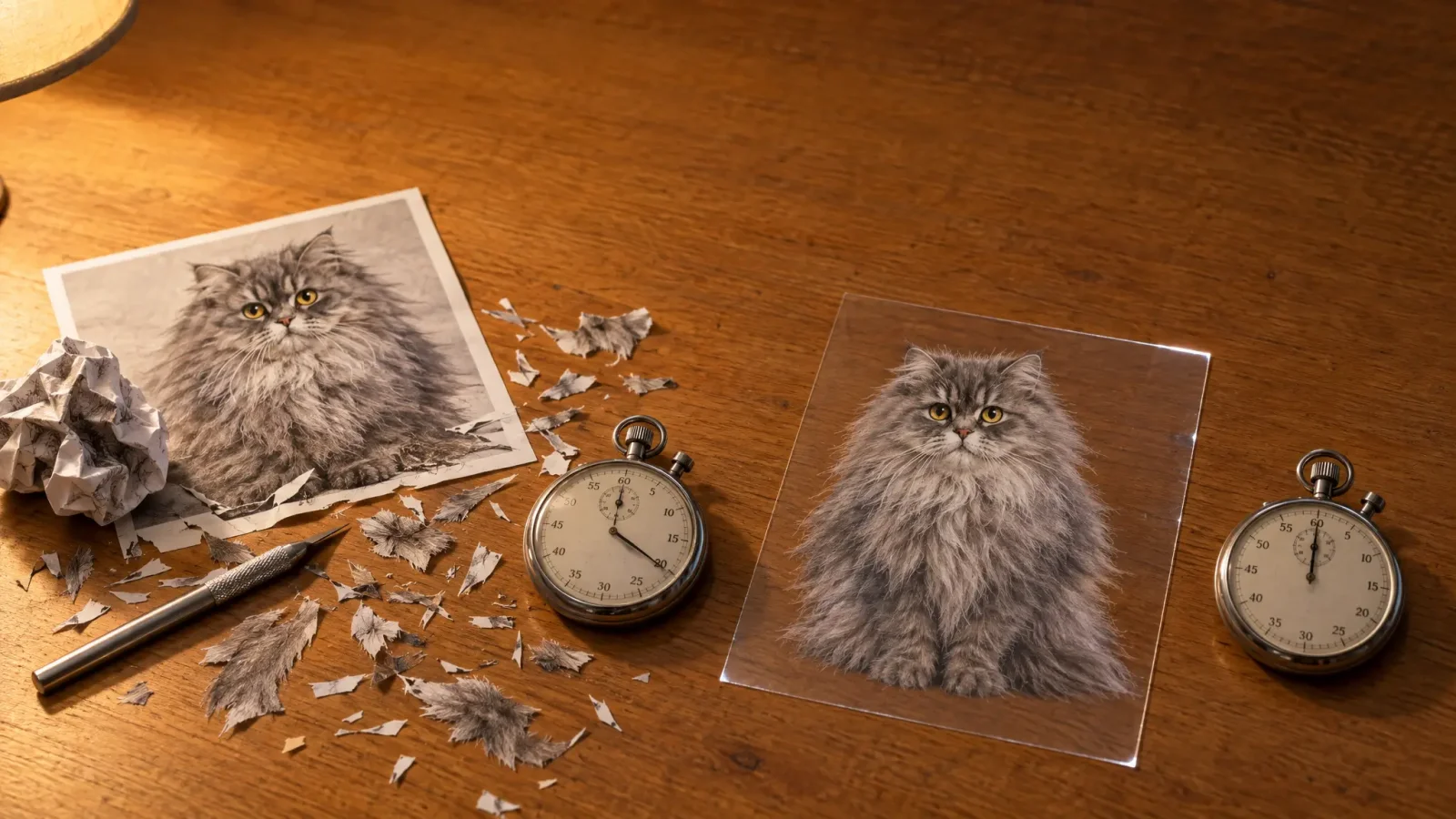
The lasso, magic wand, and path tools all rely on you, or a simple color-based selection, to define where the subject ends and the background begins. That works fine on a subject with a hard, high-contrast edge against a plain background. It falls apart on anything with soft or complex detail: hair, fur, semi-transparent fabric, a subject that shares similar colors with its background. Getting a clean result in that case often means manually adjusting the selection point by point, which is exactly the slow, error-prone process people searching for how to remove background in gimp are usually trying to avoid.
The One-Step AI Alternative

An AI background remover is trained to recognize what a subject looks like, a person, an animal, a product, rather than relying purely on color contrast or a manually traced line. That means it can identify a soft or complex edge, hair against a similarly colored wall, fur against grass, without needing you to trace it by hand. The result is a single upload-and-generate step doing what used to take a manual selection tool several minutes of careful adjustment, sometimes longer on a genuinely difficult photo.
How to Remove Image Background Without Manual Tools
Upload the photo to MagicShot's image background remover.
Run background removal. No manual selection or path drawing is required.
Check the edge, especially around hair, fur, or any fine detail, and regenerate if a section needs another pass.
Export as PNG to keep the removed background transparent.
Does This Work as Well as a Manual Photoshop Cutout
On most everyday photos, yes, and faster. A skilled retoucher spending real time with the pen tool can still out-edge an automated tool on an extremely difficult case, a subject with almost no contrast against its background, or a technically demanding composite. For the vast majority of practical uses, a product photo, a portrait, a pet photo, an AI-based removal gets a comparably clean result in a fraction of the time a manual cutout takes.
Batch-Removing Backgrounds
Removing backgrounds from multiple photos at once is possible through batch processing, running the same removal across a set of images instead of repeating the manual process for each one individually. This matters most for anyone clearing backgrounds across a full product catalog or a large photo set, where doing each photo by hand in Photoshop or GIMP would take considerably longer than a single batch pass.
Read Next
Transparent Background: How to Remove Any Background in Seconds for the pillar overview of this cluster.
PNG Maker: Turning Any Photo Into a Clean, Transparent PNG for more on getting a clean edge and exporting correctly.