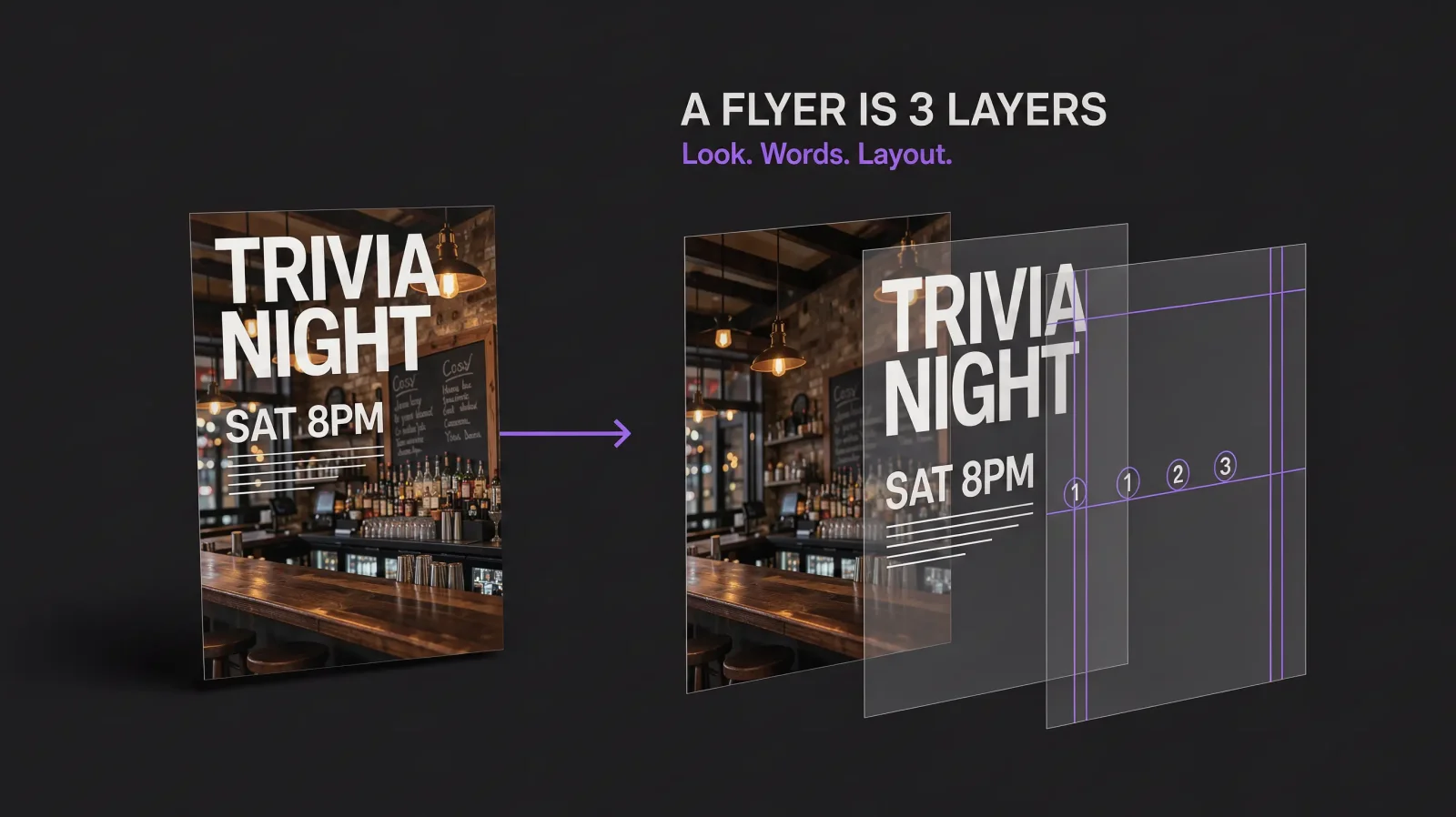
You can create a flyer with AI in under five minutes if you treat it as three stacked decisions instead of one open-ended design project. Every flyer, whether it is for a block party or a store sale, is built from three layers: an aesthetic layer (the background and overall look), a typography layer (the words that carry the actual information), and a layout layer (where everything sits so the eye lands on the right thing first). Get those three layers right in order and the flyer holds together. Skip the order and you get a busy image with text fighting the background for attention.
The Three-Layer System Behind an AI Flyer Generator
An AI flyer generator works best when you feed it one layer at a time instead of one giant prompt. Start with the aesthetic: describe the mood, color palette, and visual theme you want (neon and dark for a club night, pastel and hand-drawn for a kids' birthday, clean and minimal for a corporate mixer). That gives you the backdrop.
Next comes typography. This is the headline, date, time, address, and any call to action. A flyer that looks great but buries the date in small type has failed at its one job. Good typography on a flyer means a clear size hierarchy: the event name or hook is biggest, the date and time are second, and supporting details (dress code, ticket link, RSVP info) are smallest but still legible.
Layout ties the two together. Where does the eye land first? Usually the top third or dead center. Where do the details sit so someone can screenshot the flyer and still read it at a glance later? That's the layout layer, and it is what separates a flyer that gets forwarded from one that gets scrolled past.
A Worked Example: Create a Flyer With AI Start to Finish
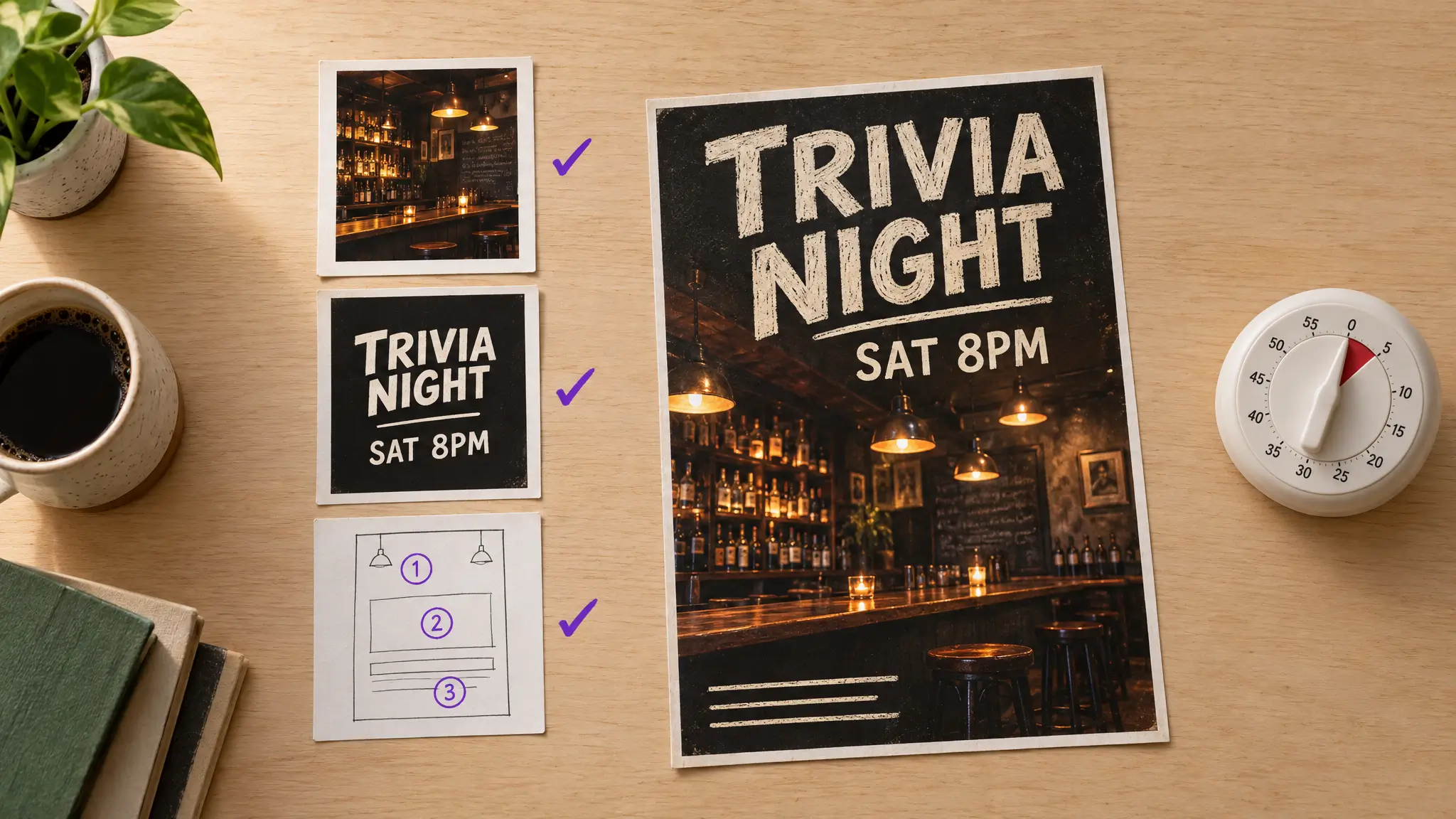
Say you're promoting a Saturday night trivia event at a bar. Step one, aesthetic: describe a moody bar interior with warm amber lighting and a chalkboard texture. Step two, typography: "Trivia Night" as the largest text, "Saturdays 8PM" second, bar name and address smallest. Step three, layout: generate a few variations and pick the one where the eye goes headline, then time, then location, in that order without effort.
From prompt to a usable flyer with the AI flyer generator at MagicShot, this whole sequence takes a few minutes, not a few hours. That's the actual time-save versus opening a blank canvas in a general design tool: you're not making typography and layout decisions from zero, you're steering a system that already understands how those three layers relate.
What an AI Flyer Maker Gets You That a Blank Canvas Doesn't
An AI flyer maker removes the two hardest parts of flyer design for a non-designer: picking a color palette that doesn't clash, and sizing text so nothing gets lost. You still make the creative calls (what mood, what hierarchy, what words), but you're not fighting font pairing or color theory from scratch.
It's also fast to iterate. If the first pass has the wrong energy, tighter typography or a different aesthetic prompt gets you a second version in the time it would take to open a new file in most design software.
Editing and Reusing Your Flyer
Once you have a version you like, you can edit the text layer directly, swap event details for a recurring series, and export at the size you actually need. That reuse case (same design, new date and details) is one of the most common real-world flyer tasks, and it's exactly what the layered approach is built for.
Start with the Event Flyer Maker when you're ready to build your first one, and see the party-focused and small-business breakdowns in Party Flyer Maker: Designing Invites That Actually Get Opened and Flyer Creator for Small Business: Promotions, Sales, and Events for angle-specific advice.