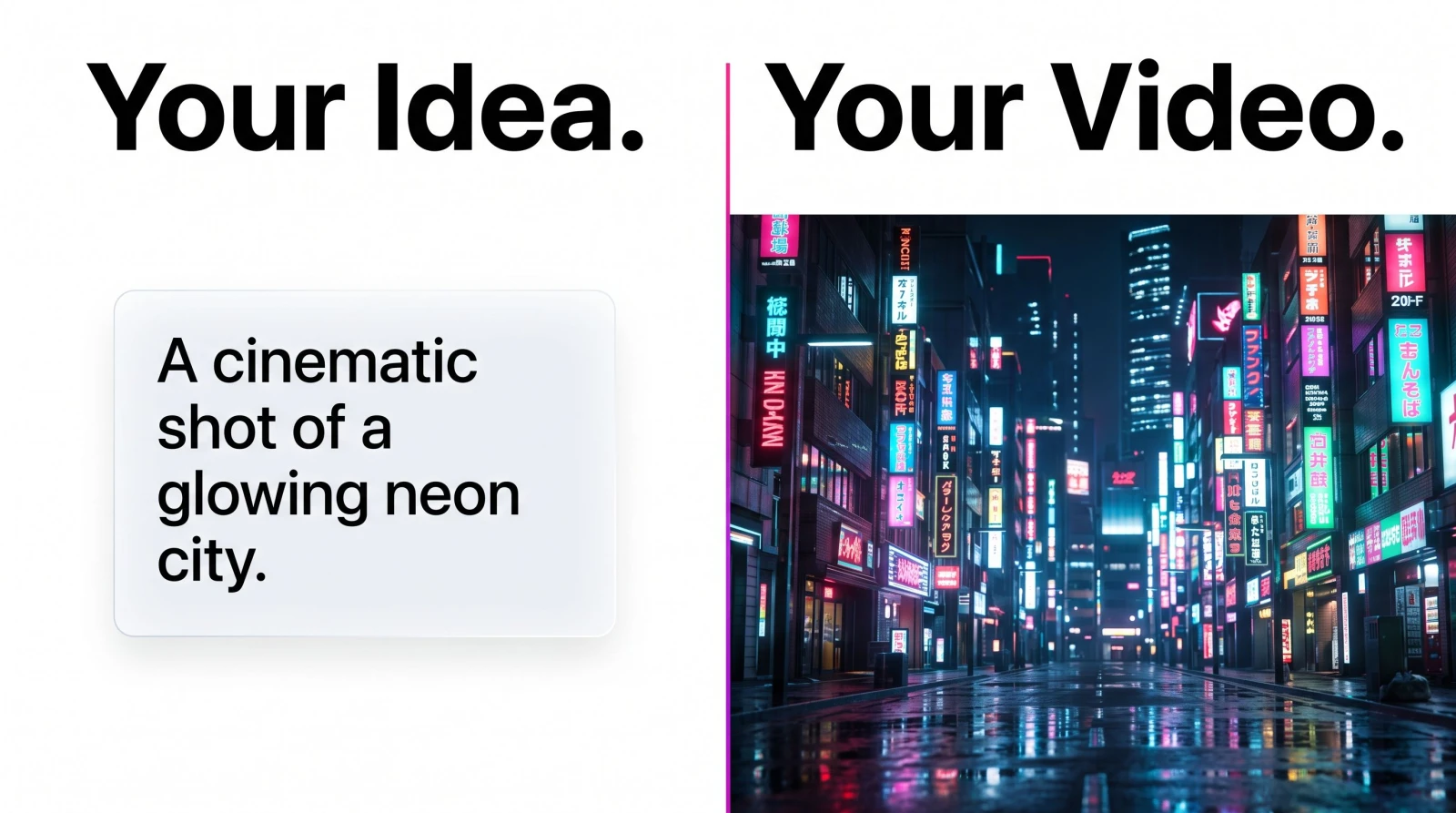
You have an idea, a script, or maybe just one good photo. What you don't have is a camera crew, an animation studio, or three weeks to edit. An AI video generator closes that gap. With MagicShot, you can type a scene and watch it become footage, or take a still image and give it real motion, cartoon, anime, or full cinematic drama, all from the same place.
This guide walks through exactly how it works, when to use text to video versus image to video, and how creators, marketers, and business owners are using these tools to publish faster without hiring a production team.
What is an AI video generator, and how does it work?
An AI video generator is software that produces moving video from a prompt, either written text or a starting image, instead of from recorded footage. You describe or upload what you want, choose a style and length, and the model generates the frames, motion, and transitions for you.
Under the hood, the process follows a few clear steps:
Input. You provide a text prompt (“a fox running through a neon city at night”) or upload an image you want to animate.
Interpretation. The model reads your prompt for subjects, style, camera angle, lighting, and mood.
Generation. It builds a sequence of frames that stay visually consistent from one moment to the next, then adds motion, a pan, a zoom, blowing hair, drifting clouds.
Output. You get a short clip you can download, refine, or drop straight into your edit.
The practical upside: you skip the parts of video production that usually cost the most, shooting, animating, and rendering, and go from concept to clip in minutes. And because MagicShot bundles a full suite of tools, from a Film Studio for cinematic scenes to precise Motion Control, the same idea can travel from rough concept to polished shot without leaving the platform.
Why this beats the old way of making video
Traditional video is a chain of expensive, slow steps: write, cast, shoot, animate, edit, render. Miss one and the whole thing stalls. A prompt-based AI video generator collapses that chain. You're not scheduling a shoot or licensing stock, you're describing an outcome and letting the model produce it. For a solo creator or a small team, that difference is the gap between publishing weekly and publishing daily.
It also lowers the risk of experimenting. Because a clip takes minutes rather than days, you can try a bold concept, see it, and either keep it or move on, without burning a budget to find out whether an idea works.
Text to video: describe a scene, get a clip
Text to video is the fastest way to start. You write what you want to see, and the AI generates the footage. There's no image to prepare and no timeline to fight with. This is the tool of choice when the video only exists in your head.
Good text-to-video prompts share a few habits. They name the subject, the action, the setting, and the visual style in one clear sentence. Compare these:
Weak: “a dog”
Strong: “a golden retriever puppy running across a sunlit beach at sunset, cinematic slow motion, shallow depth of field”
The second prompt gives the model a subject, an action, a location, a time of day, and a camera feel, so the result looks intentional instead of random. If you're new to writing prompts, our roundup of creative AI prompt ideas on the MagicShot blog is a good place to borrow structure and vocabulary.
What can you make with text to video?
Cartoon videos: bright, stylized characters and scenes for explainers, kids' content, or playful social posts.
Anime videos: cel-shaded characters, dramatic lighting, and dynamic camera moves in a Japanese-animation style. To push a still further, the Magic Frame can bring drawn characters to life with expressive facial motion.
Cinematic videos: moody, film-grade shots with realistic lighting, depth, and camera motion for trailers, ads, and story intros.
Product and concept clips: quick visuals of an idea, a location, or a mood before you commit to a full shoot.
How prompt length shapes your result
A common mistake is writing either too little or too much. One or two words leaves the model guessing; a paragraph of contradictory details confuses it. Aim for a single, packed sentence that answers five questions: who or what, doing what, where, in what light, and in what style. Once you have a version you like, change one variable at a time, swap the setting, then the lighting, then the camera move, so you learn what actually moves the needle.
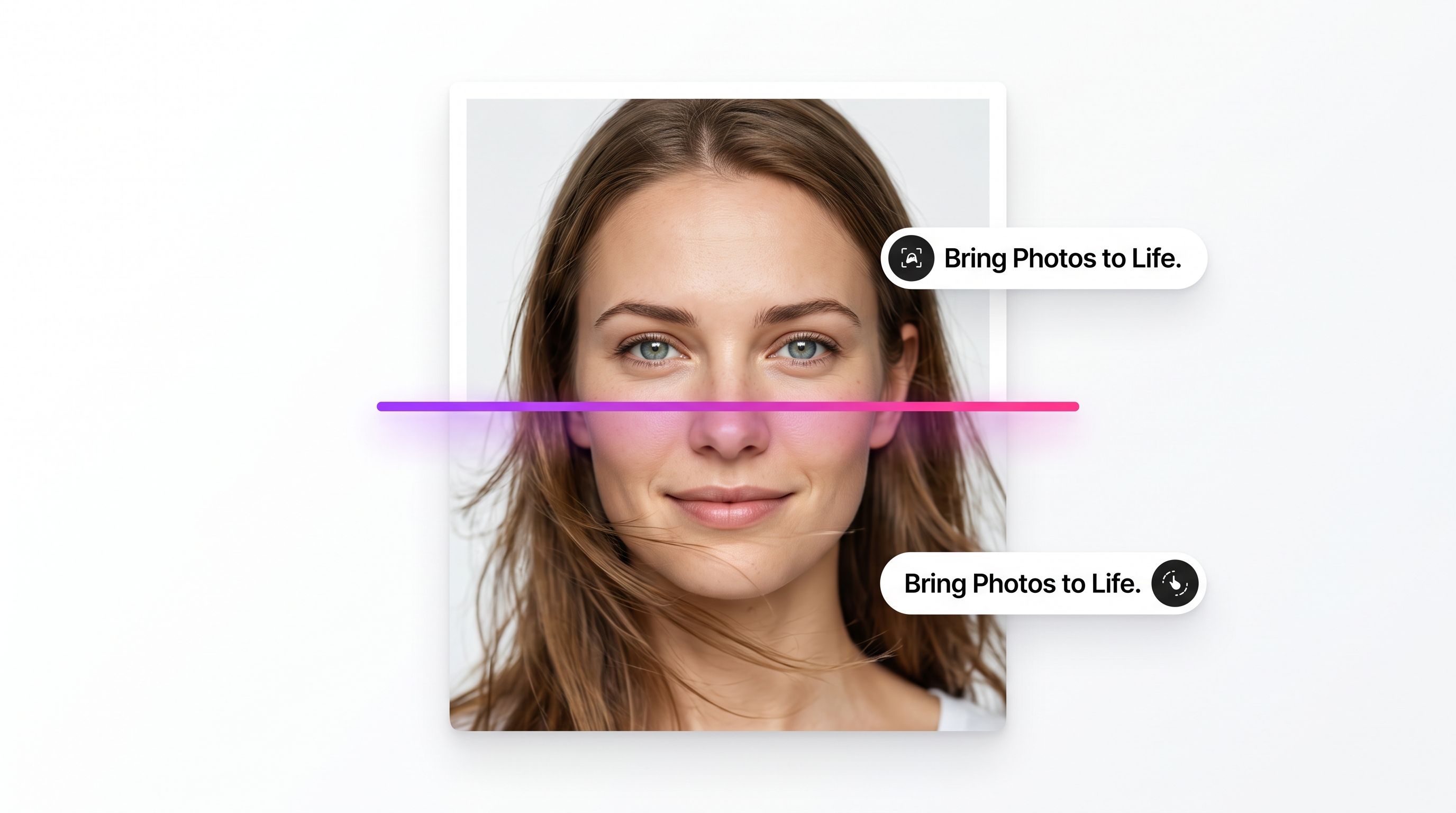
Image to video: bring a single photo to life
Image to video works the other way around. You start with a still, a product shot, a portrait, an illustration, a piece of AI art, and the generator adds motion so it becomes a full clip. The subject stays recognizable; only the movement is new.
This matters when you already have the exact look you want and don't want the AI reinventing it. A photographer animating a portrait, a store owner making a product photo rotate, an artist turning a static illustration into a living scene, image to video keeps your original and adds life on top. For portraits specifically, Face Mimic can transfer natural expressions onto a still, while Magic Frame helps you shape how the shot moves and frames its subject.
Typical motion you can add includes:
Subtle camera moves, slow zoom-ins, pans, and parallax that add depth to a flat image.
Natural motion, hair and fabric moving, water rippling, steam rising, leaves drifting.
Expressive motion, a portrait that blinks, smiles, or turns slightly toward the camera.
No photo yet? Generate one first
Here's where having everything in one place pays off. If you don't have an image to animate, you can create one with MagicShot's AI image tools, then feed that image straight into image to video. Start with the AI photo generator workflow covered on our blog to produce a clean, high-resolution still, and you've got a purpose-built starting frame for your clip, no stock footage, no camera required.
That chain, text → image → video, is one of the most powerful things you can do. You describe a character, generate the perfect frame, then animate it. Complete creative control at every step.
Text to video vs. image to video: which should you use?
Both live inside MagicShot, and the right choice comes down to what you're starting with.
Use text to video when the scene only exists as an idea, when you want to explore several looks quickly, or when you need something that no photo could capture.
Use image to video when you already have the exact subject, a real product, a specific face, a finished illustration, and you want to preserve it while adding motion.
Many creators use both in one project: text to video for the establishing shots, image to video to animate their hero product or brand asset. Because it's all in one platform, moving between them takes seconds. When a scene calls for a performer, you can even hand it to the Dream Actor or generate a talking presenter with AI Avatar Video.
Why MagicShot has everything you need in one place
The biggest time-saver isn't any single feature, it's not having to bounce between five different apps. MagicShot brings image generation, photo editing, and video creation together, so a project never leaves the platform.
Generate the image: create characters, products, backgrounds, or full scenes from a text prompt.
Polish it: refine, restyle, or clean up the still before animating. Our guide to AI photo editing on the MagicShot blog covers the essentials.
Animate it: turn that image into a video, or generate a clip from scratch with text to video. For layered scenes, Visual Composer Video lets you assemble elements into a single motion sequence.
Style it: choose cartoon, anime, cinematic, and more without rebuilding anything.
Sound matters as much as visuals, so you can layer atmosphere with the Video Sound Generator and add narration through Text to Speech, no separate audio app required.
If you're building a consistent look across posts, say, a recurring character or a branded visual style, our notes on creating an AI avatar with MagicShot show how to lock in a face or persona you can reuse across images and videos alike. A tidy logo generator can round out that brand kit with a mark you can drop onto closing frames.
Who this is for, and how they use it
Content creators and YouTubers
Intros, B-roll, animated thumbnails, and full short-form clips. A YouTuber can generate a cinematic cold open with text to video, then animate a channel-mascot illustration with image to video, all before lunch. Vertical output makes it just as easy to feed Instagram Reels and social content, as we cover on the blog. Trend-driven formats are covered too, from authentic UGC videos to playful moments made with the Hugging Booth or the AI Kissing Video Generator.
Marketers and agencies
Ad variations, campaign concepts, and scroll-stopping social videos on a tight timeline. Instead of booking a shoot for every test, teams generate multiple looks, pick the winners, and iterate the same day. When a campaign needs a familiar face across cuts, the Video Face Swapper keeps a consistent presenter without a reshoot.
Business owners and e-commerce sellers
Animated product photos, promo clips, and event announcements without a videographer. A single product image can become a rotating, motion-rich hero video that lifts a product page or a paid ad, turn a catalog shot into a scroll-stopper with Product to Video. Property teams can do the same for listings using the Real Estate Video Generator, and digital collectors can animate artwork with NFT Animation.
Educators and explainer creators
Cartoon and animated sequences make dry topics land. Text to video turns a script line into a visual, so lessons and how-tos become watchable instead of static.
From clip to finished post
A generated clip is rarely the last step, it's the raw material. The strongest results usually come from stacking a few short clips into a sequence: an establishing shot from text to video, a hero moment from image to video, and a closing frame that carries your logo or call to action. Because everything is generated at the resolution and orientation you choose, you can produce vertical clips for Reels, Shorts, and TikTok, or wide clips for YouTube and ads, from the same idea.
Consistency is what makes a feed look professional. Reusing the same character, color palette, or visual style across clips signals to viewers, and to the algorithm, that your content belongs together. That's easier to maintain when your images and videos come from one platform rather than a patchwork of tools.
Tips for better AI videos
Be specific with prompts. Name the subject, action, setting, lighting, and style. Vague in, vague out.
Pick one clear style per clip. Cartoon, anime, or cinematic, mixing styles in a single prompt muddies the result.
Keep motion realistic to the scene. Small, believable movement almost always reads better than chaotic action.
Start from a strong image. For image to video, a clean, well-lit, high-resolution still gives the smoothest animation.
Generate a few versions. Try two or three prompts, then keep the best, iteration is where the good clips come from.
Common mistakes to avoid
A few habits separate clips that look intentional from clips that look like a lucky guess:
Overloading a single prompt. Asking for a cartoon, a cinematic look, and a fast car chase in one line pulls the model in three directions. Commit to one clear vision per clip.
Ignoring aspect ratio. Deciding on vertical or wide before you generate saves you from awkward cropping later. Match the format to where the video will live.
Animating a weak source image. Image to video amplifies whatever you feed it. A blurry, low-light photo produces blurry motion; a crisp, well-composed still produces clean, believable movement.
Settling on the first result. The best clip is usually the third or fourth attempt. Treat generation as iteration, not a single roll of the dice.
Getting started
Pick your starting point. If you have an idea, open text to video and describe your scene. If you have a photo, or generate one first, use image to video to add motion. Choose cartoon, anime, or cinematic, generate, and download. The whole loop, from blank page to finished clip, stays inside MagicShot.
Video used to be the hardest content to make. With the right AI video generator, it becomes one of the fastest, and you don't need a studio to make something worth watching.