An AI anime generator turns a text prompt or a reference photo into anime-style art in one pass. The results vary a lot depending on which sub-style you pick, and picking the right one is most of the work. This guide walks through five distinct anime looks you can generate with MagicShot's Anime Generator, what each one is good for, and how to get cleaner line art instead of the smudged, over-painted look a lot of anime AI tools default to.
How an AI Anime Generator Picks a Style
"Anime" is not one style. It is a category that spans decades of animation and print art, and an ai anime generator has to approximate a specific slice of that range, not the whole thing at once. The clearer you are about which slice you want, the better the output looks. Naming a style by era or technique (cel-shaded, webtoon, watercolor) works better than naming a show, since MagicShot does not reproduce a copyrighted character's exact design.
Five anime styles worth trying
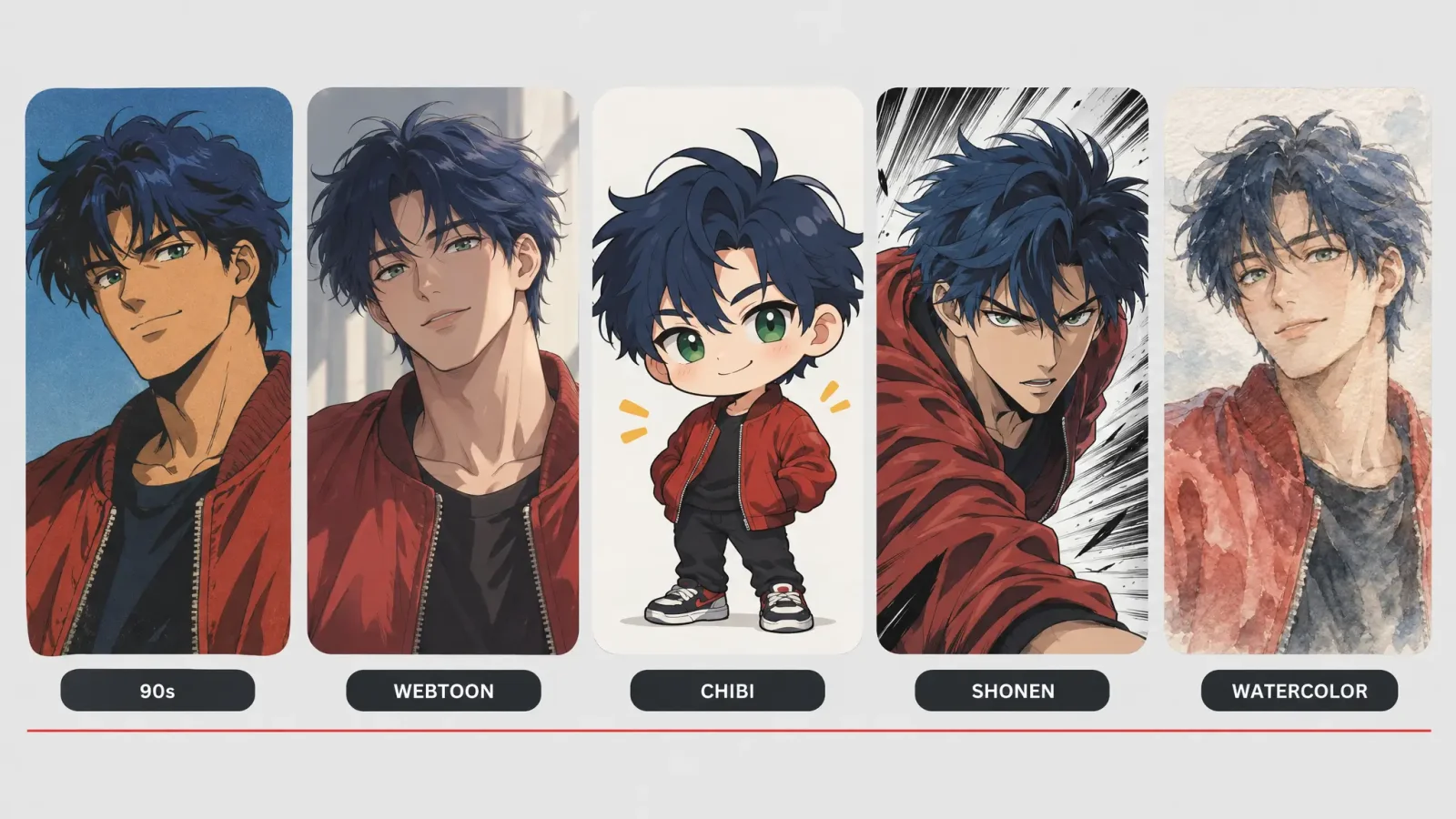
1. 90s cel-shaded
Flat color blocks, hard shadow edges, and a slightly grainy film look define this era. Prompt for "cel-shaded anime, flat color, hard shadow, 90s film grain" and expect bold outlines with minimal gradient shading.
2. Modern webtoon
Softer lighting, rounder faces, and a digital-painting finish. Webtoon style reads as more current, which is why it dominates profile-picture requests. Prompt with "webtoon style, soft cel shading, clean digital lineart."
3. Chibi
Oversized head, small body, exaggerated cute proportions. Good for stickers and reaction images rather than a serious portrait. See the chibi-specific walkthrough in Chibi Avatar Maker if this is the look you want.
4. Shonen action
Dynamic poses, speed lines, and sharper angles on the face and hair. This style tends to add motion cues even to a still portrait, so it works best for a character shot rather than a plain headshot-style PFP.
5. Watercolor anime
Soft edges, visible paper texture, and muted color bleed. This is the style least likely to look AI-generated at a glance, since the texture hides typical AI artifacts.
Getting cleaner line art
Muddy or doubled lines are the most common complaint with anime generators. Three things fix most of it: specify "clean lineart" or "single-weight line" directly in the prompt, keep the reference photo well lit with a clear face, and avoid busy backgrounds in the source image, since the model tends to carry noise from the background into the line quality of the subject.
Combining styles and generating backgrounds
You can blend two styles in one prompt, for example cel-shaded lighting with a webtoon face, though the result is more predictable if you treat one style as primary and the other as an accent, like lighting or color palette only. The generator can also produce full anime backgrounds and scenes on their own, not just character portraits, by describing the setting instead of a person.
If you want a character built from scratch instead of stylizing a photo, the Anime Generator and MagicShot's core AI Art Generator both support prompt-only generation. For an original character design rather than a styled portrait, see Anime Girl Generator.