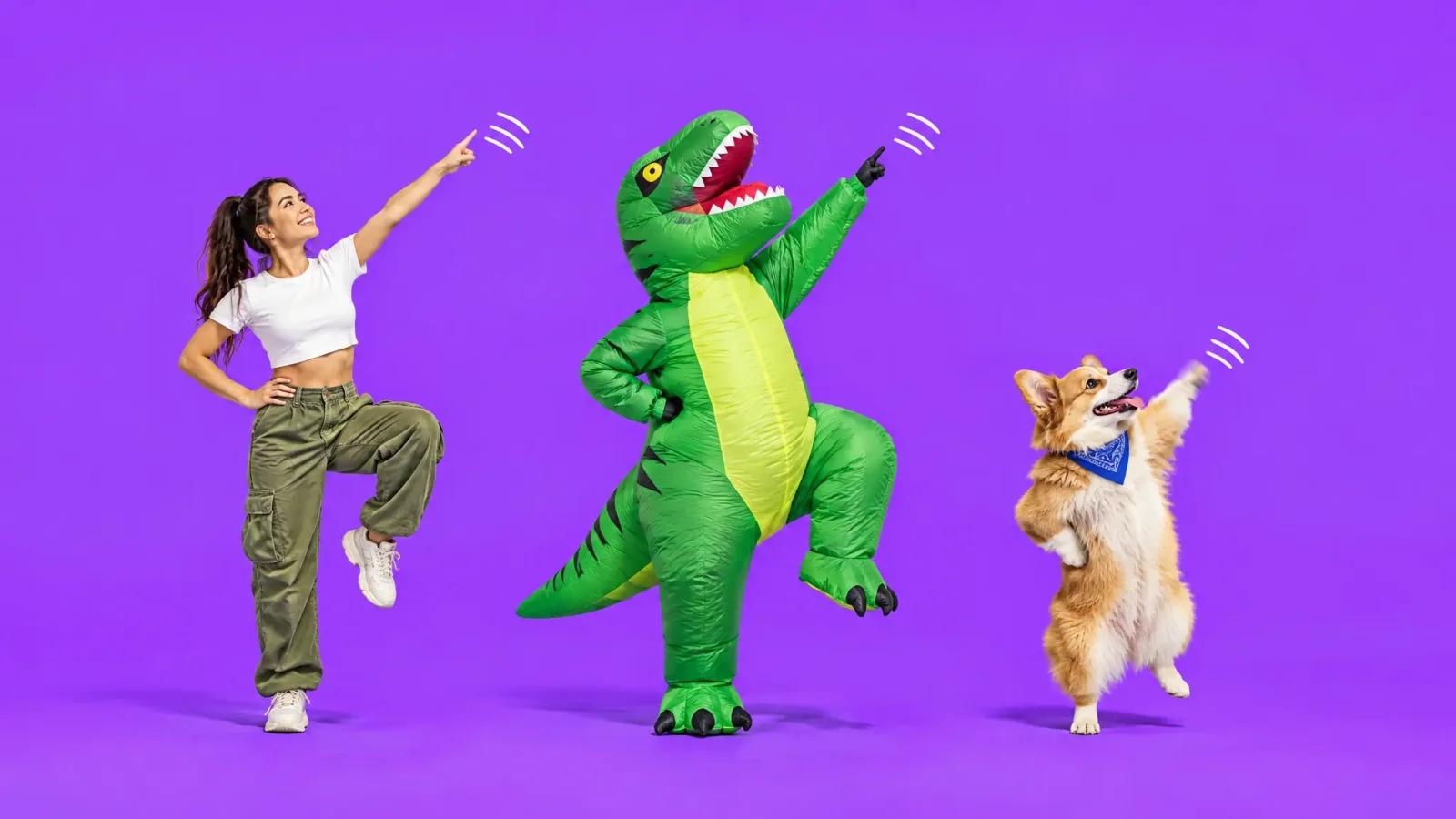
You can put yourself, your own character or your product into a viral video without filming anything. Higgsfield Genjutsu and MagicShot's Go Viral AI both do it. They take the moves from a clip and play them out with the character from your photos. Dance trends are the obvious use, but the same swap works for street walks, lip-syncs, meme clips and brand content.
This post compares the two with real numbers, then walks through making one yourself. Genjutsu is the more flexible editor and lists a low price for a short clip. Go Viral AI is quicker when you want to start from a trend, and the same credits cover the rest of MagicShot.
What a character swap video is
A character swap puts someone new in a video's lead role. The clip supplies the moves, the timing and the camera feel. Your photos supply who is doing them. That could be you, an original character, a pet, a product or an outfit.
It's different from a face swap, which changes one face and leaves everything else alone. If that's the job, MagicShot has a separate Video Face Swapper. The tools in this post move a whole performance onto your character, which is why a full-body photo matters so much for anything with dancing.
What's trending right now
AI trend trackers that update weekly, including Raindance AI and DanceAIVideo, had AI dance videos near the top of their lists as of October 9, 2026. A "Burning Bridges" lip-sync at a chandelier-lit party was flagged as new this week, Halloween costume videos were rising, and pet dance videos were showing up too. The gas station dance, which was still getting how-to guides on September 30, is already marked as cooling off.
Trends peak in days, not months, so the tool that gets you from spotting a trend to posting your version fastest has the edge. Search interest backs that up. In the US, Ahrefs shows around 1,600 monthly searches for Higgsfield Genjutsu, 700 for "ai dance video" and 350 for "character swap ai".
Higgsfield Genjutsu in brief
Higgsfield published its Genjutsu launch guide on August 31, 2026. It describes two features. Motion Transfer moves the action of a clip onto a new character or scene. Object Swap replaces an element such as a product, prop or outfit and keeps the rest of the footage. The numbers from the guide:
One video clip per generation, up to 30 seconds
Up to 30 reference images
Prompt optional, with 30+ presets listed
Output up to 1080p
Listed cost for a 15-second clip: 40 credits at 480p (about $2.00), 104 at 720p (about $5.20) and 144 at 1080p (about $7.20)
Credits come from a Higgsfield plan. Pricing roundups from September 2026 list Starter at $19 a month for 270 credits, Plus at $59 for 1,200 and Ultra at $129 for 3,000, with credit packs that need an active subscription. Higgsfield changes its pricing often, so check its pricing page before you buy.
Go Viral AI in brief
Go Viral AI is MagicShot's take on the same idea, built around trends. You add your photos, pick a trend from the catalog or upload your own clip, and the video plays out with your character in it.
Up to 8 images of people, characters, products or clothes
Motion from a catalog trend or your own clip up to 30 seconds, one or the other
Prompt optional
480p, 720p or 1080p. 720p costs 2x the credits of 480p, and 1080p costs 3x
Priced per second of video, starting at 636 credits per second at 480p. The total shows on the Generate button before you commit
Download the result, or share it to the MagicShot community
Credits come from a MagicShot plan: Essential at $9 a month (8,000 credits), Premium at $19 (19,000) or Premium+ at $35 (40,000). It's one shared credit pool across every tool and top AI models, and unused credits don't roll over.
Genjutsu vs Go Viral AI, side by side
Higgsfield Genjutsu | Go Viral AI | |
|---|---|---|
Built around | Rebuilding part of a clip (Motion Transfer, Object Swap) | Putting your character into viral trends |
Motion source | Your own clip | Catalog trend or your own clip |
Reference images | Up to 30 | Up to 8 |
Max clip length | Up to 30 seconds | Up to 30 seconds for your own clip |
Resolution | Up to 1080p | 480p, 720p or 1080p |
Prompt | Optional | Optional |
How it's priced | Credits per clip, such as 104 credits for 15 seconds at 720p | Credits per second, from 636 per second at 480p |
Plans | Starter $19 (270 credits), Plus $59 (1,200), Ultra $129 (3,000) | Essential $9 (8,000 credits), Premium $19 (19,000), Premium+ $35 (40,000) |
Genjutsu figures come from Higgsfield's launch guide and September 2026 pricing roundups. Go Viral figures come from the live tool and MagicShot's pricing page.
When Genjutsu is the better pick
You need more than eight reference images. Genjutsu takes up to 30.
You want to change one thing in footage you already shot. Object Swap replaces a product, prop or outfit and leaves the rest alone. Go Viral moves motion onto your photos and doesn't edit inside a shot.
You're running lots of short clips and watching the bill. On Higgsfield's listed numbers, a short Genjutsu clip is cheap, so run the math on both before a big batch.
When Go Viral AI is the better pick
You want to start from a trend instead of a file. Browse the catalog, tap one, add photos. You don't hunt for the original, download it or trim it.
You want to see the cost first. The credit price sits on the Generate button before you spend anything.
You'll do more than one thing. Make the swap, then upscale it, change a face or turn a still into a video, all from the same credits.
You want to post where people already are. Share to the MagicShot community, or download it for anywhere else.
How to make a character swap video with Go Viral AI
Upload up to eight photos of the character. For dance trends, use a full-body shot where the feet and hands are visible.
Pick a trend from the catalog, or upload your own clip up to 30 seconds. Whichever you choose replaces the other.
Start at 480p with the prompt empty and check that the photo and the motion line up.
Re-run at 720p or 1080p for the version you'll post, then download it or share it to the community.
Photo tips that decide the result
Use a full-body shot for dance trends. Cropped at the waist, the AI has to guess the legs.
Pick even light and sharp focus. Hard shadows across the face and motion blur tend to carry through into the video.
Keep the background plain. A cluttered backdrop gives the AI more to confuse with the subject.
Make sure arms and legs are visible. Big coats or props covering them make the moves harder to read.
Try something other than yourself. Characters, products and clothes all work, so a costume photo or an original character can stand out from the hundredth identical face.
Posting it without trouble
Only use photos of people who've agreed to it, and only clips you have the right to use. Most platforms also ask you to label AI-generated content, so check the rules wherever you're posting. Go Viral AI follows MagicShot's content policy.
Which one should you use?
If you're rebuilding footage you shot yourself, need lots of reference images, or care most about a low listed price per short clip, look at Genjutsu. Higgsfield's guide is worth a read either way. If you want to jump on a trend this week with a handful of photos, and you'd like the rest of an AI studio on the same plan, Go Viral AI is the faster path. Both do the core job: the clip supplies the moves, you supply the character.
Ready to try it? Make your version with Go Viral AI.