
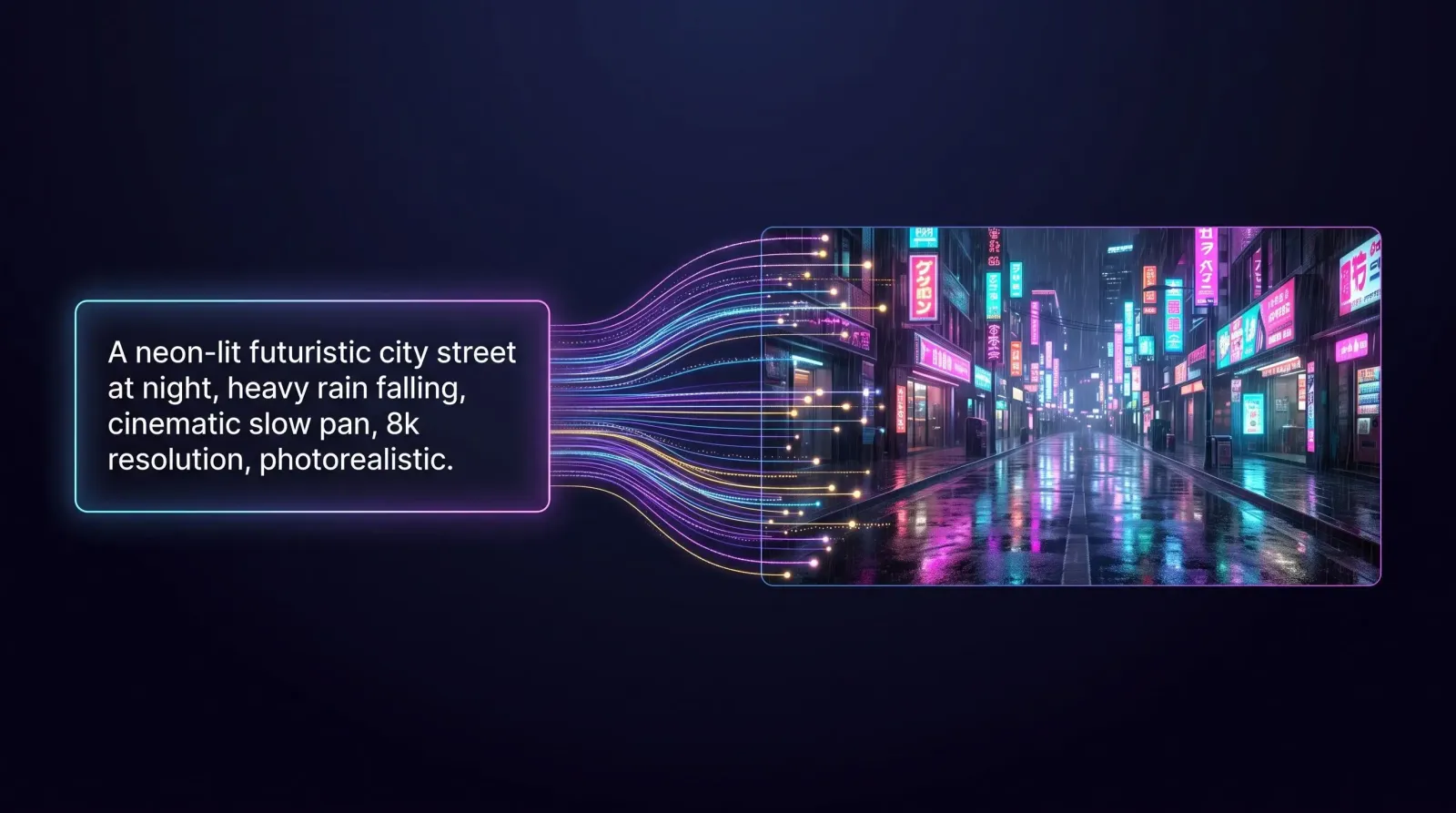
An AI video generator turns a plain text prompt into a finished, watchable clip. No camera, no crew, no timeline full of keyframes. You describe the scene ("a neon-lit city street at night, rain falling, cinematic slow pan"), pick a model, and a few moments later you have footage. That shift, from typing to filming, is why so many creators, marketers, and small teams have rebuilt their content workflow around AI video generation.
This guide walks through how modern text to video AI actually works, which models produce the best results, how to write prompts that deliver, and how to make everything from cartoons to social-ready clips. It reflects what we see every day building MagicShot's text to video generator, which puts every top model in one place with no watermark on anything you make.
What is an AI video generator?
An AI video generator is software that creates moving video from an input, usually a text description, but sometimes a still image or an existing clip. Instead of assembling frames by hand, a trained model predicts how a scene should look and move, then renders it frame by frame with consistent motion, lighting, and physics.
There are three common input styles you'll run into:
Text to video: you write a prompt and the model generates a clip from scratch.
Image to video: you upload a photo or illustration and the model animates it.
Video to video: you feed in existing footage and restyle or extend it.
A good AI video creator supports all three, because real projects rarely stay in one lane. You might start with a text prompt, lock in a still you love, then animate that specific frame for consistency. MagicShot keeps text, image, and video generation in a single workflow, so you never jump between five apps to finish one clip.
How does text to video AI actually work?
Under the hood, most text to video systems are diffusion models trained on huge collections of video paired with descriptions. During generation, the model starts from random noise and refines it step by step, guided by your prompt, until a coherent sequence of frames emerges. The hard part isn't drawing one pretty frame. It's keeping the subject, background, and motion consistent across dozens of them so nothing warps, flickers, or teleports.
That consistency problem is exactly why the model you pick matters so much. Newer architectures handle temporal coherence, camera movement, and prompt adherence far better than the shaky, morphing clips people remember from a couple of years ago. This is the real argument for a platform that gives you several of them instead of one: when a shot is fighting you, the fastest fix is often a different model, not a rewritten prompt.
A few technical realities shape what you can and can't ask for:
Clip length is finite. Most models generate a few seconds per run. Longer pieces are built by generating several clips and editing them together, which is why prompt-to-prompt consistency matters.
Motion follows the physics you describe. If you don't specify camera movement or subject action, the model invents its own, usually more than you wanted. Being explicit gives you control.
Detail budgets exist. Faces, hands, text on signs, and fast crowds are still the hardest things to render cleanly. Framing around those weak spots gives you more reliable results.
None of this is a limitation once you know it. It's just the grain of the medium, the same way a photographer works with their lens.
Text to video vs. image to video
Use text to video when you want the most creative flexibility and don't have source assets. Use image to video when you already have a look you want to protect, like a product shot, a character design, or a brand illustration, and you need the motion to stay faithful to it. A common pro workflow is to generate a still first, iterate until it's perfect, then animate that exact frame. Both live in the same MagicShot workspace, so switching between them takes a click, not a new tool.
The AI models behind MagicShot's video generator
A video generator is only as good as the models it runs. Rather than locking you into one engine, MagicShot gives you the world's most popular video models in a single place, so you can match the model to the job:
Seedance 2.0: strong, cinematic motion and reliable prompt adherence for dynamic scenes.
Veo 3.1: high realism with impressive scene understanding and camera control.
PixVerse: fast, stylized results that shine for social clips and animation.
Wan 2.7: versatile generation with clean motion across a wide range of styles.
Grok: expressive outputs suited to bold, attention-grabbing concepts.
LTX: quick turnarounds for rapid iteration and drafts.
MiniMax: smooth, detailed motion with a filmic quality.
The benefit of having them side by side is simple: you stop fighting one model's weaknesses. Need a realistic product demo? Reach for a realism-focused engine. Need a playful animated intro? Switch to a stylized one. Same prompt, different results, and you keep the version that lands, all without paying for or learning a separate app for each model.
Here's how we tend to think about model selection in practice:
For cinematic realism (product films, lifestyle scenes, ads), lean on engines built for lighting and camera control like Veo 3.1 or MiniMax.
For animation and stylized clips (cartoons, explainers, social hooks), reach for PixVerse or Wan 2.7, tuned to hold a consistent art style.
For rapid drafting (testing ten ideas before committing), use LTX to explore fast, then re-run your winner on a higher-quality engine.
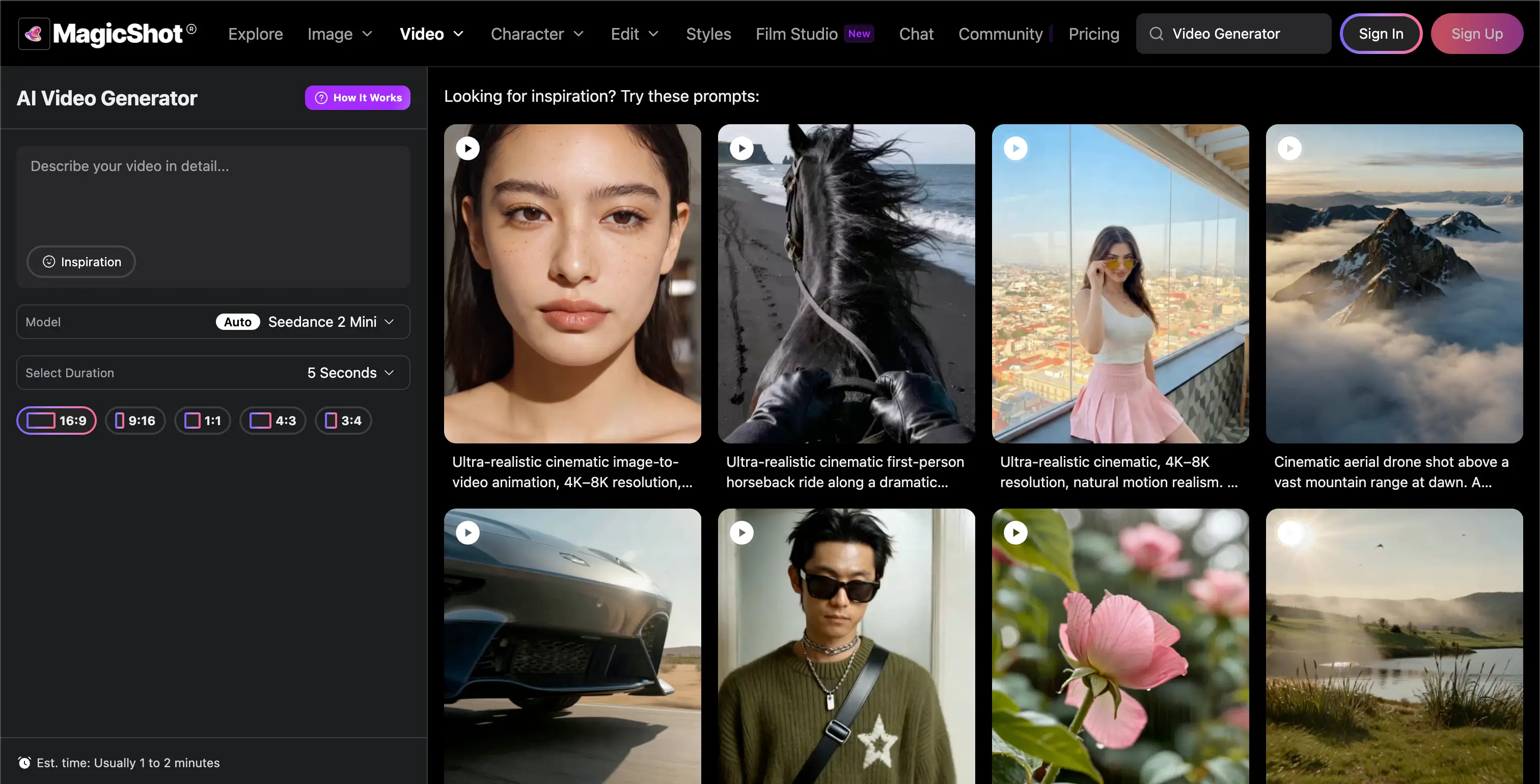
Running the same prompt through two different models and comparing side by side is one of the fastest ways to learn what each one is good at. On MagicShot that comparison is a two-minute exercise, not a two-app headache.
Why creators pick MagicShot
Plenty of tools can generate a clip. The reasons people stay on MagicShot come down to what happens after you hit generate:
Every top model, one place. Seedance 2.0, Veo 3.1, PixVerse, Wan 2.7, Grok, LTX, and MiniMax all run in the same workflow. Pick the right engine per shot instead of committing to one.
No watermark, ever. Nothing you make carries a MagicShot stamp. What you generate is yours to post clean.
Saved forever until you delete them. Your videos stay in your library, ready to re-download or reuse whenever you want. They don't expire out from under you.
Web and app, same account. Start a clip on your laptop, finish it on your phone. Everything you create is available on both the web app and the mobile app.
Use your videos anywhere. Reels, TikTok, YouTube, paid ads, client decks, your store. Take your clips wherever the work goes.
Put together, that's the difference between renting a demo and owning your output. You get the best models, clean files, and a library that's actually yours. You can try the text to video generator on the web, or jump straight into the MagicShot app and start creating.
How to make AI videos step by step
Here's the workflow we recommend for anyone starting out with AI video generation. It works whether you're making a single hero clip or a batch of social posts.
Define the shot. Decide the subject, setting, mood, and camera movement before you type anything. Clarity in your head becomes clarity in the prompt.
Write a specific prompt. Name the subject, the environment, the lighting, the lens or camera motion, and the style. "A golden retriever running through tall grass at sunset, shallow depth of field, slow-motion, warm cinematic tones" beats "a dog running."
Pick the right model. Match the engine to the goal: realism, animation, or speed. In MagicShot that's a dropdown, not a new subscription.
Generate and compare. Run a couple of variations. Small prompt tweaks often fix motion issues faster than starting over.
Refine. Adjust aspect ratio, duration, and style, or animate a still you generated for tighter control.
Export for the platform. Vertical for Reels, TikTok, and Shorts. Square or landscape for feeds and YouTube. No watermark to crop around, and the file saves to your library for next time.
Prompt tips that consistently work
Lead with the subject, then layer environment, lighting, and motion.
Use real cinematography language: "dolly in," "wide shot," "shallow depth of field," "golden hour."
Keep one clear action per clip. Cramming three events into one prompt is where things get messy.
Specify a style ("Pixar-style," "2D anime," "photorealistic") so the model doesn't guess.
How to make cartoons with AI
Cartoon and animated content is one of the most popular uses of an AI video generator, and one of the easiest to get right. You don't need to draw or rig anything. To make cartoons with AI in MagicShot:
Describe your character clearly. Include age, outfit, colors, and personality so the look stays consistent. For example, "a cheerful young astronaut with a round helmet and orange suit."
Name the animation style. Add "3D animated," "hand-drawn 2D," "claymation," or "anime" so the model commits to a look.
Choose a stylized model. PixVerse and Wan 2.7 tend to produce cleaner cartoon motion than realism-first engines.
Animate a reference frame for consistency. Generate a strong character still, then use image to video so your character doesn't drift between shots.
Keep clips short and stitch them. Several tight cartoon clips read better than one long, wandering shot.
The same approach scales from a single animated logo sting to a full explainer with a recurring mascot, and every clip lands in your library watermark-free.
Using an AI video generator for social media
Social platforms reward volume, speed, and native formatting, three things AI video generation is built for. An AI video generator for social media lets one person produce a week of content in an afternoon instead of booking a shoot for a single post. And because MagicShot exports clean files you can use anywhere, those clips go straight to your feed or your ad manager without a logo in the corner.
Practical social use cases
Reels, TikToks, and Shorts: generate vertical, scroll-stopping clips around a trend or product.
Product teasers: animate a product shot into a rotating, cinematic reveal.
Faceless channels: build entire content series without ever being on camera.
Ad variations: spin up multiple versions of the same concept to test what converts.
Animated hooks and intros: add a branded cartoon opener to lift retention.
Because you can switch models and aspect ratios in the same workflow, you tailor each clip to the platform it's going on instead of forcing one export to fit everywhere.
A simple content-batching routine
The creators who get the most from an AI video generator treat it like a small production line. Instead of making one video at a time, block out an hour and batch:
Brainstorm ten hooks tied to your niche or a current trend.
Turn each hook into a one-line prompt with subject, style, and motion baked in.
Generate all ten in vertical format so they're ready for Reels, Shorts, and TikTok.
Keep the best five, add captions and a hook line, and schedule them across the week.
That rhythm turns "I should post more" into a repeatable system, and it's only realistic because generation is fast enough to iterate at volume. Your whole batch stays saved in MagicShot, so you can revisit a winning clip and spin up a follow-up next week.
What to look for in the best AI video generator
Not every tool is built the same. When you're comparing options, weigh these factors:
Model choice: access to multiple top models beats being stuck with one engine.
Prompt adherence: does the output actually match what you asked for?
Motion quality: smooth, coherent movement without warping or flicker.
Input flexibility: text, image, and video inputs in one place.
No watermark: clean files you can publish or run as ads without cropping a logo.
Storage and access: videos saved until you delete them, reachable from web and app.
Format support: vertical, square, and landscape for every platform.
Speed: fast iteration so you can test ideas without waiting forever.
MagicShot's text to video generator is built around exactly these priorities. It pairs a clean workflow with the world's strongest models, keeps your library watermark-free and saved for good, and works the same on web and mobile. When you're ready to create, the text to video app puts every model at your fingertips.
Who's actually using AI video generation
It helps to see where this technology earns its keep. A few patterns show up again and again:
Solo creators and faceless channels use text to video to publish daily without a camera, a set, or an on-screen presence.
Small businesses turn a single product photo into a rotating hero clip for their store and ads, skipping an expensive shoot.
Marketers generate five variations of a concept, run them as ads, and let the data pick the winner instead of guessing.
Educators and explainer makers build animated characters and scenes to illustrate ideas that are hard to film.
Agencies prototype campaign directions in an afternoon, showing clients moving mockups instead of static boards.
The common thread is speed without a proportional drop in quality. What used to take a budget and a calendar now takes a prompt and a few iterations, and the output is clean enough to hand a paying client.
Common mistakes to avoid
Vague prompts. The model fills gaps with guesses. Be specific.
Overloading one clip. One action per shot keeps motion clean.
Ignoring aspect ratio. A landscape clip cropped for Reels loses its best framing.
Using one model for everything. Realism engines and animation engines have different strengths. Pick per job.
Skipping iteration. Your second or third generation is usually the keeper.
Wrapping up
The gap between "I have an idea" and "I have a finished video" has never been smaller. MagicShot's AI video generator lets you type a scene, choose from best-in-class models like Seedance 2.0, Veo 3.1, PixVerse, Wan 2.7, Grok, LTX, and MiniMax, and walk away with something you can actually publish. No watermark, saved to your library until you delete it, and ready to use anywhere from web or app.
Start with a clear prompt, match the model to the goal, iterate a couple of times, and export for the platform you're posting to. That's the whole game, and it's very learnable. Open the MagicShot text to video app and make your first clip.