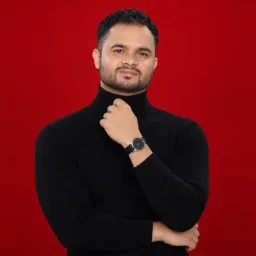
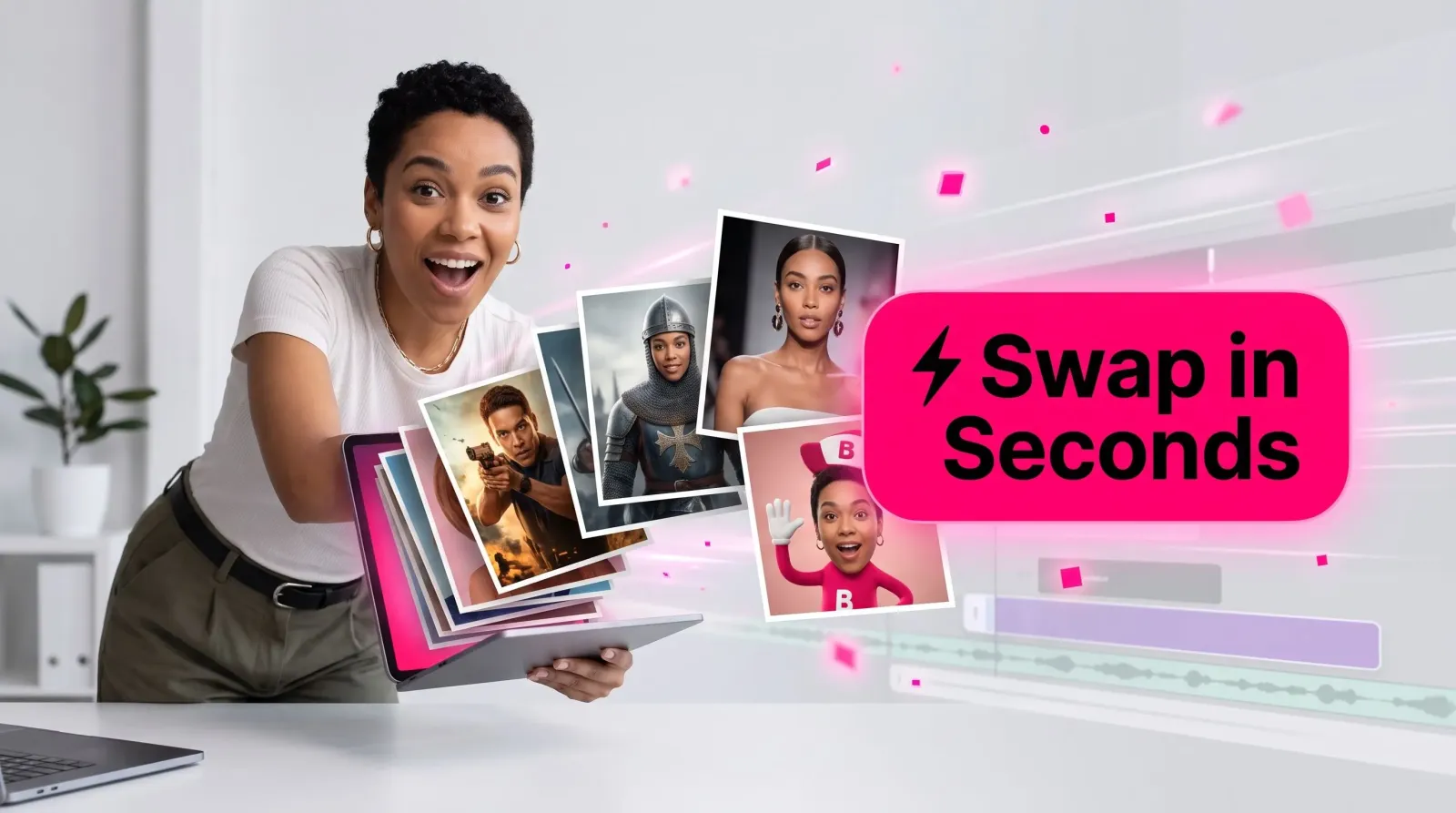
An AI face swap takes the face from one image and places it onto another person in a second photo or video, matching the skin tone, lighting, and angle so the result reads as one clean shot. No cutting out jawlines by hand. No $400 reshoot because the model was blinking. You upload two files, pick who goes where, and get a swapped result in seconds. This guide covers how to do it well in MagicShot, where the same tool handles a still frame and a moving clip.
Most people meet face swapping through a laughing meme or a movie-poster gag. That's the fun part. But the same technology quietly saves real time for sellers, editors, and social teams who need a face in a scene they can't reshoot. Below, I'll walk through both the photo and video workflows, the settings that separate a believable swap from an obvious one, and where a face swap fits next to the rest of your content stack.
What an AI face swap actually does
Think of it as a transplant, not a filter. The tool detects the face in your source image, maps its features, and blends them onto the target face in your destination photo or video. Good face-swap models don't just paste an oval. They match the head tilt, re-light the new face to fit the scene, and keep the target person's hair, body, and background untouched.
The old way was manual masking in Photoshop: isolate the face, warp it, clone-stamp the seams, fix the color, and pray the lighting matched. Fifteen minutes if you're fast, and it still looks pasted. An AI face swapper does the blending math for you, so a swap that used to eat an afternoon takes about the time it takes to sip your coffee.
How to swap faces in a photo
MagicShot's AI face swapper handles the still-image side. The flow is short on purpose:
Upload your target photo. This is the scene you want to keep: the pose, the outfit, the background, the lighting.
Upload the source face. A clear, front-facing headshot works best. Even lighting and both eyes visible give the model the most to work with.
Swap and download. The tool detects both faces, blends the source onto the target, and returns the finished image ready to save or post.
Where this pays off: a product listing where you want a consistent face across every shot, a birthday card gag, a fantasy poster with your friend's face on the hero, or a team headshot set where one person couldn't make the shoot. Swap once, and the rest of the frame stays exactly as photographed.
Getting a clean photo swap
Match the angles. A front-facing source onto a front-facing target is the easiest win. Extreme profiles are harder for any face-swap tool.
Mind the lighting. If the target scene is lit from the left, a source face lit from the left blends more naturally.
Use a sharp source. Blurry or low-res faces carry that softness into the swap. If your best photo is small, run it through the Image Upscaler first, then swap.
How to do a video face swap
Swapping a face across a moving clip is the harder trick, because the face has to track every frame: turns, blinks, expressions, and changing light. MagicShot's video face swapper handles the frame-by-frame work so you don't scrub a timeline for hours.
Upload the target video. Pick a clip where the face stays reasonably well-lit and isn't blocked by hands, hair, or fast motion.
Upload the source face. One clear headshot is enough. The tool applies it across every frame.
Generate and export. You get a swapped clip you can drop into Reels, TikTok, a Short, or a group chat.
A video face swap is where the delight lands. Your face on a dance trend, a friend starring in a movie scene, a mascot with a real face for a brand skit. The source clip matters more than people expect: steady framing, a face that stays toward the camera, and clean lighting will beat a shaky, backlit clip every time.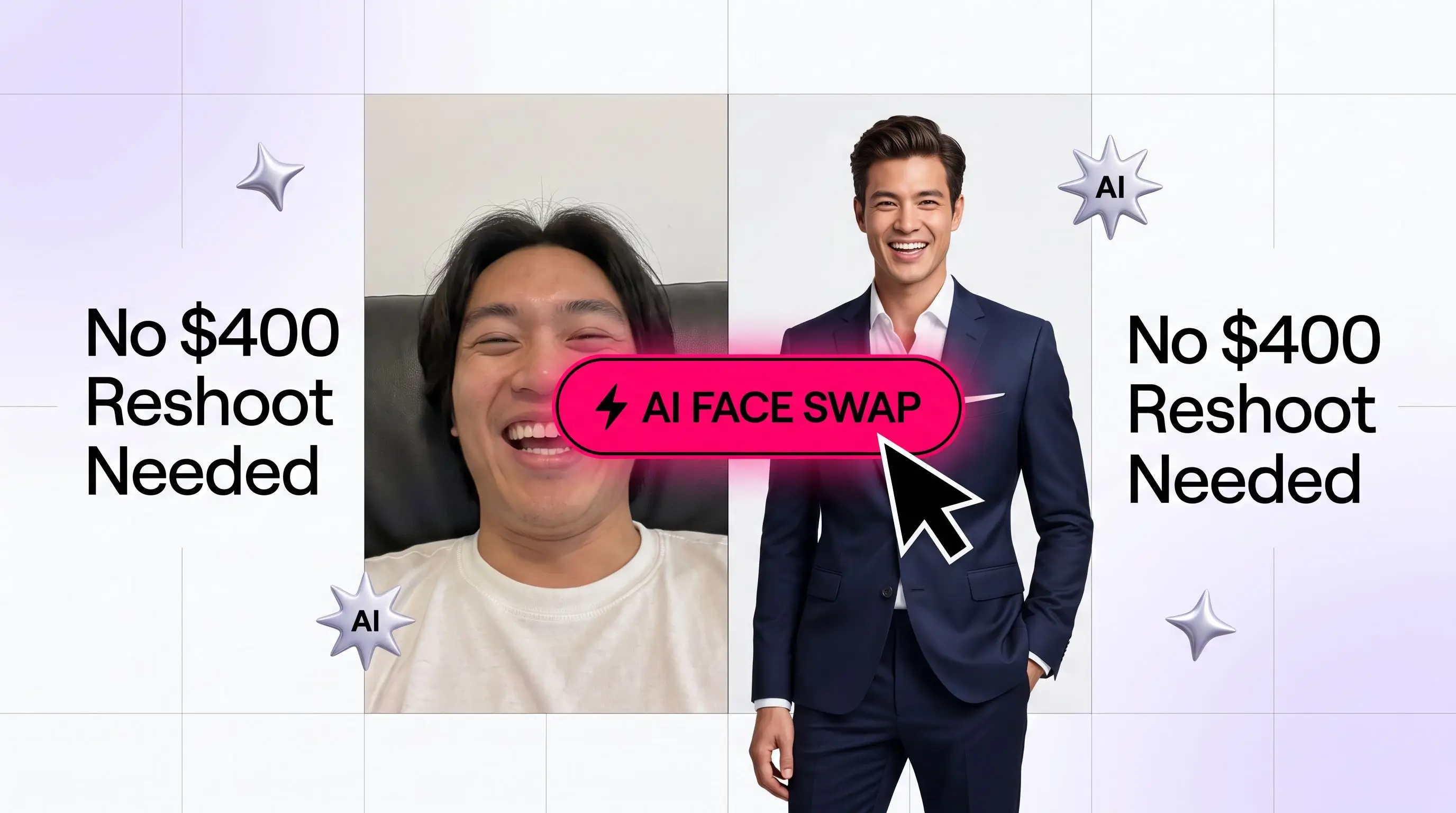
Common video-swap mistakes to avoid
Two things wreck a video swap more than anything else. The first is a source clip where the target face keeps leaving the frame or gets covered by a hand, a mic, or a curtain of hair. The tool can only swap what it can see, so gaps in coverage show up as flicker. The second is lighting that swings hard mid-clip, like walking from shade into direct sun. When the target's light changes faster than the swap can follow, the illusion cracks. Pick a clip with steady framing and steady light, and the result holds together far better.
Why creators pick MagicShot for face swapping
Plenty of apps do one swap and stop. What makes the difference here is that the face swap sits inside a full studio, so the swapped file doesn't become a dead end.
Photo and video in one place. Run a still swap for a thumbnail, then a clip swap for the video it fronts, without hopping between five subscriptions.
Polish before or after the swap. Clean up a busy background with the Background Remover, or delete a stray photobomber with the Object Remover before you swap the face in.
Fix old source photos. Got one great face shot that's scratched or faded? Repair it with the Photo Restorer, then use it as your swap source.
Keep going after the swap. Turn a swapped still into motion with Image to Video, or add narration with Text to Speech for a finished clip.
Face swap vs. Photoshop vs. a reshoot
It helps to know when a face swap is the right call and when it isn't. A reshoot gives you total control, but it costs time, money, and a calendar that lines up. Manual editing in Photoshop gives you pixel-level control too, but a believable face composite is genuinely hard, and most people spend an hour to land something that still looks slightly off. A face swap trades a sliver of that manual control for speed: you accept the model's blend in exchange for a result in seconds instead of an afternoon.
So the decision is simple. If the shot has to be perfect for a hero campaign and you have the budget, shoot it. If you need a specific face in a scene you already captured, or a face you literally can't gather in one room, a face swap wins on every practical axis. It's the difference between rescheduling five people and uploading one photo.
Face swapping in real workflows
For social creators
Trends move fast, and reshooting for every format is a losing race. Swap your face onto a trending template, then chase the next one an hour later. Pair it with the AI Video Effects Generator to add the transitions and looks that keep a clip watchable to the end.
For sellers and small brands
Consistency sells. If you want the same recognizable face fronting a set of product clips or a UGC-style testimonial, a swap keeps that face steady even when you shot on different days. It slots neatly beside UGC Videos when you're building social proof without booking talent for every take.
For fun and gifts
Not everything needs a business case. Put your dad's face on an action hero, drop a friend into a famous scene, or make a running joke out of one photo across a group chat. This is the corner of face swapping that exists purely for the laugh, and that's reason enough.
How to keep face swaps looking real
The gap between a swap that fools people and one that screams "edited" usually comes down to the source you feed it.
Rule of thumb: the closer your source face matches the target's angle, lighting, and resolution, the less the AI has to invent, and the more believable the result.
Feed it a well-lit, front-facing face. Harsh shadows and heavy sunglasses hide the features the model needs.
Skip the extreme expressions in the source. A neutral or lightly smiling face swaps onto more scenes than a mid-laugh grimace.
Watch the resolution match. A crisp face on a soft scene, or the reverse, can look off. Upscale the weaker file first.
For video, pick a steady clip. Fast head turns and motion blur are the hardest cases for any face-swap generator.
Where a face swap fits in your toolkit
A face swap solves a narrow, specific problem: getting the right face into a scene you already have or can't reshoot. It's not a headshot generator and it's not a full photoshoot. If you need polished portraits from scratch, MagicShot's Professional Headshots is the better door. If you want a face swap on a specific photo or clip, the face swapper is exactly the tool.
Used together, they cover a lot of ground. Generate a clean headshot, swap a face into a scene, remove a distracting background, add a voiceover, and export a finished clip, all without a photographer, a studio, or a stack of separate apps.
The short version
An AI face swap gets a face into a photo or video without a reshoot or an afternoon of manual masking. In MagicShot, the photo and video swappers live side by side, so the same face can front a thumbnail and star in the clip behind it. Feed it a sharp, well-lit, front-facing source, match the angle to your target, and you'll get results that hold up whether they're for a laugh or a launch.