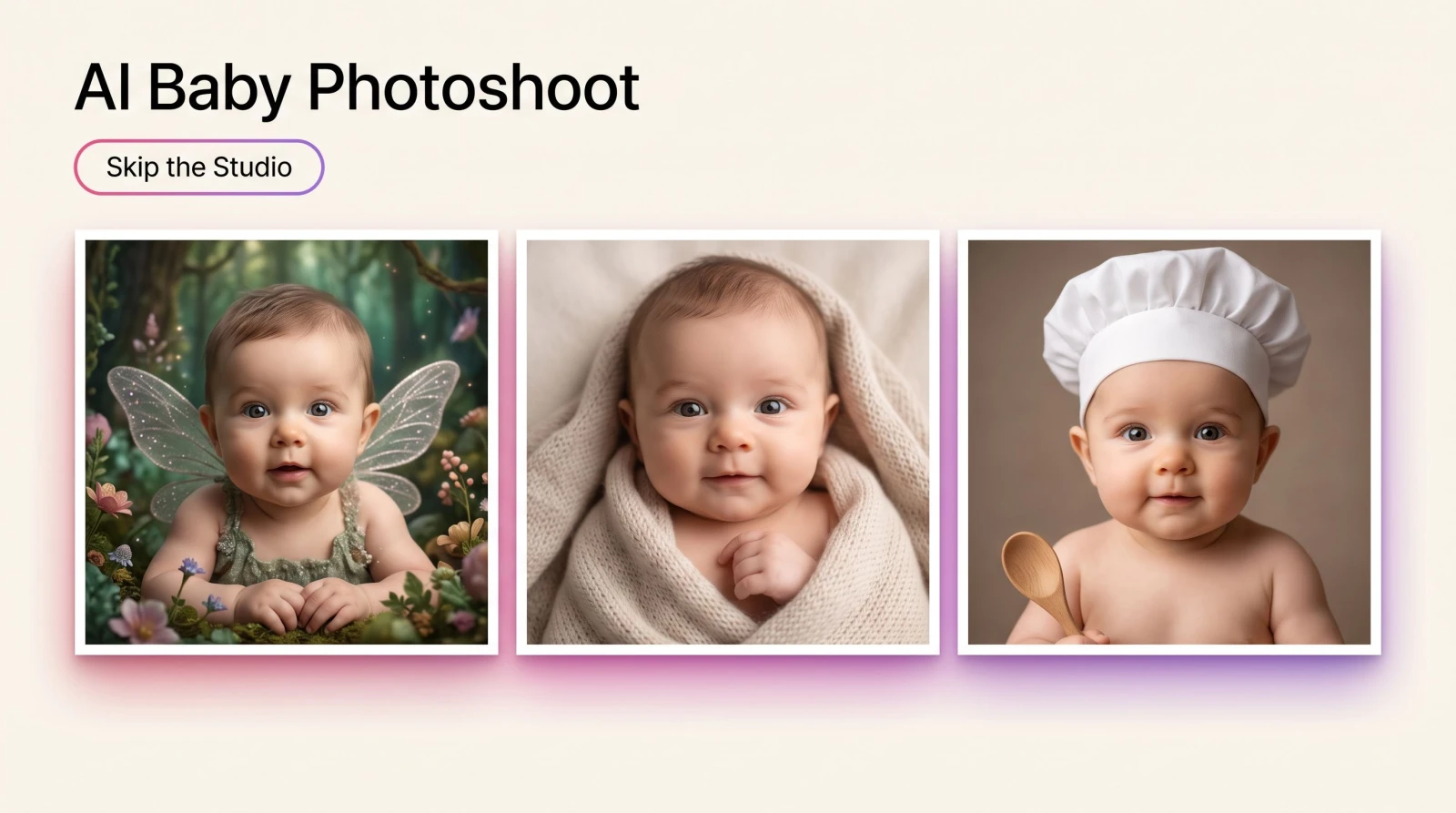
An AI baby photoshoot takes one clear photo of your little one and turns it into a set of dressed-up, themed portraits in seconds. No newborn studio booking, no squirming toddler under hot lights, no waiting weeks for proofs. You upload a photo, pick the styles you like, and the results land while your coffee is still warm. If you have ever tried to schedule a real baby session around nap time, you already know the enemy here: a fussy afternoon, a photographer's calendar, and a bill that climbs past $400 before you have seen a single frame.
This guide walks through exactly how an AI baby photoshoot works, what to upload for the best results, the fun styles worth trying, and where the tool fits alongside the rest of your photo kit. It is written for parents, aunts and uncles, and small teams making baby-brand content who want something charming without the production headache.
What is an AI baby photoshoot?
An AI baby photoshoot is an online tool that generates styled baby portraits from a photo you already have. You give it a picture of the baby (and optionally a parent), choose one or more looks, add a prompt if you want to steer the scene, and it renders finished images you can download in high resolution. Think of it as the studio session and the outfit rack and the seasonal backdrop, all folded into a few clicks. The input is a photo. The output is a batch of portraits. That is the whole loop.
It is not a replacement for treasured real-life snapshots, and it should not be. It is the thing you reach for when you want a birthday-card angel, a tiny astronaut, or a holiday-themed portrait and you do not have the time, the costume, or the reshoot budget to stage it for real.
How an AI baby photoshoot works, step by step
The baby photoshoot tool keeps the process to three plain steps, so you are not fighting a menu of sliders.
Step 1: Start with what you have
Upload a photo of the baby. You can also add a photo of the father or mother, or any two people, but the baby image is the one that matters most. Then choose as many styles as you like, and drop in an optional prompt if you have a specific scene in mind, say a garden picnic or a superhero cape. A sharp, well-lit, front-facing photo gives the tool the most to work with.
Step 2: Let it run
Results land in seconds. If the first batch is close but not quite there, tweak the prompt or settings between runs to steer them. Want warmer light? A different outfit? A calmer background? Change one thing at a time and re-run. It is cheaper than a reshoot and faster than describing your vision to a stranger with a camera.
Step 3: Export, or keep going
Download your favorites in high resolution, ready for a print, a phone lock screen, or a grandparent's group chat. Or open the result in another MagicShot tool to take it further, like cleaning up a stray edge or bumping the resolution for a large print.
What to upload for the best baby portraits
Garbage in, garbage out applies here as much as anywhere. A few habits make a real difference:
Use a clear, front-facing shot. Even, soft light beats harsh sun or a dim room. The face should be in focus and unobstructed.
Keep the baby's face visible. Pacifiers, hands, and hats over the eyes give the tool less to lock onto.
Add a parent only if you want them in the frame. Family-themed portraits work best when both faces are clear and roughly the same quality.
Pick your styles before you obsess over the prompt. Many themes look great with no prompt at all. Add words only when you have a specific scene in mind.
If your only good photo is old or slightly blurry, run it through the image upscaler first to sharpen the detail before you start.
Fun styles worth trying
The point of an AI baby photoshoot is the delight, so lean into it. A few crowd-pleasers:
Seasonal and holiday themes. Pumpkin patches in October, cozy sweaters in December, spring flowers for a first birthday.
Little-costume portraits. Tiny astronaut, mini chef, storybook fairy, pint-sized superhero.
Classic studio looks. Soft backdrops and warm light for a timeless keepsake, without the actual studio.
Whimsical scenes. A baby among clouds, a teddy-bear tea party, a starry night nursery.
Run several styles at once, then keep the two or three that make you grin. That is the fun of it: you are not committing to one outfit and one afternoon.
Why parents reach for an AI baby photoshoot
A traditional newborn or milestone session is a lovely thing when it goes well. It often does not go well. You book weeks out, you build the day around a nap schedule that the baby has not agreed to, and half the frames end in a meltdown. Then you wait for edits and pay a premium for extra prints. An AI baby photoshoot removes the parts that make you groan and keeps the part you actually wanted: a set of charming portraits.
Here is what changes when the studio moves into a browser tab:
No scheduling around the baby. Shoot at 6 a.m. or 11 p.m. The tool does not care, and neither does a photo you already took last week.
No costume budget. The astronaut suit, the fairy wings, the tiny chef's hat all come from the style you pick, not a shopping trip.
No single-take pressure. If you do not love a batch, re-run it. There is no lighting rig to reset and no photographer's clock ticking.
Many looks from one photo. A single good upload can become a dozen different scenes, which is impossible in one real session.
That is the trade at the heart of it. You give up the in-person ceremony and you get speed, range, and a lot less stress.
Common mistakes to avoid
Most disappointing results trace back to a handful of fixable errors. Watch for these:
Uploading a low-light or motion-blurred photo. The tool cannot invent detail that is not there. Start with the sharpest frame you have, and upscale it if needed.
Cropping the face too tight or too small. Give the tool enough of the face to read expression and proportion.
Overloading the prompt. Ten competing instructions muddy the scene. Name the outfit, the setting, and the mood, then stop.
Judging on the first run. The first batch is a starting point. The keeper usually shows up on run two or three, once you have nudged the style.
Where the baby photoshoot fits in your photo kit
The baby session is often the start of a bigger project, and MagicShot is built to hand results from one tool to the next. A few natural next steps:
Turn a favorite portrait into a moving keepsake with image to video, so a still frame gently comes to life for a birthday post.
Tidy a busy background or drop a clean edge with the background remover before you print or share.
Making baby-brand content? Pair themed portraits with UGC videos for social clips that look native to TikTok and Reels.
The same three-step rhythm carries across the platform, so once you have done a baby shoot, a pet portrait session feels familiar.
Tips to get sharper, cuter results
A working parent does not have time to fiddle, so here is the short list that actually moves the needle:
Change one variable per run. If you rewrite the whole prompt and swap the style at once, you will not know what fixed it.
Describe the scene, not the baby. The upload already carries the likeness. Spend your prompt words on setting, outfit, and mood.
Batch your styles. Pick five looks, run them, then cull. You will get to a keeper faster than perfecting one at a time.
Export high resolution when you love one. A larger file prints cleanly and survives cropping for cards or frames.
The bottom line
An AI baby photoshoot gives you the fun part of a studio session, the costumes, the themes, the keepsake portraits, without the nap-time gamble or the $400 invoice. Upload a clear photo, pick a few styles, run it, and download the ones that make the family chat light up. When you are ready to do more, the result drops straight into the rest of your MagicShot kit.