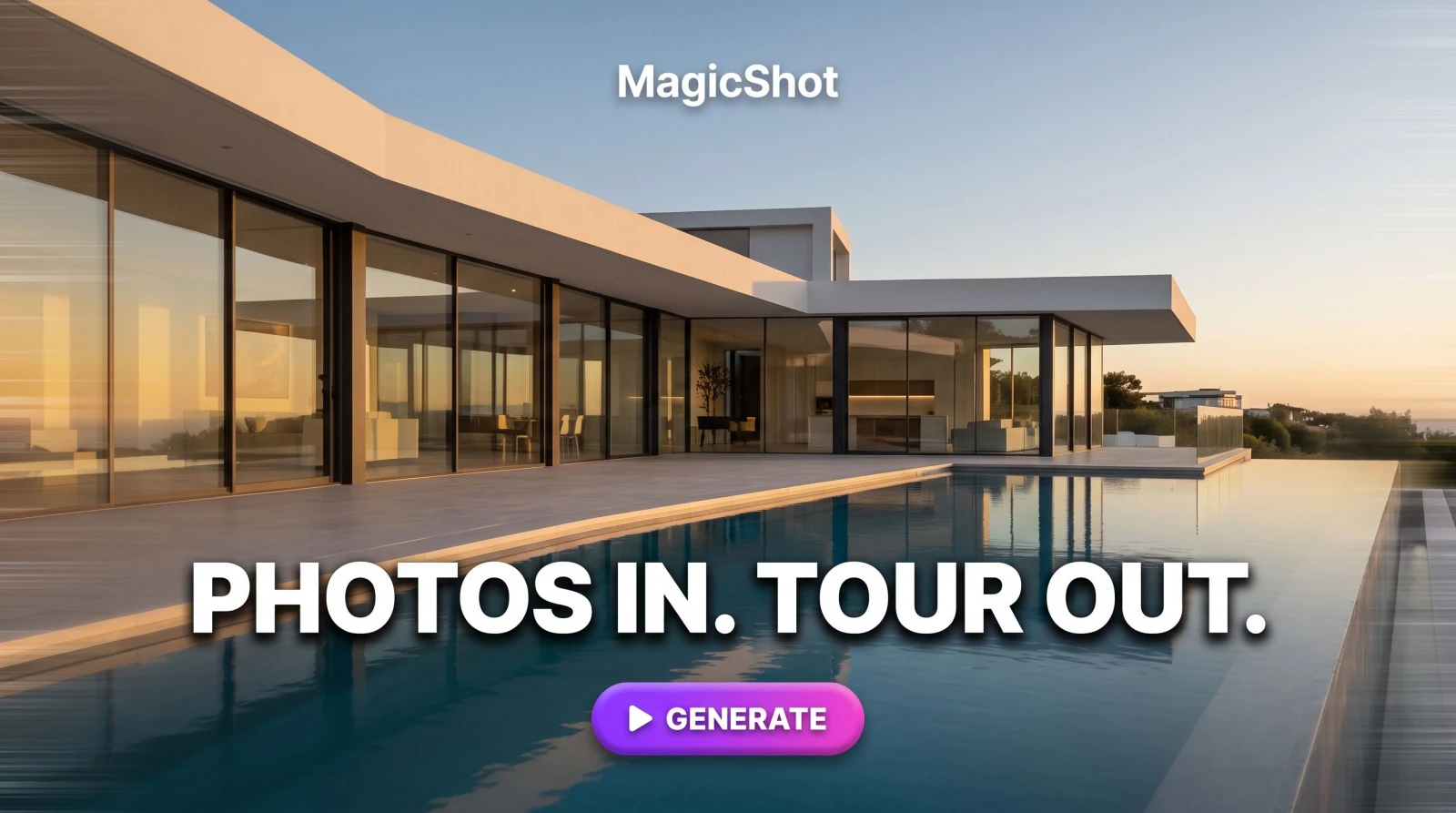
Here's the short version: MagicShot's Real Estate Video Generator turns a live Zillow listing into a narrated HD property tour without a videographer, a script writer, or an editing timeline. You paste the listing URL, the AI pulls the photos and details and detects the property tier, then you pick an AI voice and the script plus voiceover generate on their own. Download the finished real estate video and post it to your feed. The whole thing takes minutes, not the afternoon a $400 shoot would eat.
This guide walks the process end to end so you can reproduce a listing video today. No footage to shoot, no images to upload, no clips to stitch. You need two things: a MagicShot account and one live Zillow listing URL.
What you'll achieve and what you need
By the end of this tutorial you'll have a downloadable HD real estate video, complete with narration, built entirely from a public listing page. That's a walkthrough you can drop straight onto Instagram Reels, a Facebook listing post, YouTube, or a client email.
A MagicShot account so you can generate and download the video.
A live Zillow listing URL. The listing has to be active and public so the tool can read the photos and property details.
A few minutes. No microphone, no camera, no drone, no editing software.
That's the whole shopping list. The point of the Real Estate Video Generator is to kill the reshoot and the freelance edit fee, so the input stays deliberately thin.
Step 1: Paste the Zillow listing URL
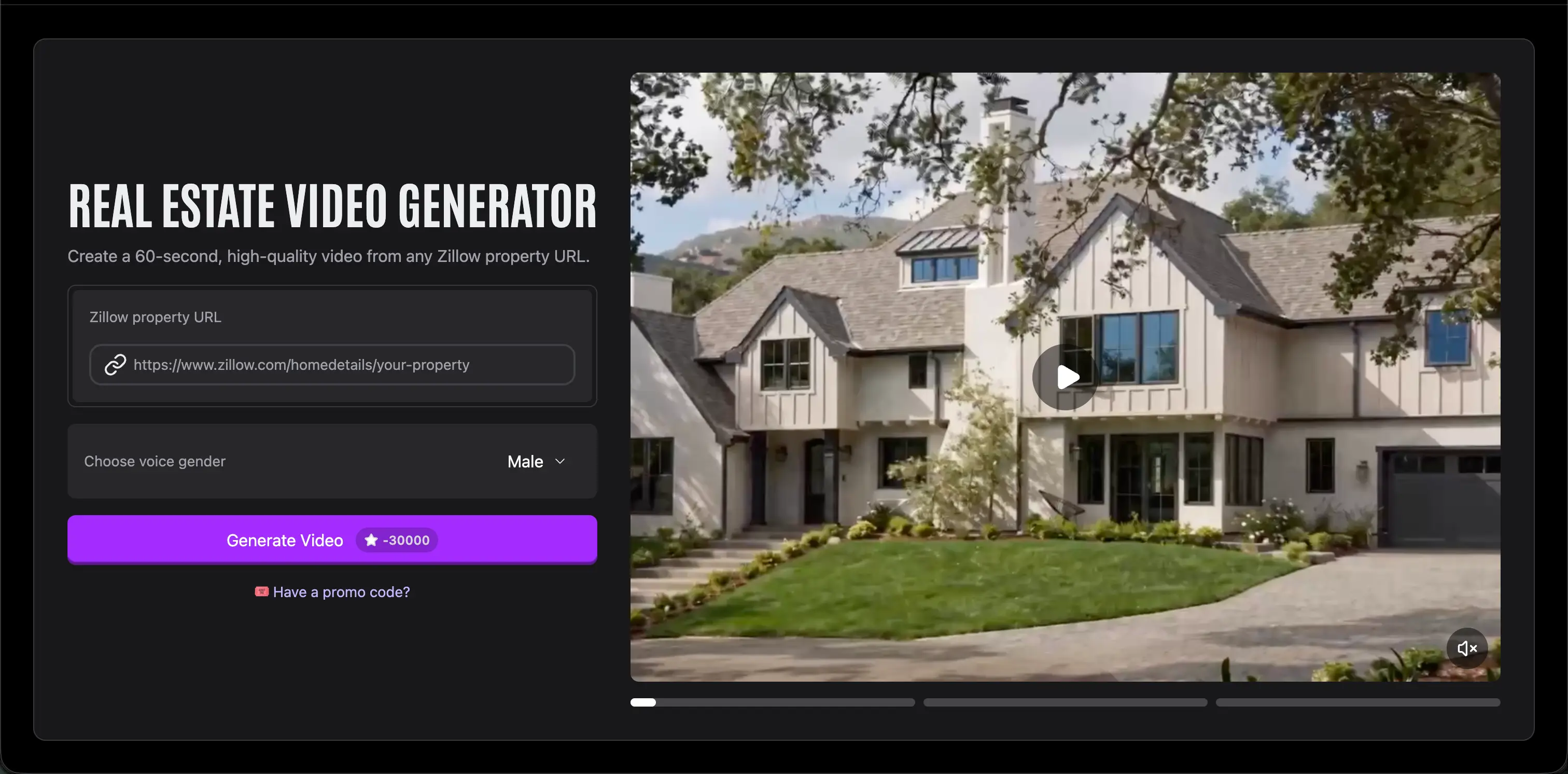
Open the Real Estate Video Generator and drop your Zillow listing link into the URL field. Copy it straight from your browser's address bar on the property page, not a search-results page or a saved-homes list. One property per video, so grab the specific listing you want to promote.
Double-check the listing is live before you paste. If Zillow can load it, the generator can read it. A pending or removed listing won't have the public photo set the tool needs to build the tour.
Step 2: Let the AI pull the photos, details, and property tier
Once the URL is in, the AI reads the listing for you. It grabs the property photos, pulls the details like beds, baths, square footage, and price, and detects the property tier, whether that's a starter condo or a luxury estate. That tier detection matters: it shapes the pacing and tone so a $2M listing doesn't get narrated like a studio rental.
You don't sort images or type in specs. The mechanism reuses what's already published on the listing, which is exactly why you skip the manual data entry that makes DIY listing videos such a chore. If a listing has 30 photos, the tool works from that set rather than asking you to reupload anything.
What tier detection changes
Think of the tier as the video's personality dial. A high-end property gets a slower, more deliberate feel that matches the price point; an entry-level unit gets brisker, punchier framing. It's the difference a human editor would make by instinct, handled automatically so your luxury listing and your first-time-buyer listing don't sound identical.
Step 3: Pick an AI voice and let the script and voiceover generate
Now choose an AI voice for the narration. Pick the one that fits the property and your market, then the tool writes the script from the listing details and records the voiceover automatically. You're not writing copy or booking voice talent; the words and the read both come from the details the AI already pulled in Step 2.
The narration is built on the same kind of engine behind MagicShot's Text to Speech tool, so the voice tracks the listing facts and the property tier rather than reading a generic template. That's how a two-bedroom bungalow and a waterfront estate end up with narration that actually matches each place.
Step 4: Download the HD video and post it
When the generate finishes, download your real estate video in HD and it's ready to publish. Post it to Instagram Reels, Facebook, YouTube, or attach it to a listing email or your MLS-adjacent marketing. Because it exports as a standard HD file, it slots into whatever channel your buyers actually watch.
If you're running a full listing campaign, pair the video with matching assets. A clean set of professional headshots for your agent profile keeps the branding consistent across the tour, your bio, and your business card.
Troubleshooting and next steps
Most issues trace back to the listing link, so start there.
The tool can't read the listing. Confirm the URL points to an active, public Zillow property page and not a search page. Re-copy it from the address bar on the listing itself.
The photos look thin. The video only works from what's published on the listing. If the Zillow gallery is sparse, the tour will be too, so it pays to have the listing fully photographed before you generate.
The tier feels off. Tier detection reads the listing's price and details. If those are incomplete on Zillow, the pacing may not match your read of the property; fixing the source listing fixes the video.
Once you've shipped one tour, the next move is turning it into a repeatable system. Generate a video for every new listing the day it goes live, and build a matching content set around it. Short vertical cuts do well with AI video effects for a scroll-stopping open, and if you're producing social clips for your personal brand, MagicShot's UGC video tools cover the talking-head content that fills the gaps between listings.
The math is simple. One listing link, a few minutes, and you've replaced the videographer, the script, and the edit for every property you sell.