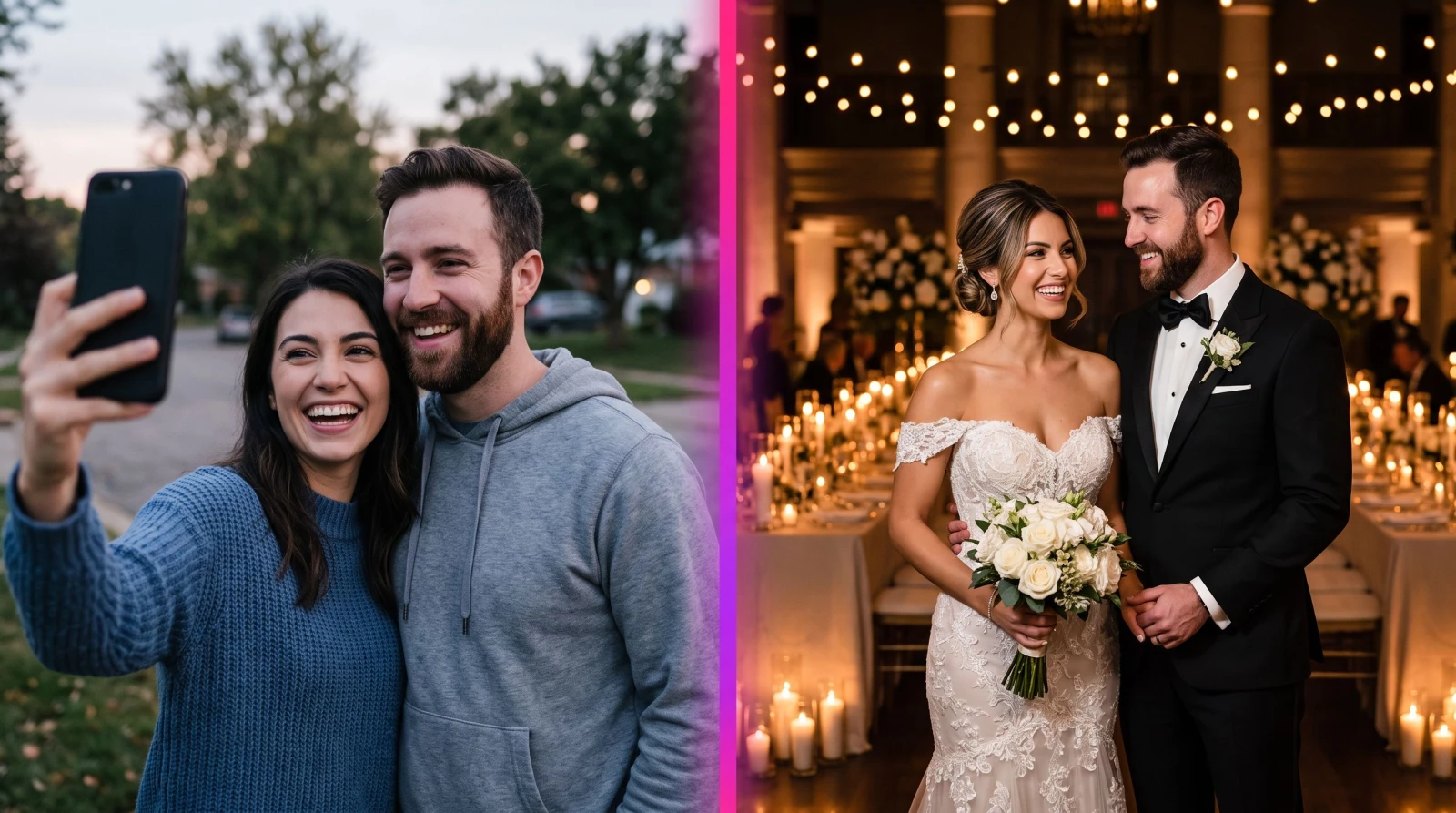
An AI wedding photos generator does something a $3,000 photographer and a full reshoot day used to own outright: it turns a handful of your own pictures into finished wedding portraits in seconds. Upload a few clear shots, pick a style, and you get a bridal photoshoot without booking a studio, chasing golden hour, or waiting six weeks for edits to land in your inbox. That's the whole promise, and it's a genuinely useful one whether you're planning a shoot, missed a shot on the day, or just want to see yourselves in a look you never got to try.
Below is a practical walk-through: what the tool actually makes, how to feed it, the styles that tend to work, and where it fits alongside the rest of a modern photo workflow. No fluff, just what gets you a frame worth framing.
What an AI wedding photos generator actually does
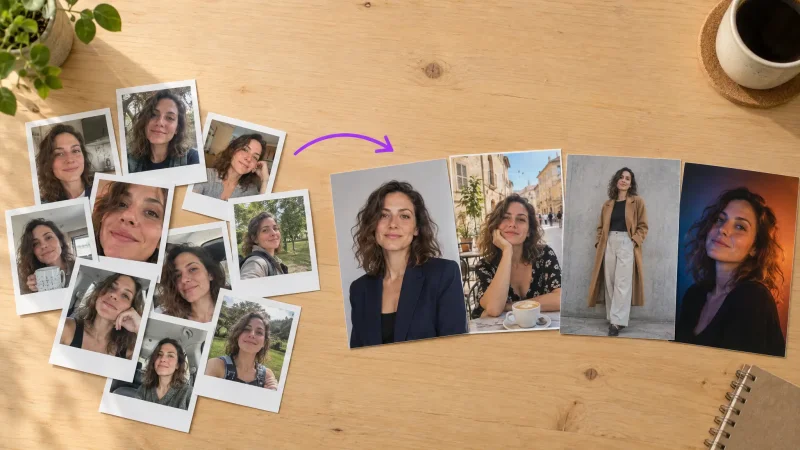
It takes an input you already have (a photo of you, your partner, or both) and returns portrait-style wedding images in the outfit, setting, and mood you choose. You're not learning lighting or posing. You upload, you steer with a prompt or a preset, and the result comes back as a high-resolution image you can download or push straight into another edit.
The honest version: this is not a replacement for a real wedding day with a real photographer capturing real moments. It's a fast way to generate portraits, mock up looks before the day, recover a pose you wish you'd shot, or make a keepsake for an anniversary. Named uses that people actually run:
Style testing before the booking. See yourself in a classic ballgown versus a slip dress, or a garden ceremony versus a beach one, before spending a cent on the real thing.
The shot you didn't get. The first-look frame nobody caught, the golden-hour portrait rained out on the day.
Anniversary and gift pieces. A polished portrait for a print, a card, or a wall.
Social and save-the-dates. On-theme images for Instagram, a wedding website, or invitation mockups.
How the MagicShot Wedding Photos tool works
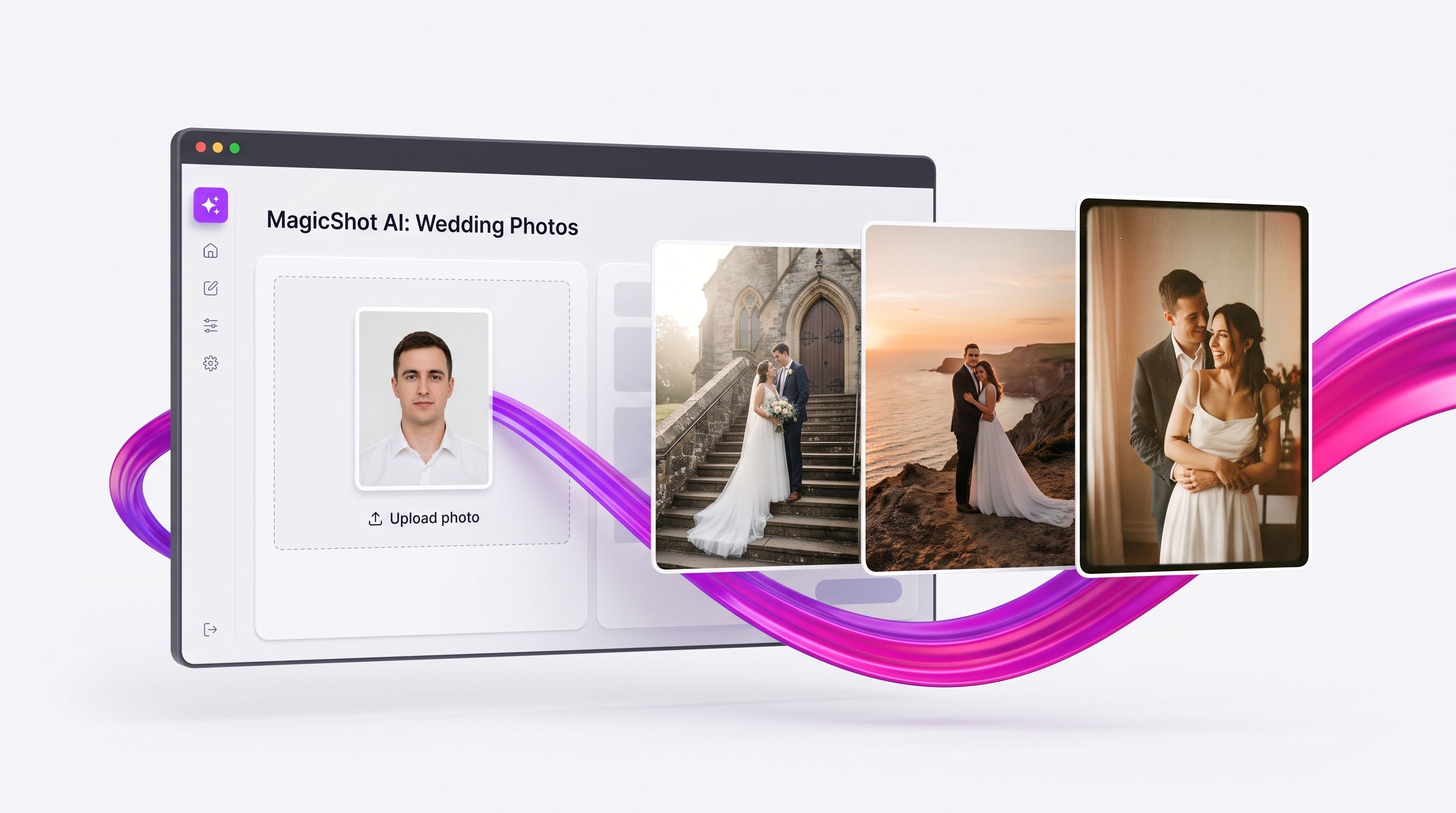
Three steps, and none of them require you to be a tool expert. The Wedding Photos tool is built around a simple flow: upload the faces, pick your looks, generate.
Step 1: Upload the bride photo, the groom photo, or both
Start by uploading a Bride Photo, a Groom Photo, or both. Clear, well-lit face shots give the AI the most to work with, so a straight-on portrait beats a blurry group photo pulled from a night out. If you only have one clear picture of one person, that's enough to get started; add the second when you have it.
Step 2: Choose styles, including several at once
Pick the wedding style you want. You're not locked to one: choose multiple styles and run them together as a bulk batch, so a single generation gives you a classic cathedral look, a beach-at-sunset frame, and an editorial portrait side by side. Selecting several styles up front saves you from running the wedding photos generator over and over for each look.
Step 3: Generate, export, or keep going
Hit generate and results land in seconds. If the first pass isn't quite right, tweak the prompt or the settings and run it again. Small changes steer a lot: swap "soft morning light" for "warm sunset," or "cathedral" for "vineyard," and the whole mood shifts. Download in high resolution when you're happy. Or, because Wedding Photos lives in the same workspace as the rest of MagicShot's professional headshots and other photoshoot tools, open the result one click away in another tool for a retouch, an upscale, or a completely different treatment.
Why couples reach for a wedding photos generator
The reasons come down to time, money, and the frames that got away. A traditional shoot means coordinating a photographer's calendar with yours, paying a deposit, waiting for a weather window, and then waiting again for edits. The wedding photos generator removes every one of those waits. You get a look in seconds, and you can iterate as many times as it takes to get it right. Because you can select multiple styles in one bulk run, a whole set of looks comes back together instead of one at a time.
There's also the planning value, which is easy to miss. Deciding on a dress, a venue, and a season is expensive to reverse once the deposits are down. Seeing yourself in three different gown silhouettes, or the same ceremony at noon versus dusk, turns an abstract Pinterest board into something you can actually judge. That's a decision-making tool as much as a portrait tool. Planners use it to show clients a mood before anyone signs a contract, and couples use it to settle the arguments a spreadsheet can't.
The gap it fills for late and missed shots
Real wedding days move fast, and something always slips. The rain that killed the sunset portrait. The relative who couldn't travel. The first-look moment that happened while the photographer was reloading. A wedding photos generator won't rewrite history, but it can produce a clean portrait in the outfit and setting you remember, which is often enough for a print, an album page, or an anniversary card.
What it costs you compared with a traditional shoot
Put the two side by side. A booked portrait session runs into hundreds or thousands of dollars once you count the photographer's time, a second shooter, travel, and the edit. Add a location fee if you want somewhere scenic, and a hair-and-makeup call if you want to look your best on camera. Then there's the calendar tax: finding a date that works for two schedules and a vendor's, praying the weather holds, and losing an afternoon to the shoot itself.
The wedding photos generator swaps all of that for an upload and a few style picks. You trade a fixed cost and a lost afternoon for a few minutes at your desk. That math is why couples on a tight budget, or on a tight timeline before a courthouse ceremony, keep coming back to it. It's also why it pairs so well with a real shoot rather than fighting it: use the generator to plan the looks and settings you want, walk into the paid session knowing exactly what to ask for, and spend the photographer's expensive hours on the shots only a human can catch.
Getting portraits worth printing: input tips
The output is only as good as what you feed it. A few habits raise the hit rate:
Use sharp, front-facing source photos. Whether you upload a bride photo, a groom photo, or both, faces the model can read clearly return the most faithful likeness.
Keep the lighting even. Harsh shadows and heavy filters on the input confuse the result more than they help.
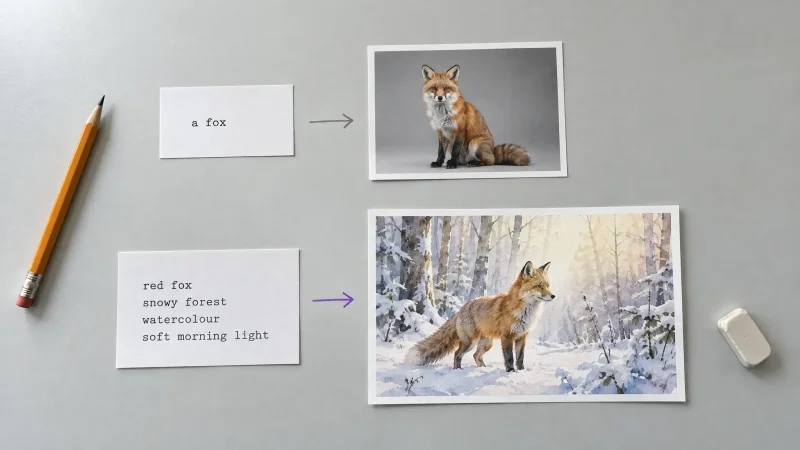
Be specific in the prompt. "Bride in an off-shoulder lace gown, string lights, dusk garden" beats "nice wedding photo" every time.
Select a few styles at once. Choosing multiple styles in one bulk run lets you compare outfit, setting, and time of day across a single batch instead of guessing one at a time.
Styles and settings people reach for
Weddings aren't one look, and neither is the tool. A short menu of directions that render well, and the kind of list you can tick several of before you generate:
Classic church or cathedral with formal attire and soft window light.
Outdoor and destination such as a beach at sunset, a vineyard, or a mountain overlook. For a more far-flung theme, the adventure photos tool leans further into dramatic locations.
Editorial and fashion-forward with dramatic framing and a bolder color grade.
Vintage and film with muted tones for a timeless print.
Intimate and candid, closer crops that feel like a stolen moment rather than a posed set.
Because the model behind the tool isn't fixed, these looks tend to improve over time. MagicShot benchmarks new AI models as they ship and routes each tool to whichever performs best, so the same prompt you run today can quietly come back sharper a few months from now, without you changing a thing.
Finishing the shot with the rest of the workspace
A generated portrait is rarely the last step. The value of running Wedding Photos inside MagicShot is what sits next to it. A few common follow-ons:
Push a favorite through the image upscaler before you send it to print, so a screen-sized frame becomes wall-sized without going soft.
Restore an old engagement or family photo with the photo restorer before you use it as a source, so faded scans give the model something clean to build on.
Turn a still into motion for the wedding website or a save-the-date reel using image to video.
That's the point of one workspace: the generate step and the polish steps stop being two apps and five subscriptions. They're one click apart.
Beyond the portrait: the rest of the wedding stack
The generator is one piece of a bigger toolkit couples end up using. If you're building a wedding website or a slideshow, a text to video tool can turn your written vision into a short clip for the landing page, and an UGC videos generator helps with more casual, social-first footage. If you want a voiceover for that reel, text to speech reads your script aloud, and the AI music generator scores it. For on-theme graphics like signage, favors, or a hashtag sticker pack, the sticker maker handles the small stuff the photographer never touched. Couples who want to dream a little further ahead sometimes try the AI baby generator to picture a future family, or the pet portraits tool to give the dog a spot in the album. Each of these lives in the same account, so a portrait, a print, and a reel share one library instead of scattering across your desktop.
A quick prompting cheat sheet
If you only remember one thing, remember to describe the scene like you're briefing a photographer, not typing a search. Cover four variables and you'll get consistent frames:
Subject and attire. "Bride in a fitted satin gown" or "couple in classic black tie."
Setting. "On a stone church staircase," "at a coastal cliff," "in a candle-lit reception hall."
Light and time. "Warm golden-hour backlight" or "soft overcast morning."
Mood and framing. "Editorial full-length" versus "intimate close-up."
Then change one variable at a time, or queue a few styles together as a bulk run and compare the batch. That discipline is the difference between fighting the tool and directing it. Two or three focused runs usually beat twenty random ones.
Who it's for, and who it isn't
This is for couples, planners, and anyone who wants wedding-style portraits fast and cheap. It shines when you're testing looks, filling gaps, or making a keepsake. It is not a stand-in for documenting your actual day. If you want the real crowd, the real tears, and the real first dance, hire a human. Use the wedding photos generator for everything around that: the mood boards, the mockups, the what-ifs, and the frames the day never gave you. If you'd rather point the same upload-and-style flow at something other than a wedding, the avatar generator and dating profile photos tools work the same way.
Wrap-up
A wedding photos generator collapses the slow, expensive parts of getting a portrait into a few seconds and a clear prompt. Upload the bride photo or groom photo, pick one style or several at once, and generate. Feed it sharp source images, steer with specifics, and lean on the surrounding tools to finish. You won't replace your photographer, but you'll answer a lot of "what would we look like if..." questions without a booking fee, and you'll walk away with images good enough to hang.