
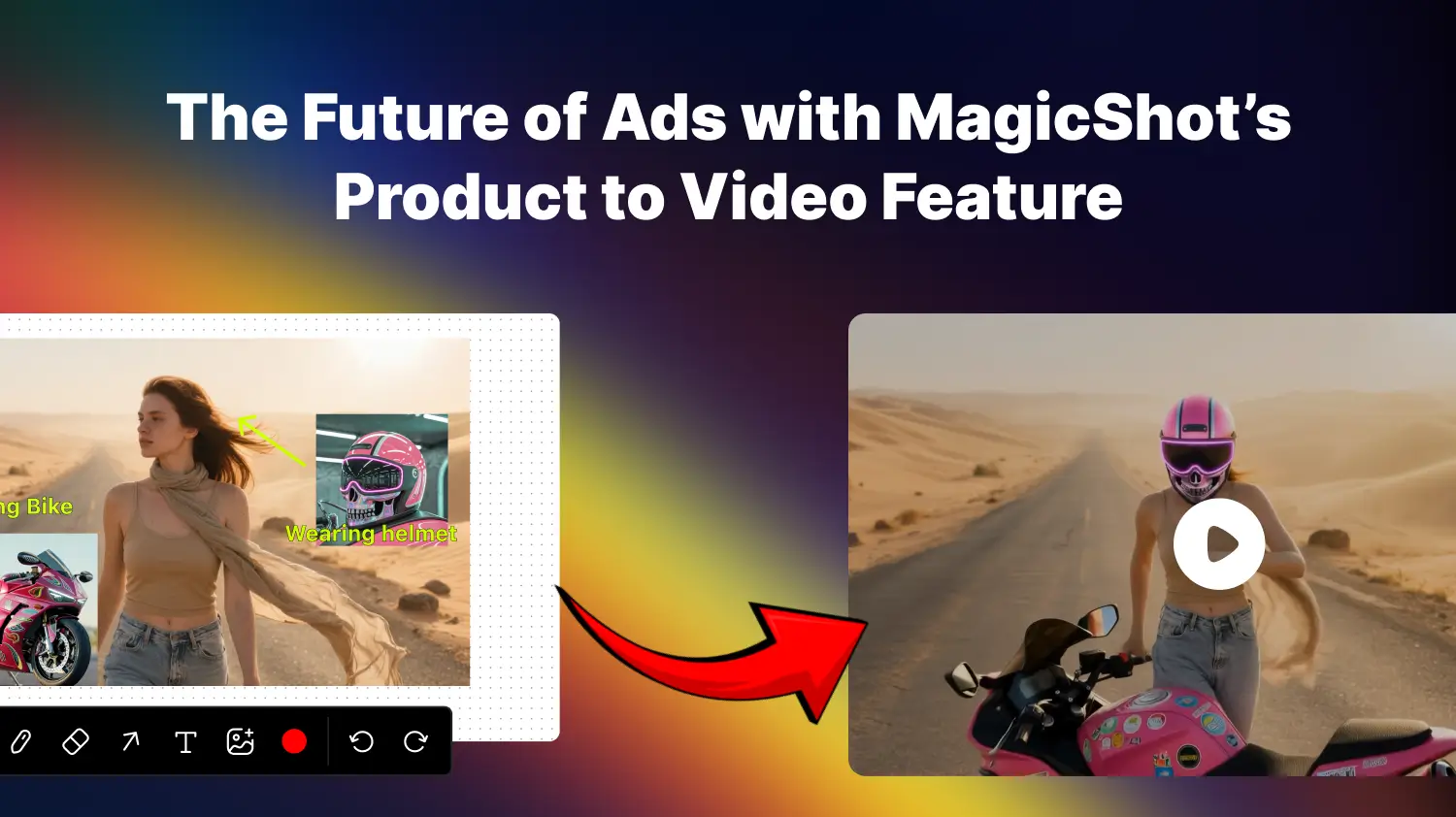
What is Product to Video?
Product to Video is MagicShot’s latest feature that transforms static product photos into professional-looking video ads. It’s built for e-commerce sellers, marketers, and creators who want scroll-stopping content without the cost or time of traditional production. Simply upload an image, then edit it inside a guided Canvas. After that, the AI generates a finished video in either 720p or 1080p resolution.Why It Matters
Video ads are proven to grab more attention than static images. Until recently, however, creating high-quality product videos meant hiring a production team or spending hours in editing software. MagicShot changes that by making the process instant, customizable, and accessible to anyone. This isn’t just about speed - it’s about control and flexibility, two things most AI competitors overlook.Use Cases of MagicShot’s Product to Video
E-commerce Sellers
Online shops often struggle to make their product listings stand out. With Product to Video, a simple product photo can be turned into a professional video ad in seconds. Sellers can highlight details, add movement, and create scroll-stopping clips for platforms like Amazon, Shopify, or Etsy without needing expensive shoots.Digital Marketers
For marketers, testing different creatives is key to finding what converts. Product to Video makes it easy to produce multiple variations of an ad quickly. Instead of reshooting or hiring editors, marketers can use the Canvas to tweak animations, swap backgrounds, and generate polished 6 or 10 second ads optimized for campaigns.Influencers and Creators
Influencers and content creators thrive on short-form videos. Product to Video lets them repurpose photos into engaging clips for TikTok, Instagram Reels, or YouTube Shorts. Adding text, arrows, or extra images in the Canvas makes the videos more personal and storytelling-driven, helping creators stay consistent with daily content.Small Businesses
Many small businesses don’t have the budget for professional videographers. Product to Video provides an affordable alternative, giving them cinematic-looking ads without production costs. Whether it’s a local café promoting new menu items or a boutique showcasing fashion products, small brands can compete with bigger players on social feeds.Product Launches
Launching a new product often requires building hype fast. With Product to Video, brands can upload teaser images and turn them into animated previews almost instantly. This flexibility allows for quick turnaround content that can be used across ads, social media, and email campaigns to build momentum before launch day.Social Media Advertising
Every social platform favors video. Product to Video creates ready-to-publish clips sized and styled for TikTok, Instagram, Facebook, and YouTube. Instead of posting static images, brands can create dynamic ads that boost reach and engagement, all generated directly from photos.Rapid Prototyping for Agencies
Creative agencies often need to pitch concepts to clients. Product to Video can act as a prototyping tool, showing how a campaign might look without investing in full production upfront. Agencies can generate quick mockups in 720p or showcase polished 1080p clips as part of a presentation.
Inside the Canvas: A Hands-On Guide
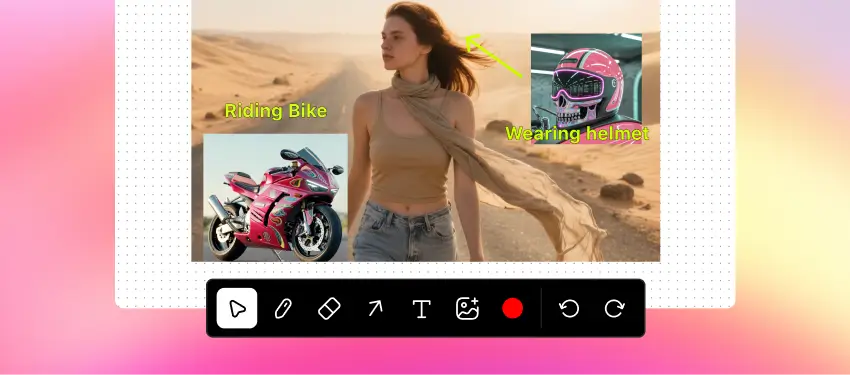
At the heart of Product to Video is the Canvas, the workspace where you decide what your final video will look like. Unlike black-box generators that give you a preset output, the Canvas lets you direct the animation. Here’s how the tools work:
Mouse Tool, Move and reposition any image or element on the Canvas. It’s the simplest way to control layout.
Pen Tool, Draw shapes, lines, or outlines to show the AI what you want animated. It’s where your ideas take form.
Eraser Tool, Clean up mistakes or remove drawn elements quickly without affecting the original image.
Arrow Tool, Point to objects or mark movement directions with clear arrows.
Text Tool, Add short words or notes on the Canvas to describe what’s happening in your scene.
Image Tool, Upload extra images onto the Canvas, like a product shot, a prop, or a logo.
Color Picker, Choose the color for your pen, arrows, or text to keep your edits clear and readable.
Undo/Redo, Go back or forward on any action so you never lose your flow.
This guided approach means you’re not just generating a video, you’re designing it step by step.